ByteDance Unifies TraeWork TraeCode? On October 9, 2026, TRAE announced that TraeWork and TraeCode had merged into a unified development platform combining an Agent workspace with a conventional IDE environment. The new TRAE supports multi-project agent tasks, interactive code editing, and selected task and configuration synchronization across its interfaces, with desktop, web, and mobile workflows. Existing TraeWork users have until October 23 to complete the documented migration process before the legacy service becomes unavailable. For developers, the change highlights how AI-assisted planning and hands-on code development can coexist within one product without implying that all execution contexts or project files share a single underlying runtime.
Why ByteDance Merged TraeWork and TraeCode
At a Glance
- TraeWork and TraeCode have officially merged into a single client, establishing a unified interface with Agent and IDE modes across desktop, web, and mobile.
- Standalone TraeWork services will shut down on October 23, 2026, with user chat histories, local data, and commercial credits migrating through a guided client upgrade.
- The integration provides shared access to project files, task conversations, and generated assets without establishing an unverified unified backend runtime.
The early era of generative AI development tooling was characterized by fragmentation. Code completion assistants operated strictly inside traditional integrated development environments (IDEs), while general-purpose chat agents and document generation tools functioned inside standalone productivity applications. Under this decoupled paradigm, software development remained disjointed. An engineer had to draft architectural specifications in one application, switch to a browser to generate mockups, and manually transfer snippets into an editor for debugging.
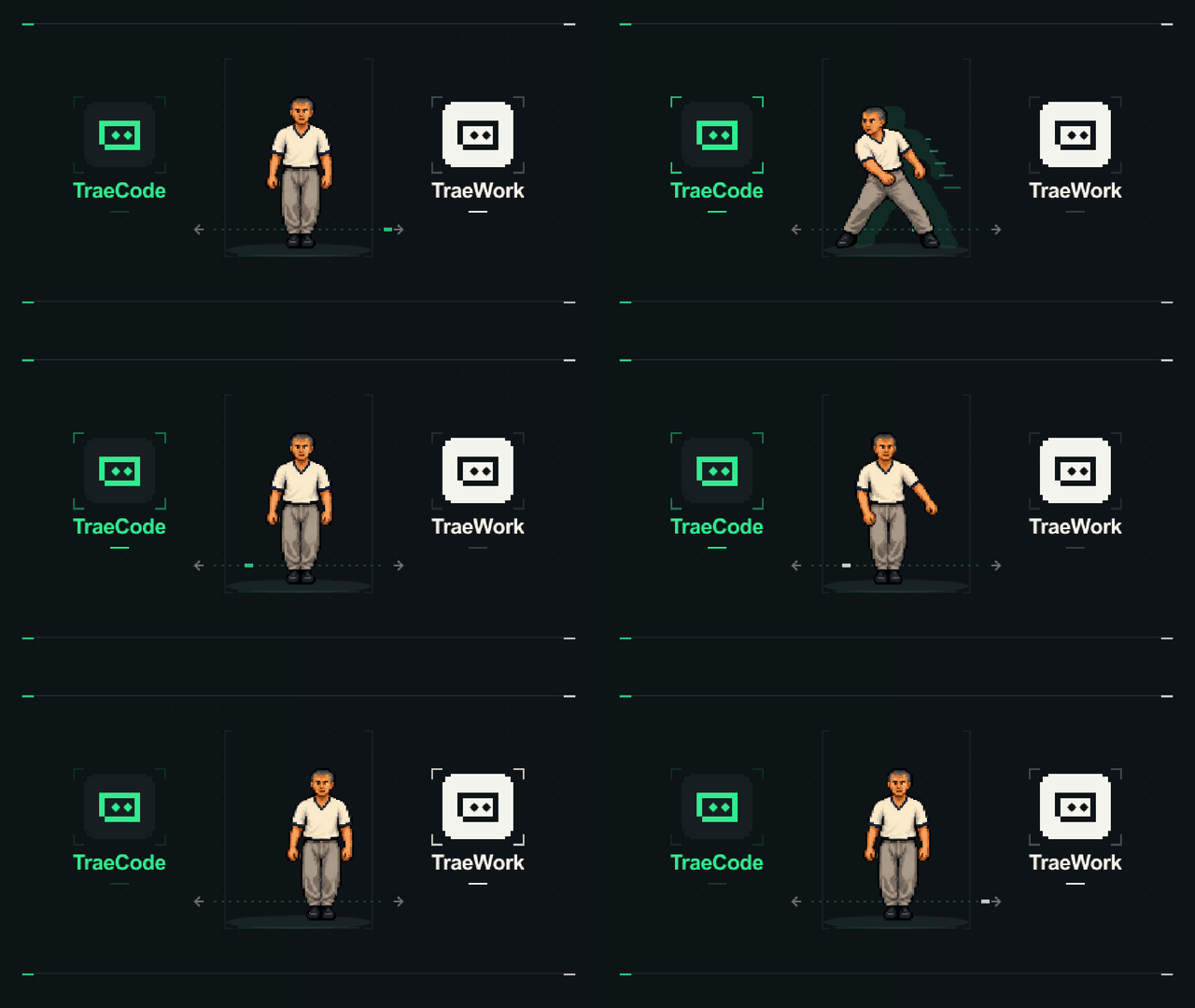
ByteDance’s TRAE brand initially mirrored this division. TraeCode was designed specifically for professional software engineers requiring deep syntax editing, repository indexing, and terminal debugging. Meanwhile, TraeWork focused on product management, technical writing, task scheduling, and office automation. As detailed in the official TRAE forum announcement, maintaining two separate tools introduced unnecessary context switching. Real-world software delivery does not separate requirements planning from code implementation; rather, turning an idea into a functional prototype requires continuous interaction between specifications, test suites, and source code. By merging both clients into the unified TRAE platform, ByteDance eliminates these artificial application boundaries.
How TRAE’s Agent and IDE Windows Work
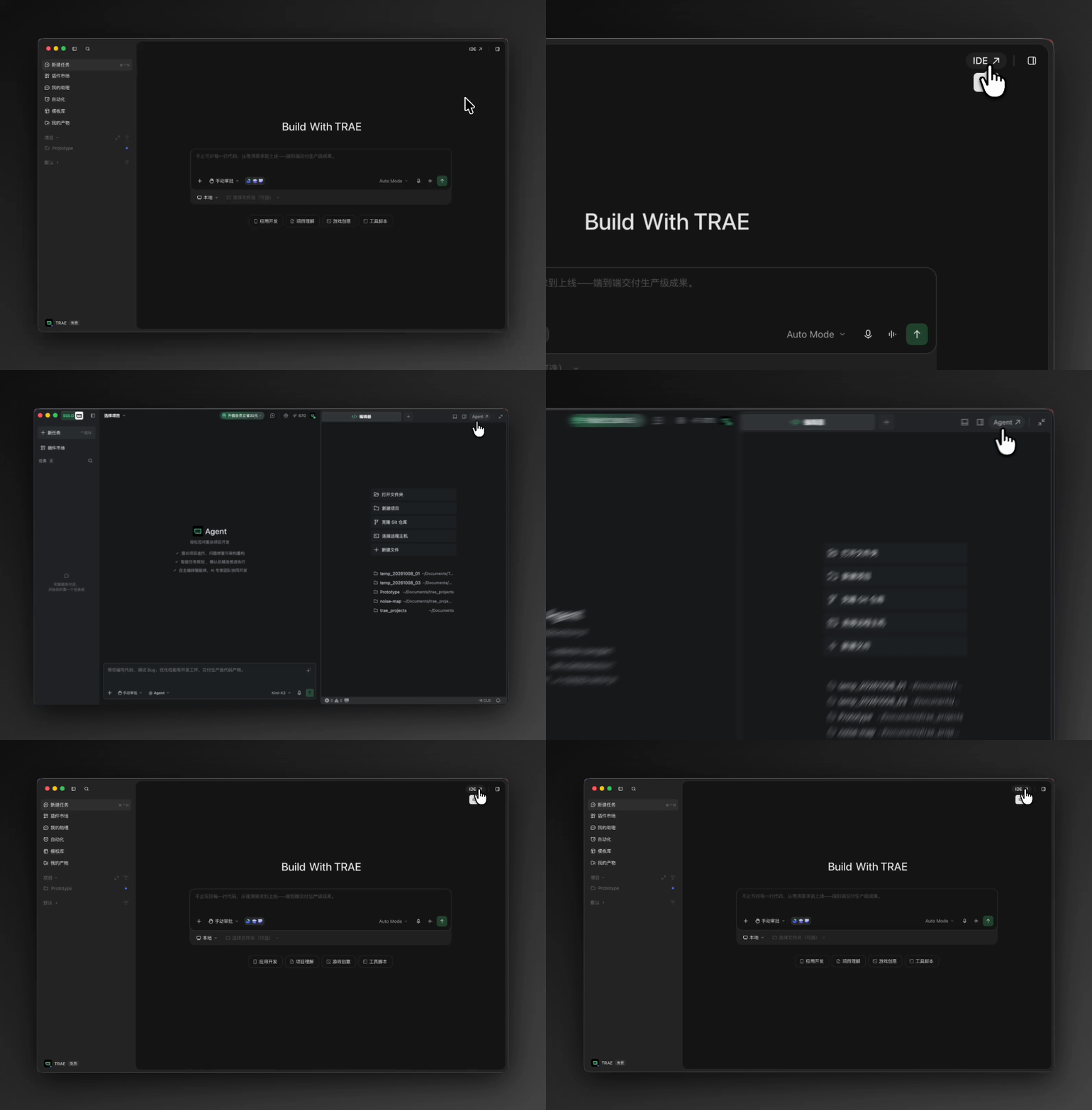
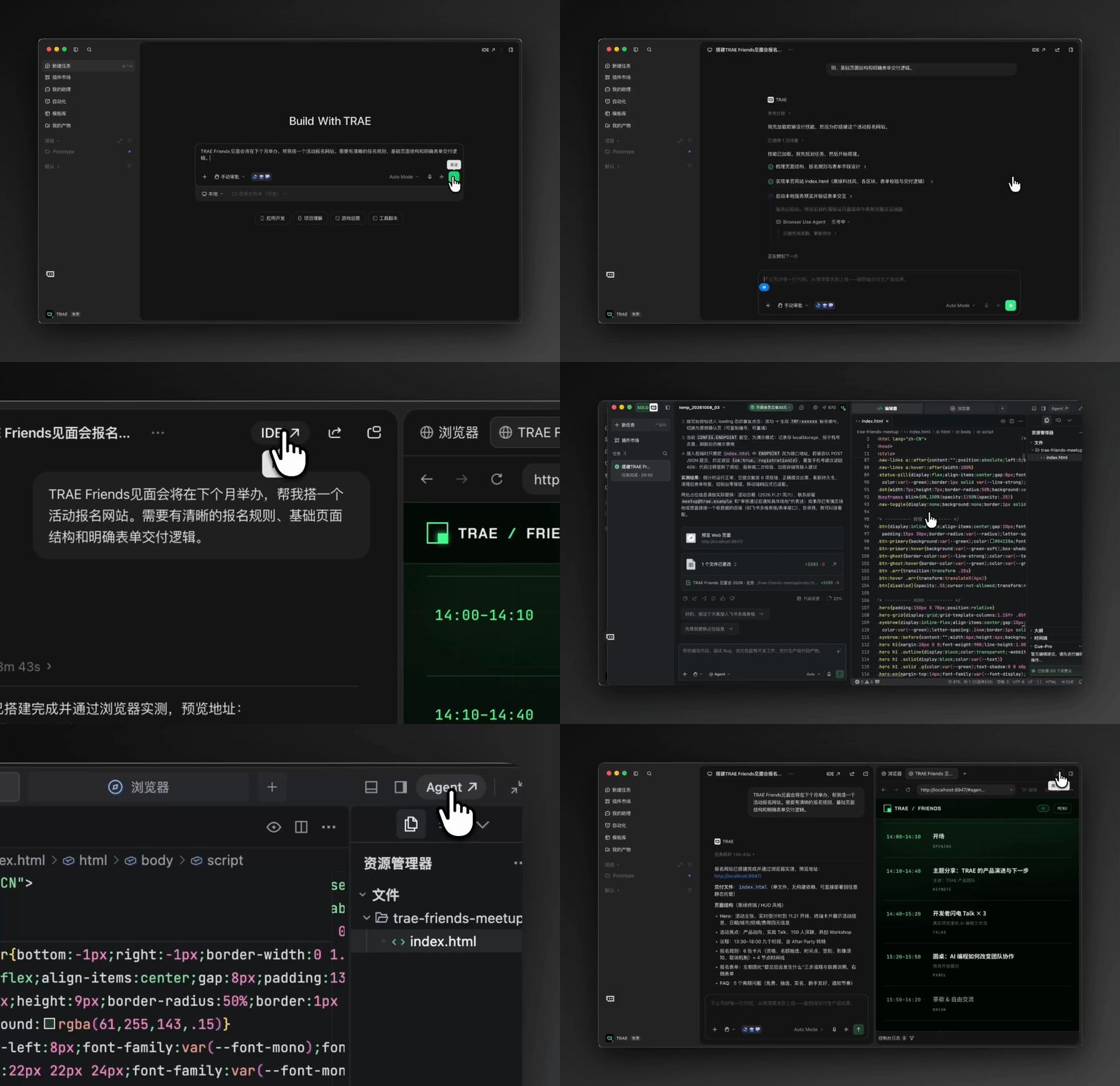
At the user interface level, the unified platform provides two distinct workspaces: the Agent window and the IDE window. According to the TRAE Getting Started documentation, launching the application opens the standard IDE window by default, with a dedicated toggle button located in the upper-right corner allowing developers to open the Agent window.
[Unified TRAE Platform]
           |
           +-------------------------------+
           |                               |
           v                               v
    [Agent Window]                    [IDE Window]
      - Multi-project tasks             - Code editing
      - Multi-agent orchestration       - Debugging and terminal
      - Local/cloud/worktree tasks      - Source control
      - Task progress and artifacts     - IDE / SOLO modes
           |                               |
           +---------------+---------------+
                           |
                           v
              [Documented Synchronization]
                - Supported local projects and files
                - Local task conversations and outputs
                - Cloud/worktree task progress
                - MCP, skills, rules, and settings

[Not Publicly Specified]
  - Internal runtime boundaries
  - Database or storage schemas
  - Cross-agent transaction guarantees
  - Conflict resolution algorithms
  - Model context serialization format
This diagram represents TRAE’s documented user-facing architecture and synchronization behavior, not an independently verified internal runtime design.
The two workspaces serve complementary development functions:
- Agent Window: Designed as a macro workspace for task management and multi-agent coordination, as outlined in TRAE Agent Window documentation. Developers can initiate tasks across multiple project directories, connect to remote SSH environments, or deploy Git worktrees via TRAE Worktree features to isolate experiments without disturbing the active branch.
- IDE Window: Retains a full coding environment including syntax highlighting, terminal access, debugging, and source control. Within the IDE window, developers can choose between traditional IDE mode for fine-grained manual edits and SOLO mode, where the AI assistant takes an active role in planning, modifying code, running tests, and previewing results under developer supervision.
What Synchronizes Between TRAE Workspaces
A critical question for engineering teams is how data flows between the Agent window and the IDE window. While the application provides cross-window continuity, it does not guarantee an underlying transactional database that automatically prevents concurrent file write conflicts across autonomous agents.
Instead, TRAE establishes specific synchronization scopes:
- Project Files: File edits generated in one window reflect in the shared project directory on the local disk.
- Project Artifacts (My Artifacts): TRAE provides a unified place to view supported generated outputs, including code changes, HTML, documents, images, videos, and reports. This does not establish any particular internal indexing schema or transaction guarantees.
- Configuration & Tools: Workspace configurations, Model Context Protocol (MCP) servers, custom skills, and user rules synchronize across workspaces under the same authenticated account.
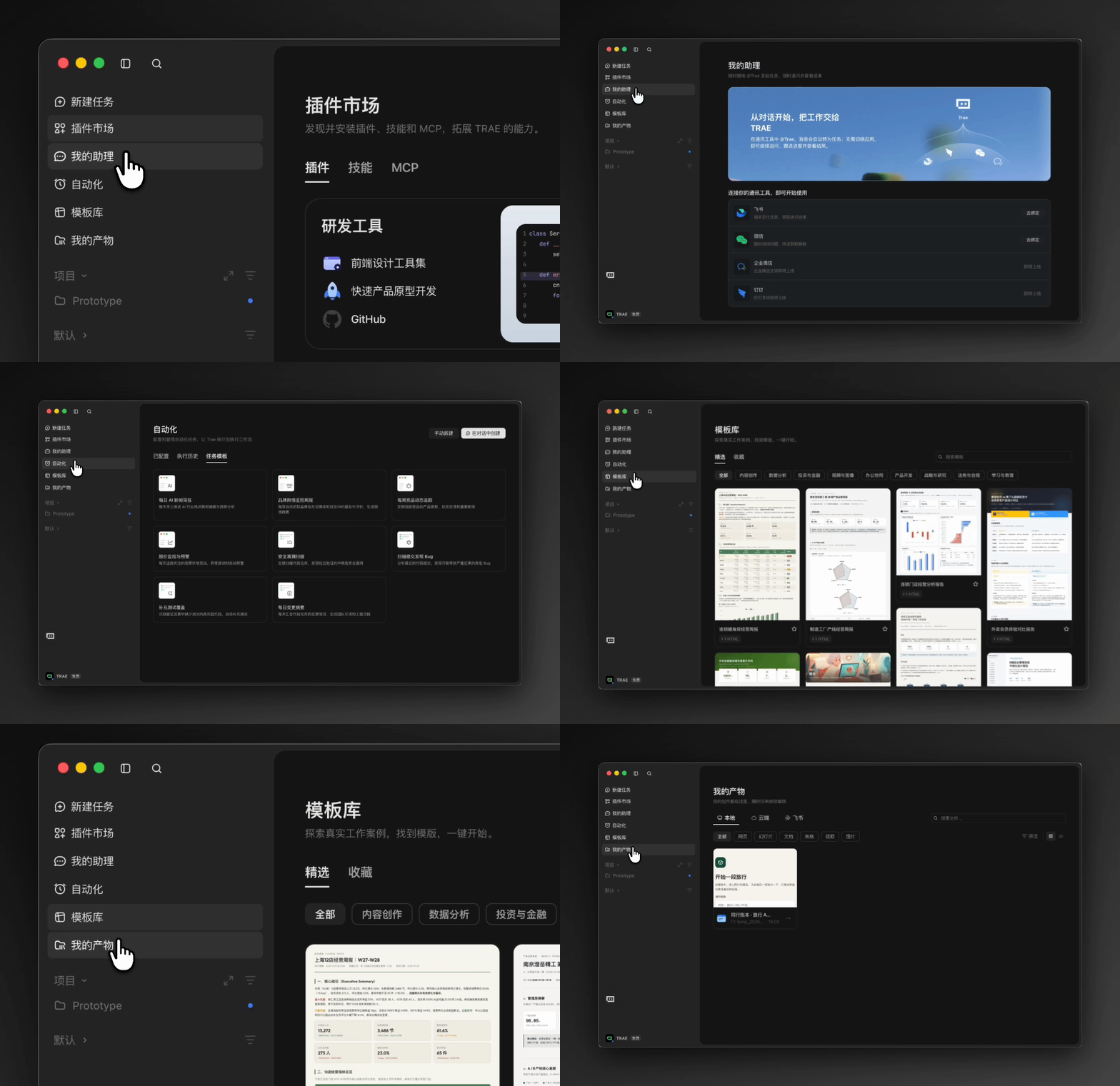
When collaborating across devices, the TRAE mobile integration documentation indicates that mobile Code mode accesses the currently active desktop project, storing task conversations and intermediate outputs in cloud storage to facilitate remote monitoring.
The matrix below outlines the documented capabilities, operational scopes, and synchronization boundaries across TRAE’s interfaces:
| Workspace Feature | Agent Window | IDE Window (IDE Mode) | IDE Window (SOLO Mode) | Documented Synchronization |
|---|---|---|---|---|
| Primary focus | Multi-project orchestration & multi-agent tasks | Granular manual coding, terminal, and debugging | AI-led development, planning, and preview | Project directory files and local edits |
| Execution scope | Concurrent sub-agents, local/cloud/worktree tasks | Single-project active file tree and terminal | Automated task planning and file modifications | Task conversations and Project Artifacts |
| Context tools | Custom agents, skills, and MCP integrations | Extensions, language servers, and Git tools | AI-led planning, code modification, testing, and preview | Shared MCP servers, rules, and custom skills |
| Approval model | Configurable execution approval modes | Manual developer-driven execution | Approval and confirmation behavior depends on the available mode and configured permissions | User account permissions and security settings |
TraeWork Migration Deadline and Data Retention
The unification of developer tooling introduces a hard operational deadline for legacy users. Standalone TraeWork desktop clients will permanently cease operation on October 23, 2026. Users who do not migrate prior to this date will lose access to the standalone application.
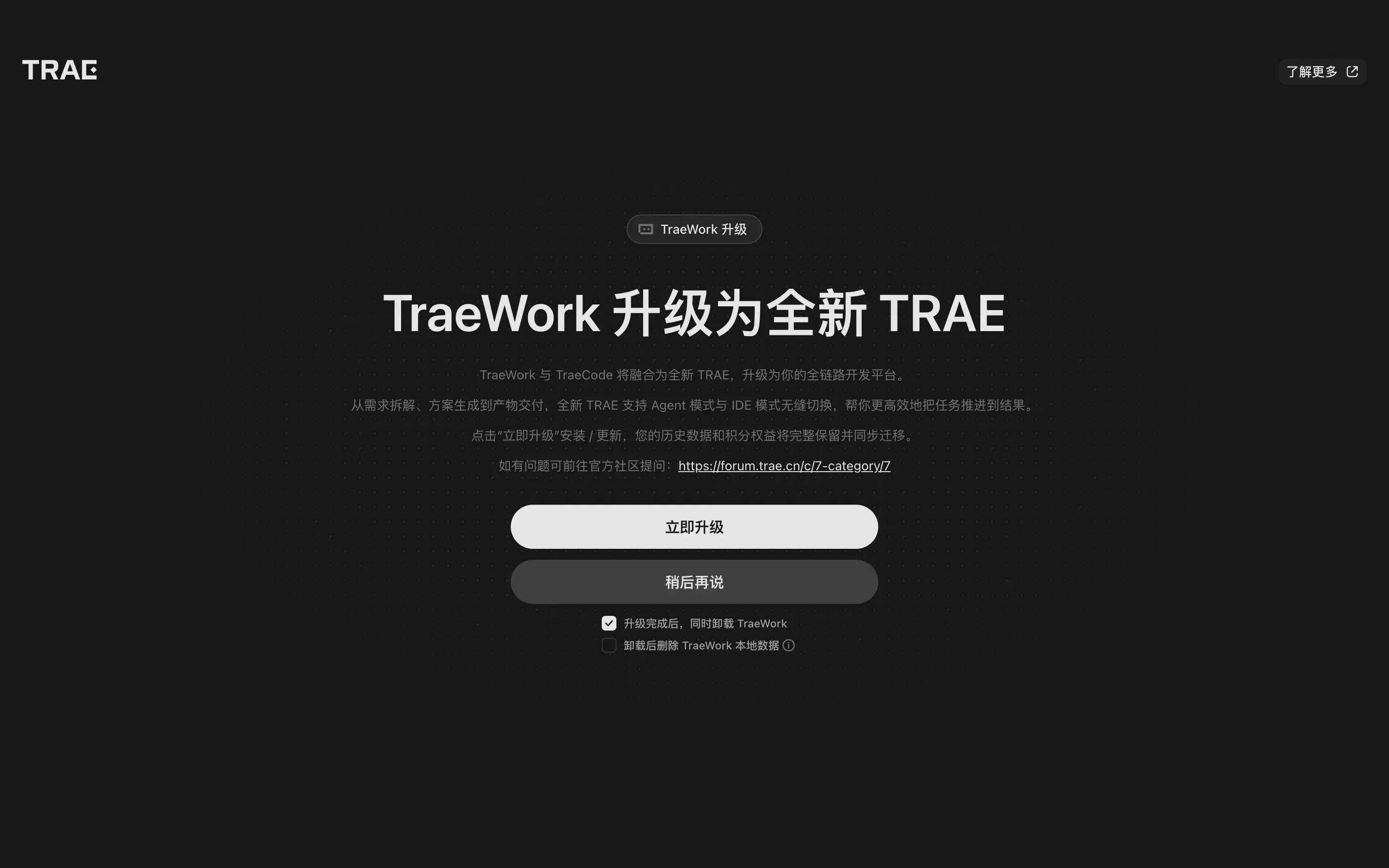
According to the official TRAE data migration documentation, TraeWork provides an in-client guided upgrade prompt. During this process, the system transfers account data, personal profile information, commercial credits, active login states, chat histories, and supported local workspace records into the new TRAE client.
The upgrade modal allows users to select whether to automatically uninstall the TraeWork desktop client upon completion. It also provides an optional checkbox to purge legacy local cache files, logs, and temporary AI data. Engineering teams should verify that all critical task outputs are accessible within the new client before selecting the option to delete local historical data.
Developer Checklist for the Unified TRAE Platform
Engineering teams transitioning their development pipelines to the unified TRAE platform should follow a structured readiness schedule to maintain operational stability.
Migration & Operational Steps
- Complete TraeWork Upgrade Before October 23: Open the legacy TraeWork desktop client, follow the guided migration flow, and confirm that personal profiles and commercial credits transfer successfully.
- Verify Local Data Deletion Preferences: Review whether corporate data governance requires purging legacy TraeWork local caches upon uninstalling the older client.
- Configure Project Rules: Establish coding standards and file path conventions by adding
.trae/rulesfiles in accordance with TRAE Rules documentation. Note that natural-language rules serve as guidance for AI agents rather than rigid security sandboxes. - Audit Agent Execution Permissions: Review permission settings within the Agent window—such as manual approval versus automated execution—before allowing autonomous tasks to execute shell commands.
- Validate MCP Integrations: If your workflow connects external enterprise databases or API endpoints via Model Context Protocol, confirm that server configurations and credentials function as expected in the new client.
Team Governance & Workflow Strategy
- Establish Worktree Isolation: Use Git worktrees when dispatching agents to refactor code or build experimental features, preventing concurrent modifications to the primary working tree.
- Supervise Multi-Agent Deliverables: When deploying parallel sub-agents for requirements breakdown and frontend generation, implement code review checkpoints to reconcile potential design discrepancies.
- Monitor Mobile Access Scopes: Review mobile connectivity policies to ensure that remote task monitoring aligns with organizational source code protection standards.
Frequently Asked Questions (FAQ)
What happens to TraeWork users who do not upgrade before October 23?
Does TRAE open into the Agent workspace by default?
Can developers use TRAE without an internet connection?
Key Takeaways for Engineering Teams
The consolidation of TraeWork and TraeCode into the unified TRAE platform reflects a practical evolution in AI-assisted developer tooling. Rather than forcing software engineering into fragmented, single-purpose utilities, modern developer platforms are seeking to unify high-level task planning with granular, line-by-line implementation.
For engineering teams, this transition reduces the friction of moving between requirements documents and source code, but it does not remove the need for technical rigor. Developers must continue to enforce strict version control, configure explicit agent execution boundaries, and independently verify multi-agent deliverables to maintain high software quality across automated workflows.
References
Share this article