Why is my smart app banner not showing on iOS? A Safari Smart App Banner may not appear because the page contains a missing or invalid apple-itunes-app meta tag, the App Store app is unavailable for the user’s device or storefront, the page is displayed inside an iframe, or Safari has retained a previous banner dismissal. Smart App Banners also do not display in the iOS Simulator. To diagnose the issue, verify the numeric app-id, inspect the top-level HTML document, check App Store availability, and test on a supported physical device.
An Apple Smart App Banner is a Safari-integrated promotional interface configured using an Apple-defined HTML meta tag that enables users across iOS, iPadOS, and macOS to launch or download an App Store application with optional app-opening URL context. When properly parsed by WebKit, the banner displays dynamic store metadata, application pricing, and installation states directly within the browser interface.
| Term | Definition | Related Entity | Search Intent Role |
|---|---|---|---|
| Smart App Banner | A native Safari UI header that links web pages to App Store apps. | Apple WebKit | Informational / Technical |
| apple-itunes-app | The Apple-defined HTML meta tag name required by Safari for banner rendering. | HTML Meta Element | Technical |
| app-argument | An optional URL value that provides app-opening context to the installed app. | Custom URL Scheme | Technical / Informational |
Root Causes: Why Does Safari Suppress the Smart App Banner
The Syntax Requirement: Malformed content Strings and Missing Comma Separators
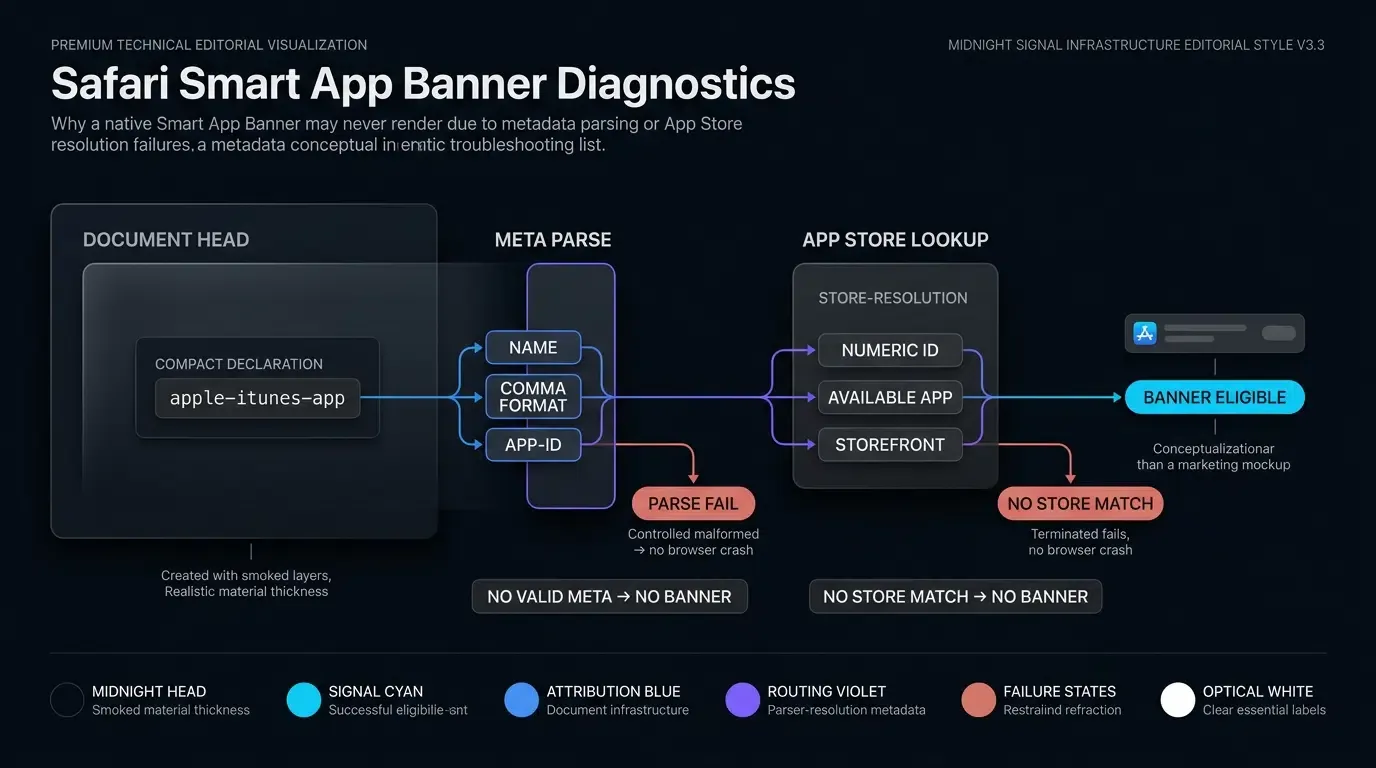
The foundation of native web-to-app routing on Apple platforms relies on WebKit parsing the <meta name="apple-itunes-app"> header tag. WebKit requires a comma-delimited key-value structure within the content attribute. If a developer omits the mandatory app-id key, misspells attribute directives, or uses semicolon delimiters instead of commas, WebKit may fail to recognize the metadata tag without logging an explicit error to the standard console.
A common structural mistake involves incorrect punctuation or parameter formatting:
<!-- Incorrect: Semicolon delimiter causes WebKit parse failure -->
<meta name="apple-itunes-app" content="app-id=1234567890; app-argument=myapp://product/123">

<!-- Correct: Strict comma-separated attributes -->
<meta name="apple-itunes-app" content="app-id=1234567890, app-argument=myapp://product/123">
Furthermore, the app-id value must represent the exact numerical Apple Store ID assigned in App Store Connect. Providing an application’s bundle identifier (e.g., com.example.myapp) or an iTunes Team ID will cause the banner request to fail silently because Safari queries the App Store catalog using numerical identifiers.
Store State Dependencies: Regional App Store Restrictions and Unreleased Applications
Safari Smart App Banners do not render static local assets. When WebKit parses an apple-itunes-app tag, Safari queries App Store availability and app metadata to retrieve the localized application icon, title, developer name, price, and current installation state on the device.
If the application is not yet publicly indexed or available in the device storefront, Safari will not render the banner. Similarly, if the application is restricted to specific geographical storefronts (e.g., available exclusively on the US App Store) and the testing device’s Apple ID or storefront setting points to a different regional storefront, the query yields no matching item. In both scenarios, Safari suppresses banner rendering entirely.
Client Runtime Exclusions: Private Browsing Mode and Explicit Banner Dismissal History
Client-side browsing contexts frequently prevent Smart App Banners from appearing on real test devices:
- Private Browsing Mode: Testing in Private Browsing tabs can prevent banners from displaying consistently. In certain specialized experiences—such as App Clip banners—Apple explicitly requires standard browsing tabs. When diagnosing banner visibility, engineers must verify behavior in standard, non-private browsing tabs to eliminate sandbox restrictions.
- User Dismissal State: When a user taps the circular “X” dismissal button on the banner, Safari remembers that the user dismissed the banner on that specific web domain. WebKit will not display the banner again immediately upon return visits, preventing unwanted prompts for users who declined the app.
Device Environment Constraints: Desktop-Class iPadOS User-Agent Masks
Beginning with iPadOS 13, Safari on iPads defaults to desktop-class browsing, sending a User-Agent string resembling desktop Safari. While Apple designs Smart App Banners to function across iOS and iPadOS devices, desktop-class User-Agent strings can break naive website-side device detection scripts.
If your web server or frontend application relies on legacy User-Agent parsing to selectively inject the <meta name="apple-itunes-app"> tag only for mobile devices, it may mistakenly classify an iPad as a desktop computer and omit the tag entirely. Testing on physical iPads requires inspecting the served HTML to ensure the meta tag is present in the initial DOM response regardless of desktop-class headers.
How to Validate the apple-itunes-app Meta Tag Syntax
Attribute Anatomy: Dissecting the Required app-id and Optional app-argument Directives
The <meta name="apple-itunes-app"> tag supports key directives within its content attribute:
app-id(Mandatory): Must contain only the unique numerical identifier assigned to the application in the App Store. Non-numeric characters or bundle identifiers invalidate the directive.app-argument(Optional): A custom URL scheme or Universal Link URI designed to pass routing context into the native application upon launch. Query parameter values within the URI must adhere strictly to IETF RFC 3986 encoding standards.- App Clip Directives (Optional): App Clip Smart App Banners are supported on compatible iOS releases; specifying
app-clip-bundle-idrenders the experience, while theapp-clip-display=cardcard presentation requires iOS 15 or later. Note that App Clip banners require an active App Clip experience configured in App Store Connect and an associated domain file hosted on the website, andapp-argumentis not used by App Clips.
The implementation snippet below illustrates correct HTML metadata declaration and attribute sanitation patterns:
<!-- File: index.html (Document Head) -->

<!DOCTYPE html>
<html lang="en">
<head>
    <meta charset="UTF-8">
    <meta name="viewport" content="width=device-width, initial-scale=1.0">
    <title>Application Landing Page</title>

    <!-- Standard Apple Smart App Banner Meta Tag -->
    <!-- app-id: Required numeric App Store ID (Do NOT use bundle IDs or SKU strings) -->
    <!-- app-argument: Optional RFC 3986 compliant URI parsed when app is already installed -->
    <meta name="apple-itunes-app" content="app-id=1234567890, app-argument=myapp://product/456?ref=web_banner">

    <!-- Optional App Clip support (app-clip-bundle-id on iOS 14+; app-clip-display=card requires iOS 15+) -->
    <!-- Note: App Clips require an active App Clip experience configured in App Store Connect -->
    <!-- and an apple-app-site-association file hosted on the domain. app-argument is not used by App Clips. -->
    <!-- <meta name="apple-itunes-app" content="app-id=1234567890, app-clip-bundle-id=com.example.myapp.Clip, app-clip-display=card"> -->
</head>
<body>
    <main>
        <h1>Welcome to Our Service</h1>
        <p>Browse content or download our native application for the best experience.</p>
    </main>
</body>
</html>
Common Markup Pitfalls: Double Quotes, Escaping, and Spacing Rules
When dynamic content engines, content management systems (CMS), or server-side rendering (SSR) templates inject parameters into the content string, nested quote collisions frequently break HTML parsing.
If dynamic parameters contain query strings, developers must URL-encode the parameter values while maintaining a valid URI structure:
<!-- Broken: Unescaped nested quotes terminate the content attribute prematurely -->
<meta name="apple-itunes-app" content="app-id=1234567890, app-argument=myapp://open?data={"user":"123"}">

<!-- Fixed: Strict URI encoding on query parameter values -->
<meta name="apple-itunes-app" content="app-id=1234567890, app-argument=myapp://open?data=%7B%22user%22%3A%22123%22%7D">
Additionally, developers should avoid extraneous whitespace within directive keys (e.g., content=" app-id=1234567890"), ensuring clean, standard attribute formatting across all browser engines.
Debugging with Safari Web Inspector: Inspecting the DOM Tree on Real iOS Devices
Diagnosing silent meta tag failures can use a physical device connected to a Mac for remote Web Inspector diagnostics. Apple explicitly documents that Smart App Banners do not appear in the iOS Simulator, making physical hardware mandatory for verification:
- Enable Web Inspector on iOS: On the physical iPhone or iPad, navigate to Settings > Safari > Advanced and toggle Web Inspector to active.
- Enable Developer Tools in macOS Safari: On your Mac workstation, open Safari, navigate to Settings > Advanced, and check Show features for web developers.
- Connect and Inspect: Connect the device to the Mac workstation, open Safari on the Mac, navigate to the Develop menu, select the attached device, and choose the active web page tab.
- Verify Document Head Elements: Inspect the
<head>section within the Elements tab. Confirm that the<meta name="apple-itunes-app">tag exists in the parsed DOM, and compare it against the original server-rendered HTML to ensure client-side single-page application (SPA) hydration scripts did not remove it. - Verify Served HTML Source: Right-click the page and view source to ensure server-side rendering delivers the meta tag before JavaScript execution begins, as WebKit parses banner metadata during initial document compilation.
Client-Side Environments That Silently Disable Native Safari Banners
Platform and Frame Exclusions: iOS Simulator and iframe Restrictions
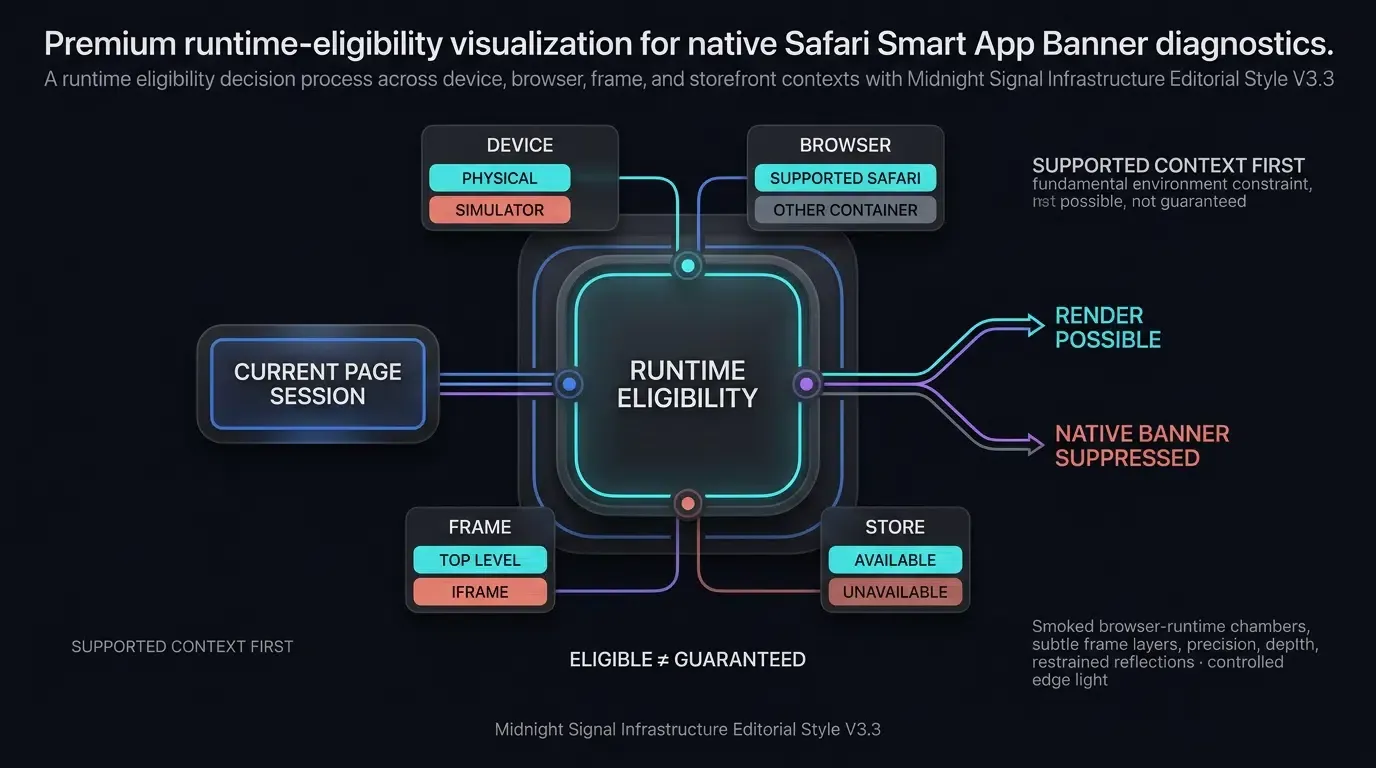
Apple documents clear platform restrictions where native Smart App Banners are fundamentally unsupported:
- iOS Simulator Incompatibility: Apple’s official WebKit documentation confirms that Smart App Banners do not appear in the iOS Simulator. Developers must perform display testing on physical hardware.
- iframe Suppression: Smart App Banners will not appear if the web page is loaded inside an
<iframe>container. The meta tag must exist in the top-level parent document head to trigger system banner rendering.
User Dismissal Tracking: Managing Domain Suppression States
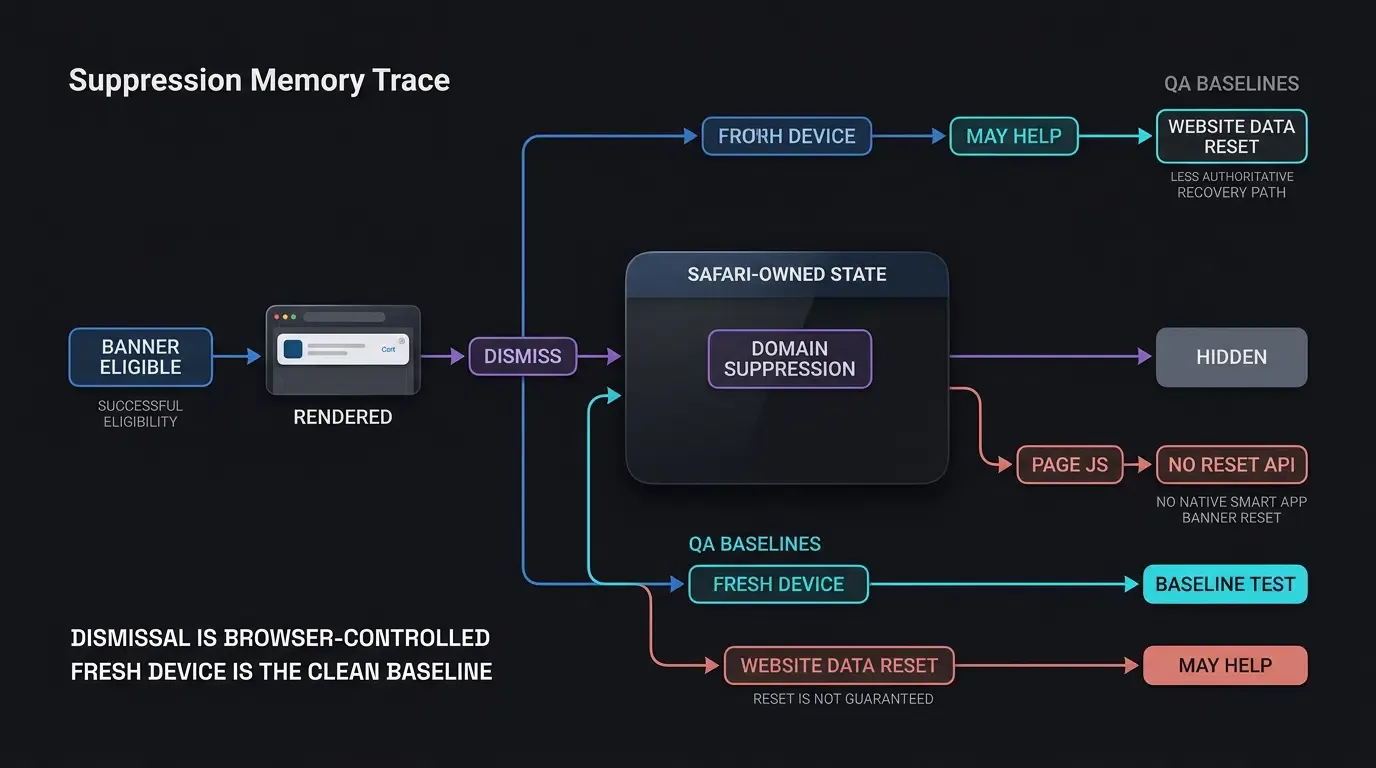
When a user clicks the “X” button on the left edge of a Smart App Banner, WebKit registers an explicit dismissal event. WebKit suppresses the banner on that specific web domain during return visits to avoid repetitive intrusion.
To clear dismissal history during development and testing:
- Targeted Domain Storage Removal: Navigate to Settings > Safari > Advanced > Website Data. Search for your testing domain, swipe left, and tap Delete. While this may help reset domain flags on certain iOS versions, it does not guarantee dismissal clearance in all environments.
- Testing Across Unused Test Devices: Verifying on an alternate physical device that has never loaded or dismissed the banner provides an immediate, reliable baseline to confirm whether disappearance is caused by dismissal state.
- Global History Reset: If domain data clearing does not restore the banner, navigate to Settings > Safari, tap Clear History and Website Data, and confirm. Note that this clears stored browser logins and active sessions across all sites.
Third-Party Browser Restrictions: Evaluating Non-Safari Container Limitations
A frequent source of diagnostic confusion is expecting native Smart App Banners to render identically across all mobile browsers. The <meta name="apple-itunes-app"> tag is a feature integrated directly into Safari across iOS, iPadOS, and macOS.
Different web containers handle native banners according to distinct platform boundaries:
- Third-Party iOS Browsers: Google Chrome, Mozilla Firefox, Microsoft Edge, and Opera on iOS. Although these browsers utilize Apple’s WebKit engine under platform policies, their application layers do not implement the UI chrome required to render Apple’s native store banner.
- Ordinary In-App WebViews: Standard browser containers within social networks and messaging platforms (such as WeChat, Instagram, Facebook Messenger, Slack, and TikTok) operate within isolated
WKWebViewinstances that do not render native Safari system banners. - SFSafariViewController Containers: When an iOS application presents web content via
SFSafariViewController, native Safari features—including App Clip banners where supported—may display depending on the host application configuration. - Android Browsers: Google Chrome, Samsung Internet, and Firefox on Android contain no parsing architecture for Apple-specific metadata headers.
Technical Differences Between Native Apple Banners and Dynamic Web Banners
Cross-Platform Availability: The Android and Desktop Blindspot of Native Safari Banners
Native Smart App Banners do not address multi-platform user journeys. With Android representing a substantial portion of global mobile traffic and third-party iOS browsers commanding significant usage, relying exclusively on <meta name="apple-itunes-app"> leaves non-Safari mobile visitors without an integrated app install prompt.
A comprehensive web-to-app conversion strategy utilizes responsive banner mechanics. Dynamic banners can be adapted to show mobile download links or desktop QR code prompts through additional application-specific configuration.
Contextual Deep Linking Limits: How app-argument Behaves Across App Installations
The native Smart App Banner’s app-argument attribute functions reliably when the application is already installed on the target device. In this scenario, tapping “OPEN” launches the app and passes the custom URL scheme directly to the application delegate via system URL handling APIs.
However, if the application is not installed, tapping the banner directs the user to the App Store product page. If the user installs the app and performs an independent cold launch from their home screen, Apple does not automatically forward the app-argument string to the initial runtime launch context. Applications requiring preserved context across fresh installations must deploy deferred deep-linking engines that correlate web engagement context with first launch events.
Custom Branding and Localization: Comparing Fixed Apple Banners Against Renderable HTML Banners
Native Safari banners enforce an immutable system appearance. Developers cannot customize the font, colors, call-to-action wording, layout, or dimensions of the native bar. The system displays the primary App Store icon and default pricing string regardless of promotional campaigns.
Dynamic web banners, by contrast, offer complete creative control. Developers can A/B test marketing copy, render localized promotional badges, highlight limited-time discount codes, and integrate custom animation states to drive higher click-through rates (CTR).
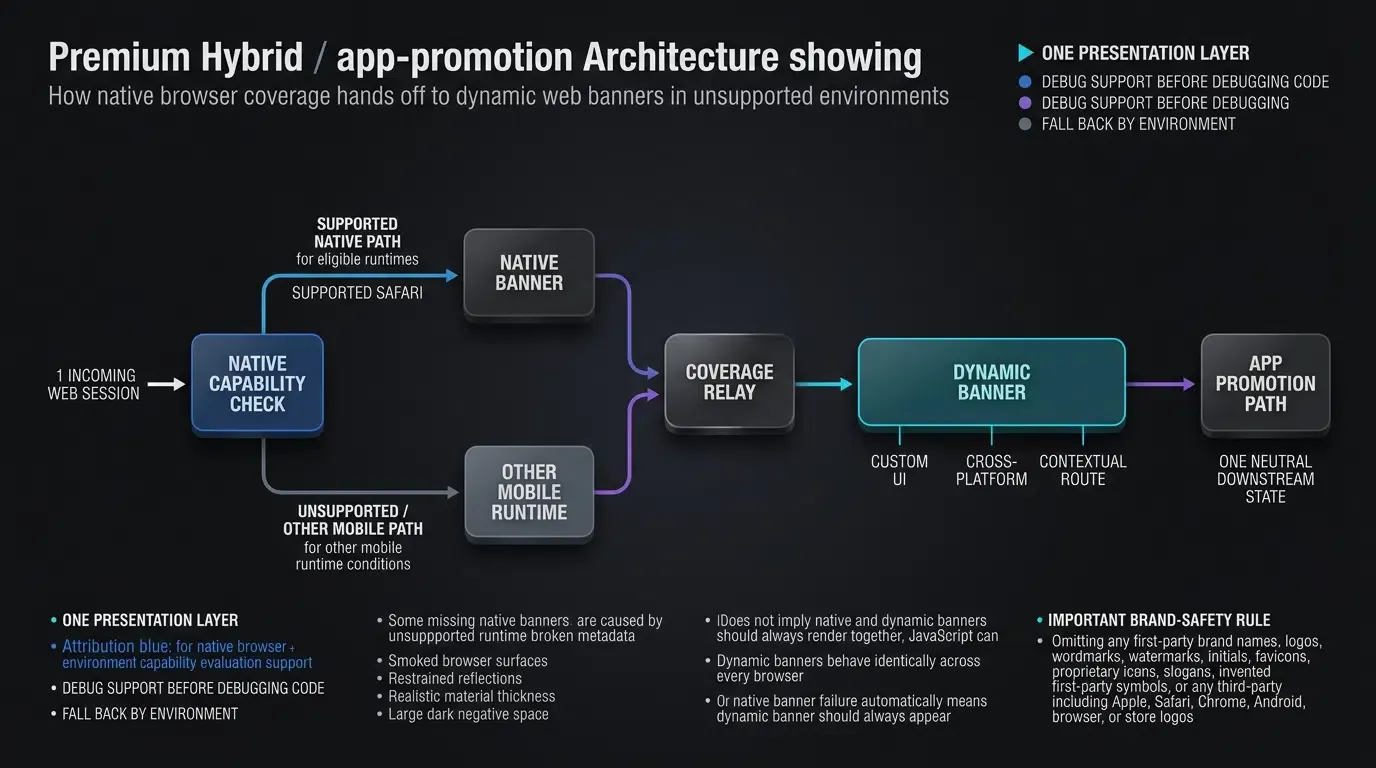
The diagram below contrasts the native Safari execution path against an omni-channel dynamic banner architecture:
[Web Visitor Arrives] ──> Checks Browser User-Agent & Environment
         │
         ├──> Safari on a Supported Apple Platform ──> Native Smart App Banner May Render
         │                                            (Subject to App Availability and Eligibility)
         │
         └──> Android / Chrome / In-App WebView ──> Native Banner Unsupported
                  │
                  ▼
         [Dynamic Web Banner Solution] ──> Improves Cross-Platform App-Promotion Coverage
Step-by-Step Diagnostic Matrix for Smart App Banner Failures
A Structural Checklist for Web Developers and Mobile QA Engineers
When debugging missing banners, engineering teams should follow a structured diagnostic progression. Isolating platform syntax errors from device environment restrictions prevents wasted development cycles.
The diagnostic matrix below outlines common failure symptoms, root causes, verification methods, and corrective actions:
| Failure Symptom | Underlying Root Cause | Verification Method | Corrective Action |
|---|---|---|---|
| Banner never renders | Invalid or missing app-id |
Inspect DOM in Safari Web Inspector | Ensure numeric app-id matches App Store ID |
| Banner missing during QA | Tested inside iOS Simulator | Check testing device environment | Test exclusively on supported physical iOS hardware |
| Banner missing inside wrapper | Page embedded within an <iframe> |
Check DOM hierarchy in Web Inspector | Move meta tag to top-level parent document |
| Banner renders but won’t open app | Malformed app-argument URL |
Check URL scheme in native manifest | Format app-argument as valid RFC 3986 URI |
| Custom banner missing on iPad | Naive desktop-class UA parsing | Inspect rendered HTML on iPad | Update device detection to recognize touch screens |
| Banner missing after initial test | Dismissal state saved in Safari | Clear Safari website data | Clear domain cache or test on fresh physical device |
| Banner missing in Chrome/WeChat | Third-party browser container | Check browser client application | Deploy cross-platform dynamic web banner |
| Banner missing internationally | App Store regional storefront mismatch | Check Apple ID App Store country | Verify app is published in target storefront |
Implementing Fallbacks and Cross-Platform Smart App Banners
Overcoming Native Apple Limitations with JavaScript-Driven Smart Banners
To improve cross-platform app-promotion coverage across mobile Safari, third-party iOS browsers, and Android devices, development teams deploy JavaScript-driven dynamic smart banners alongside native tags.
Plain client-side JavaScript running in a web page cannot detect whether Safari’s native Smart App Banner was suppressed by dismissal history or store availability. Therefore, the recommended architecture utilizes native <meta name="apple-itunes-app"> tags for mobile Safari users while rendering responsive HTML banners in selected environments where native Safari banners may be unavailable.
Detecting Mobile Environments and Preserving a Download Link Fallback
Dynamic banner architectures inspect client capabilities using heuristic environment detection while maintaining an accessible fallback link.
The implementation example in [CODE_BLOCK_02] demonstrates how to configure responsive HTML markup, inspect device environments safely, handle storage dismissal exceptions, dynamically coordinate layout padding, and bind routing events using the OpoInstall Web JS SDK. Note that the HTTPS fallback destination is application-defined; production applications must configure their live store endpoints accordingly.
Consult the web to app integration reference for technical specifications regarding Web JS SDK initialization and parameter binding.
<!-- File: smart_banner_fallback.html -->
<!DOCTYPE html>
<html lang="en">
<head>
<meta charset="UTF-8">
<meta name="viewport" content="width=device-width, initial-scale=1.0">
<title>Cross-Platform App Download</title>
<!-- Native Safari Banner for mobile Safari sessions -->
<meta name="apple-itunes-app" content="app-id=1234567890, app-argument=myapp://details/987">
<style>
/* Responsive Dynamic Smart App Banner Styles */
.dynamic-smart-banner {
display: none; /* Displayed dynamically via JavaScript for selected mobile environments */
position: fixed;
top: 0;
left: 0;
width: 100%;
min-height: 64px;
background-color: #f7f7f7;
border-bottom: 1px solid #dcdcdc;
box-shadow: 0 2px 4px rgba(0, 0, 0, 0.08);
z-index: 99999;
box-sizing: border-box;
padding: 8px 12px;
font-family: -apple-system, BlinkMacSystemFont, "Segoe UI", Roboto, Helvetica, Arial, sans-serif;
}
.banner-content {
display: flex;
align-items: center;
justify-content: space-between;
flex-wrap: wrap;
gap: 8px;
min-height: 48px;
}
.banner-info {
display: flex;
align-items: center;
gap: 10px;
}
.banner-close-btn {
background: none;
border: none;
font-size: 18px;
color: #888;
cursor: pointer;
padding: 0 4px;
}
.banner-icon {
width: 44px;
height: 44px;
border-radius: 9px;
object-fit: cover;
}
.banner-text h4 {
margin: 0;
font-size: 13px;
color: #222;
font-weight: 600;
}
.banner-text p {
margin: 2px 0 0 0;
font-size: 11px;
color: #666;
}
.banner-action-btn {
display: inline-block;
background-color: #007aff;
color: #ffffff;
font-size: 13px;
font-weight: 600;
padding: 6px 14px;
border-radius: 14px;
text-decoration: none;
border: none;
cursor: pointer;
}
</style>
</head>
<body>
<!-- Dynamic Fallback Banner Component (Rendered for Chrome, Android, and WebViews) -->
<div id="dynamic-smart-banner" class="dynamic-smart-banner">
<div class="banner-content">
<div class="banner-info">
<button id="banner-close-btn" class="banner-close-btn" aria-label="Close banner">×</button>
<img src="https://cdn.example.com/assets/app-icon.png" alt="App Icon" class="banner-icon">
<div class="banner-text">
<h4>Example Mobile App</h4>
<p>Open in App for a better experience</p>
</div>
</div>
<!-- Accessible Fallback Link: Replace with your application's live store redirection endpoint -->
<a id="banner-open-btn" class="banner-action-btn" href="https://app.example.com/download">
OPEN
</a>
</div>
</div>
<!-- Main Webpage Content -->
<main>
<h2>Product Showcase</h2>
<p>Explore catalog items with automated web-to-app routing support.</p>
</main>
<!-- OpoInstall Web JS SDK include (verify for your deployed release) -->
<script src="https://web.cdn.opoinstallcloud.com/openinstall.js"></script>
<script>
(function() {
// Step 1: Detect client browsing environment using heuristic indicators
// Note: Select the custom banner using heuristic browser signals or an explicit site-level override.
// This does not verify native Smart App Banner visibility.
var ua = navigator.userAgent || "";
var isIOS = /iPhone|iPod/.test(ua) || (navigator.platform === 'MacIntel' && navigator.maxTouchPoints > 1);
var isAndroid = /Android/.test(ua);
var isSafari = /Safari/.test(ua) && !/Chrome|CriOS|FxiOS|EdgiOS/.test(ua);
// Optional site-level override for tested environments requiring an HTML banner
var forceDynamicBanner = false;
// Safe storage inspection protecting against restricted storage policies
var isDismissed = false;
try {
isDismissed = sessionStorage.getItem("dynamic_banner_dismissed") === "true";
} catch (e) {
isDismissed = false;
}
// Render fallback dynamic banner in selected environments where native Safari banners may be unavailable
var shouldRenderDynamicBanner = !isDismissed && (forceDynamicBanner || isAndroid || (isIOS && !isSafari));
var bannerElement = document.getElementById("dynamic-smart-banner");
var closeBtn = document.getElementById("banner-close-btn");
var openBtn = document.getElementById("banner-open-btn");
// Note: This dynamic padding calculation is designed for this standalone demonstration.
// When integrating into pages with existing top padding, compute: originalPadding + bannerHeight.
var originalBodyPaddingTop = document.body.style.paddingTop || "";
function updateLayoutPadding() {
if (bannerElement && bannerElement.style.display === "block") {
document.body.style.paddingTop = bannerElement.offsetHeight + "px";
}
}
if (shouldRenderDynamicBanner && bannerElement) {
bannerElement.style.display = "block";
updateLayoutPadding();
// Recalculate layout padding dynamically on orientation change or window resize
window.addEventListener("resize", updateLayoutPadding);
if (closeBtn) {
closeBtn.onclick = function() {
bannerElement.style.display = "none";
document.body.style.paddingTop = originalBodyPaddingTop;
window.removeEventListener("resize", updateLayoutPadding);
try {
sessionStorage.setItem("dynamic_banner_dismissed", "true");
} catch (e) {
// Ignore storage write restrictions
}
};
}
}
// Step 2: Initialize Web JS SDK with synchronous exception handling
try {
if (typeof OpenInstall === "function") {
new OpenInstall({
appKey: "OPOINSTALL_APPKEY_PLACEHOLDER",
data: {
source: "smart_app_banner",
target_route: "product/456"
},
onready: function() {
var sdkClient = this;
if (openBtn && typeof sdkClient.wakeupOrInstall === "function") {
openBtn.onclick = function(event) {
try {
// Executes Universal Links / Scheme wakeup, falling back to store
sdkClient.wakeupOrInstall();
event.preventDefault();
} catch (error) {
console.error("SDK wakeup invocation error, continuing to fallback href:", error);
window.location.assign(openBtn.href);
}
};
}
}
});
}
} catch (error) {
console.error("SDK initialization failed.", error);
// The ordinary HTTPS anchor remains available.
}
})();
</script>
</body>
</html>
Preserving Context Across Installation: How OpoInstall Restores Dynamic Launch Parameters
While native Smart App Banners do not automatically pass app-argument parameters into independent first launches after App Store downloads, integrating contextual routing bridges this attribution gap. OpoInstall, a mobile attribution and deep linking platform, captures custom query parameters on the web landing page prior to store redirection.
When supported by the deployed SDK and application routing configuration, restored parameters can help the app recover the intended destination after installation. Restoration success depends on the platform, browser environment, SDK behavior, and available matching context. This process combines native one-click wakeups with SDK-supported deferred routing in eligible mobile browser and installation flows.
Frequently Asked Questions (FAQ)
Why does my Smart App Banner disappear after tapping the close button?
Can Safari Smart App Banners pass custom parameters to installed apps?
Do Smart App Banners display on Chrome or social in-app browsers on iOS?
Summary and Diagnostic Decision Framework
Debugging Safari Smart App Banner failures requires systematic isolation of HTML metadata formatting, device sandboxing conditions, and browser client limitations. While the native banner provides a lightweight integration for Safari users, its platform boundaries, simulator incompatibility, and inability to pass deferred parameters across store installations limit its efficacy as an omni-channel growth driver.
Engineering teams should utilize native <meta name="apple-itunes-app"> tags for baseline Safari compliance while deploying dynamic JavaScript banners for cross-platform traffic. By combining client-side environment detection with contextual deferred deep-linking engines, platforms ensure reliable user acquisition across Safari, third-party mobile browsers, and Android devices.
To deploy adaptive web banners that route users across iOS and Android with preserved attribution, configure your application settings in the OpoInstall developer console or review the web to app integration reference.
Related Materials
-
Concepts: Smart App Banner, Web-to-App Redirection, apple-itunes-app Meta Tag, App Argument Routing
-
Technologies: Apple WebKit, Mobile Safari, Custom URL Schemes, Dynamic Web Banners
-
Standards: W3C HTML5 Document Metadata Specification, IETF RFC 3986 Uniform Resource Identifier Syntax
-
APIs: Apple WebKit Meta Tag Parser, OpoInstall
m.wakeupOrInstallWeb JS API -
Official Documentation & References:
Share this article