Microsoft embeds Copilot browser? Microsoft has initiated an administrator opt-in preview of an integrated side-by-side web browser within the Copilot desktop client for Windows and macOS, documented under Microsoft 365 Message Center notice MC1474455. When Microsoft Embeds Copilot Browser capabilities directly beside conversational threads, it changes how desktop workflows handle external hyperlinked content. Rather than delegating every clicked reference to an external default browser, the host application encapsulates web navigation within its own client framework. While this layout reduces window switching during research tasks, it introduces key considerations for endpoint administration, local profile data storage, and enterprise policy management ahead of a broader automated rollout scheduled for late November 2026.
Chronological Timeline and Desktop Client Evolution
The decision to incorporate an integrated browsing canvas within Copilot reflects an evolving effort across productivity software to keep multi-step tasks within a single window. Historically, desktop operating systems treated web browsing as an external utility. When a user clicked a hyperlink inside an email client, document editor, or collaboration tool, the operating system dispatched a shell execution intent, launching a separate process managed by the user’s default browser. Over recent release cycles, desktop productivity suites have increasingly introduced in-app link-viewing experiences to reduce interface fragmentation.
At a Glance
- Embedded Browsing Canvas: Microsoft 365 Message Center notice MC1474455 documents a side-by-side, multi-tabbed browser pane running natively inside the Copilot desktop shell on Windows and macOS.
- Controlled Administrative Rollout: The capability operates in an opt-in preview state managed via the
BrowsingEnabledpolicy, preceding an automated broad rollout scheduled for late November 2026. - Dedicated Profile Storage: In-app web interactions write to a distinct local directory under
%localappdata%\Microsoft\Copilot\User Data, while supporting optional Edge cookie import and browser-data synchronization.
The architectural pattern of embedded link viewing gained prominence through enterprise communication tools. For example, as detailed in Microsoft’s guidance on Outlook and Teams web links, certain web links were configured to open alongside chat threads in Microsoft Edge rather than launching an entirely detached window. That design allowed users to reference shared documents and web resources while keeping their primary conversation visible.
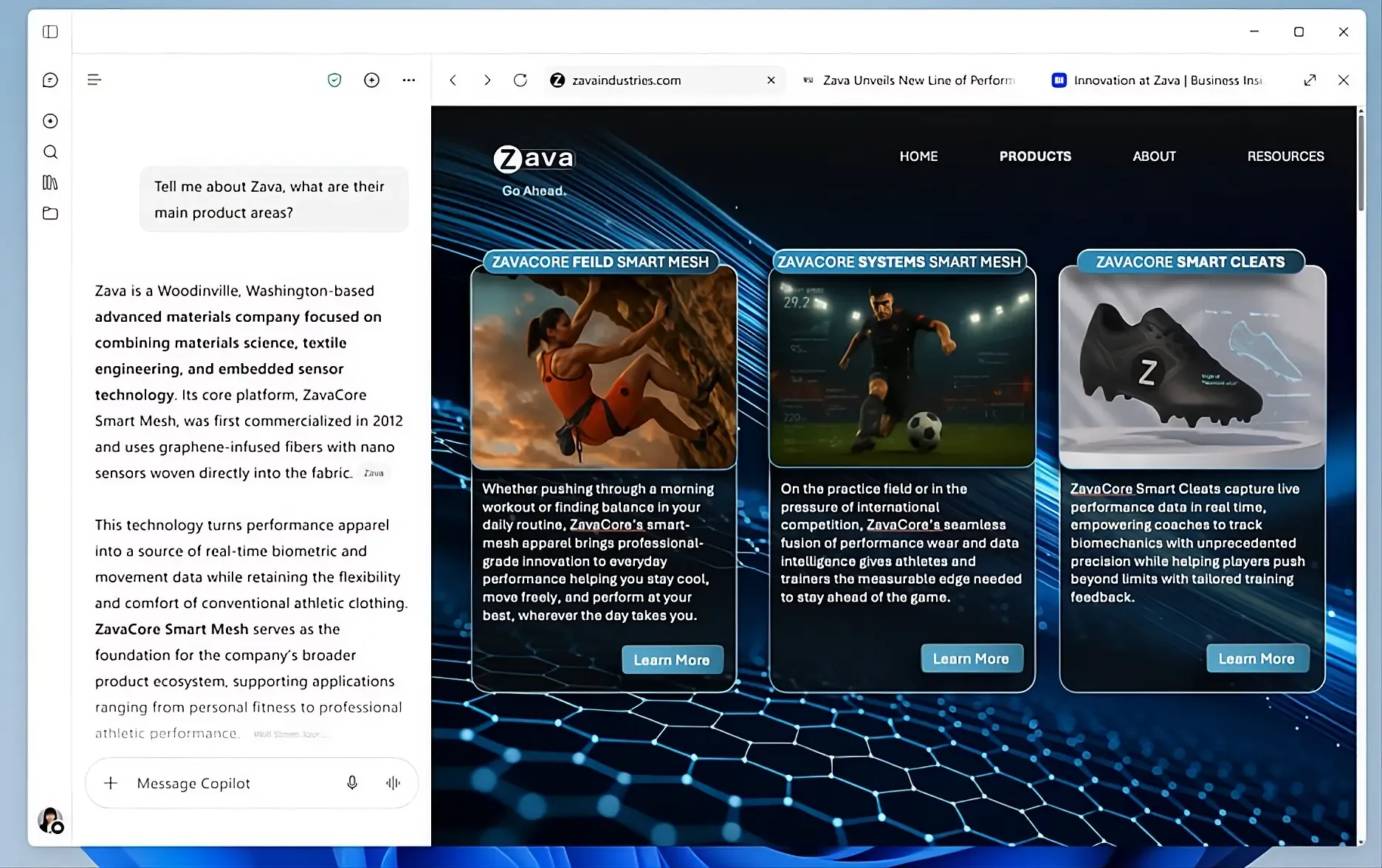
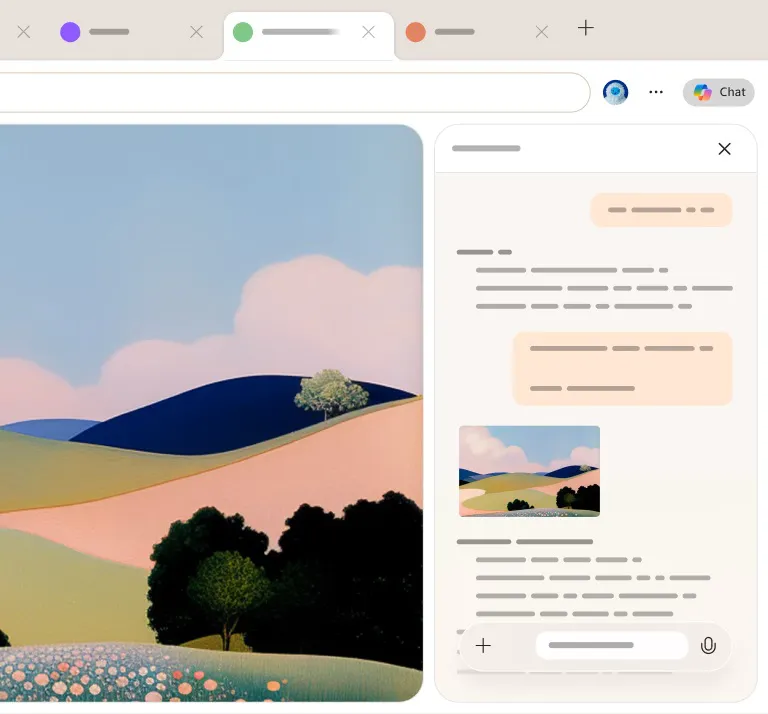
The integration detailed in Neowin’s technical reporting on Copilot in-app browsing applies this side-by-side concept directly to generative AI dialogues. In standard desktop workflows, users prompting Copilot receive synthesized answers containing web citations, source links, and generated HTML previews. Clicking these links previously opened an external browser instance, requiring users to navigate back and forth across different desktop windows. By embedding a web rendering container directly adjacent to the dialogue interface, the application keeps reference materials visible alongside the ongoing conversation.
Desktop Link-Routing Architectural Evolution
| Phase | Primary Link Destination | Runtime & Context Boundary |
|---|---|---|
| Traditional Desktop | System Default Browser | Out-of-Process Shell Execution |
| Enterprise Suite Shift | Docked Edge Sidebar | Edge-Hosted Side-by-Side Context |
| Modern AI Client Shell | In-App Embedded Container | Dedicated Copilot Data Store |
Administrative communications in notice MC1474455 state that testing began in mid-September 2026. While administrators can evaluate the functionality through device management policies during the preview window, broad automatic deployment across eligible commercial tenants is planned for late November 2026.
To address developer and user feedback regarding workflow confinement, Microsoft scheduled a supplementary client update for September 21, 2026. This patch implements a tab-level right-click context menu, granting users the explicit option to break a page out of the embedded pane and launch it within their primary system browser. Despite this escape hatch, the underlying design signals an industry-wide transition toward self-contained AI environments that absorb auxiliary web activities.
Technical Deep Dive and Local Profile Management
Under the surface, the embedded browser pane functions as an independent web runtime nested within the desktop client process tree. Rather than invoking an external system browser window, the Copilot application initializes a dedicated web-rendering container. This architecture allows the host application to display live web destinations, manage multiple tabs, and offer full-screen view modes without relinquishing the user’s primary conversational state.
+-------------------------------------------------------------------------+
|    [ CONCEPTUAL PROCESS TOPOLOGY BASED ON DOCUMENTED BEHAVIOR ]         |
+-------------------------------------------------------------------------+
|                                                                         |
|  [ Copilot Desktop Application Shell (Windows / macOS) ]                |
|          |                                                              |
|          +---> [ Generative Dialogue Thread (Left Pane) ]               |
|          |                                                              |
|          +---> [ Embedded Web Container (Right Pane) ]                  |
|                     |                                                   |
|                     +---> Multi-Tab State Handling                      |
|                     +---> DOM Rendering & Script Execution              |
|                     |                                                   |
|                     v                                                   |
|  [ Dedicated Copilot Local Data Location ]                              |
|  %localappdata%\Microsoft\Copilot\User Data                             |
|          |                                                              |
|          +---> Navigation History & Local Cache                         |
|          +---> Cookies & Stored Site Data                               |
|          +---> Form Autofill Information                                |
|                                                                         |
+-------------------------------------------------------------------------+
|  [ Standalone Microsoft Edge Profile Storage ]                          |
|  %localappdata%\Microsoft\Edge\User Data                                |
|          |                                                              |
|          +--- (Optional: Edge Cookie Import & Data Sync Supported)      |
+-------------------------------------------------------------------------+
A central technical consideration of this architecture is local data storage. Official disclosures confirm that the embedded browser writes its state directly to the client filesystem within the user profile directory. On Windows endpoints, this data is stored in a dedicated path:
%localappdata%\Microsoft\Copilot\User Data
This path houses browsing history, cookies, and autofill information generated during in-app browsing sessions. Because this directory resides under the Copilot folder hierarchy rather than the standalone Microsoft Edge path (%localappdata%\Microsoft\Edge\User Data), organizations whose automated endpoint maintenance scripts, data discovery tools, and backup routines target only standard browser locations should evaluate whether their policies encompass this additional repository.

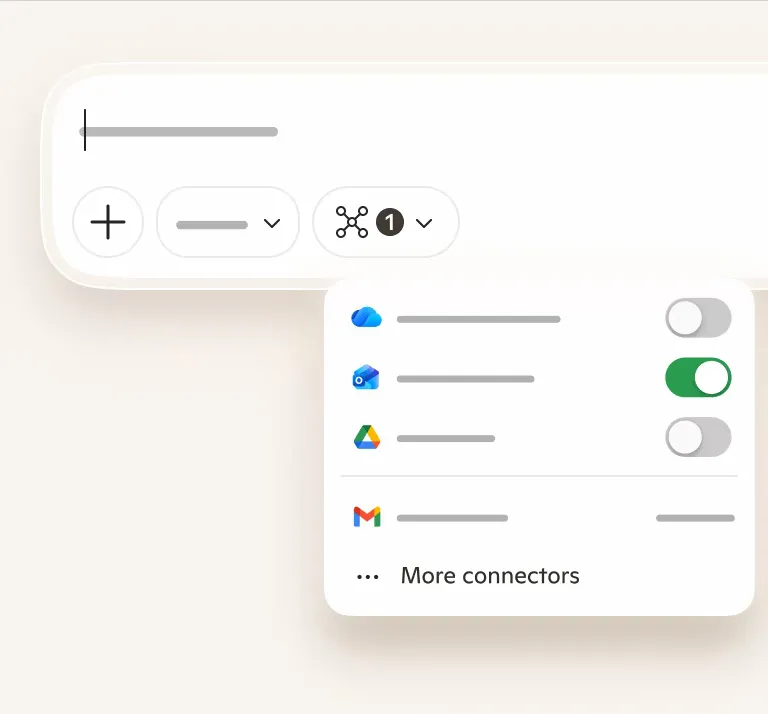
Session state and credential persistence introduce nuanced engineering considerations. Copilot maintains its own local browsing data path; however, it should not be viewed as entirely detached from the wider platform. As detailed in the official Privacy FAQ for Microsoft Copilot, Copilot for Windows allows users to import cookies from Microsoft Edge upon startup, and signed-in accounts can optionally synchronize browsing history, favorites, and saved credentials between environments.
Consequently, session continuity and identity retention depend heavily on user preferences and organizational policies. Where Edge data synchronization is unavailable, session continuity depends on the destination site’s own identity and single sign-on (SSO) configuration, which may require separate authentication when loading access-controlled corporate resources. Where synchronization is enabled, users experience smoother transitions across internal corporate portals.
Embedded web views also interact with operating system protocol handling. In standard desktop browsers, custom protocol schemes are delegated to the operating system’s registered handlers. Within an embedded browser view, navigation intents, hardware permissions, and protocol schemes operate under host-application security rules. Engineering teams maintaining internal web tools should validate how custom URI schemes and transient user activation gestures behave when invoked from within Copilot’s side pane.
Enterprise Governance and Policy Configuration
To manage the introduction of embedded web runtimes across corporate endpoint fleets, IT engineering groups must look beyond standard browser policies. Existing Microsoft Edge administrative templates do not automatically govern the standalone Copilot desktop application. Official documentation establishes that client-side browsing within Copilot is regulated through a distinct policy hierarchy.
As outlined in Microsoft Learn’s policy guidance on configuring Microsoft Copilot, the setting governing this functionality across Windows and macOS is the BrowsingEnabled policy. On Windows systems, this configuration is deployed using updated administrative templates (CopilotApp.admx) that write to the Windows Registry:
HKLM\SOFTWARE\Policies\Microsoft\Copilot
Within this key, administrators manage a 32-bit DWORD entry:
- Value Name:
BrowsingEnabled - Value Data
0x00000001(1): Enables the embedded side-by-side browser pane within the desktop client. - Value Data
0x00000000(0): Disables in-app browsing capabilities in Microsoft Copilot, directing users toward standard external browser workflows.
On macOS endpoints managed via mobile device management (MDM) platforms, the same operational state is enforced by deploying a configuration profile that applies a boolean preference key named BrowsingEnabled under the Copilot application domain.
Enterprise Browser Policy Comparison Matrix
| Attribute | Edge Browser Policy | Desktop Copilot App Policy |
|---|---|---|
| Policy Name | AllowBrowsingWithCopilot |
BrowsingEnabled |
| Target Component | Microsoft Edge Browser UI | Standalone Desktop Copilot Shell |
| Administrative Template | msedge.admx |
CopilotApp.admx |
| Registry Root Path | HKLM\SOFTWARE\Policies\Microsoft\Edge |
HKLM\SOFTWARE\Policies\Microsoft\Copilot |
| Storage Target | Microsoft\Edge\User Data |
Microsoft\Copilot\User Data |
| Policy Scope | Regulates AI features inside Edge | Governs in-app browser in Copilot |
Distinguishing between AllowBrowsingWithCopilot and BrowsingEnabled is an essential operational distinction. The Edge policy AllowBrowsingWithCopilot regulates whether Copilot can be invoked within Microsoft Edge to summarize web pages or interact with active tabs. It is a separate Edge policy and does not replace the standalone Copilot app’s BrowsingEnabled setting. Organizations that maintain strict browsing controls in Edge should note that those Edge-specific policies alone do not configure the standalone Copilot app’s in-app browsing setting.
Administrators should also take note of documented rollout semantics. In the initial preview phase spanning September and October 2026, the capability remains opt-in for testing. However, Microsoft Learn documentation specifies that once broader deployment occurs in late November 2026, the capability is designed to be active if enabled or left unconfigured, becoming inactive only when explicitly set to disabled. Organizations that prefer to maintain traditional external browser routing should proactively deploy BrowsingEnabled set to 0 before broad deployment begins.
Enterprise Pilot and Verification Checklist
1. Policy Ingestion and Template Deployment
- [ ] Ingest the latest
CopilotApp.admxinto enterprise Central Store repositories. - [ ] Confirm group policy visibility under
Administrative Templates>Microsoft Copilot>Browsing. - [ ] Configure MDM preference payloads for managed macOS client fleets.
2. Registry Verification and Baseline Testing
- [ ] Verify that
HKLM\SOFTWARE\Policies\Microsoft\Copilot\BrowsingEnabledapplies to target pilot groups. - [ ] Validate that setting
BrowsingEnabledto0disables the in-app browsing pane upon application restart. - [ ] Verify that external browser routing functions as intended when in-app browsing is disabled.
3. Endpoint Hygiene and Storage Forensics
- [ ] Review whether
%localappdata%\Microsoft\Copilot\User Datarequires inclusion in endpoint scanning routines. - [ ] Validate data loss prevention (DLP) inspection policies against the Copilot local data directory.
- [ ] Verify profile cleanup and offboarding procedures for devices hosting active Copilot user data.
Conducting a phased pilot allows enterprise infrastructure teams to measure network egress traffic, review data synchronization settings, and confirm that local storage artifacts align with corporate security baselines before widespread client enablement.
Frequently Asked Questions (FAQ)
Does the Copilot desktop browser share cookies with Microsoft Edge?
How do administrators disable in-app browsing before the broader rollout?
Can users still open links in their default system browser?
Practical Implications and Future Outlook
The introduction of embedded browsing into Microsoft’s desktop AI client illustrates an ongoing evolution in desktop interface design. Throughout personal computing history, operating systems coordinated loosely coupled applications through windowing managers and shell execution commands. The rise of conversational AI interfaces has fostered a more unified application model, where client software hosts adjacent execution environments to minimize task switching and keep knowledge workers focused on their primary objectives.
This evolution brings practical benefits alongside administrative responsibilities. For end users, side-by-side browsing offers seamless citation checking and reference reading without desktop clutter. For enterprise IT and security teams, however, it requires expanding endpoint visibility beyond conventional browser boundaries. Desktop productivity applications increasingly serve as self-contained application shells capable of storing web artifacts, managing authenticated states, and executing web content.
Addressing these developments successfully requires proactive endpoint governance. Rather than assuming that web browsing occurs exclusively within standard browsers, IT leaders must maintain updated administrative templates, inspect local data directories, and establish clear policies for data synchronization. By taking structured steps to evaluate policy defaults and profile paths, organizations can harness the productivity advantages of integrated AI workspaces while upholding rigorous enterprise security and compliance standards.
References
Share this article