How Do You Verify Mobile Deep Links in a UAT Sandbox? Verifying mobile deep links in a UAT sandbox requires validating signed binaries, confirming domain association files, verifying OS intent and activity routing, and auditing SDK parameter callbacks across clean physical test devices. On development-signed builds with developer settings enabled, iOS can query origin AASA files directly, while Android App Links verify against staging keystore certificates.
A mobile attribution sandbox UAT environment is an isolated pre-production staging infrastructure where QA engineers validate end-to-end deep link routing, universal link domain entitlements, and deferred attribution parameters before production deployment. Establishing this environment isolates test event pollution from production analytics, bypasses intermediate CDN caching layers on development builds, and confirms multi-platform fallback behaviors.
Pre Release Telemetry and Sandbox UAT Architecture
Why Pre Production Deep Link Testing Requires Dedicated Infrastructure
Deploying deep linking configurations directly into production introduces operational risks. On modern mobile operating systems, routing failures rarely produce fatal crash logs; instead, they fail silently by redirecting users to generic web pages, prompting system chooser dialogs, or launching the application without context parameters.

Testing deep linking within a dedicated User Acceptance Testing environment addresses three core engineering constraints:
- Telemetry and Event Isolation: Pre-release verification generates dense volumes of synthetic clicks, app launches, and conversion events. Triggering these events against production application profiles pollutes customer acquisition cost calculations and triggers fraud-monitoring anomaly thresholds.
- Decoupling from Public CDNs: Apple and Google route domain verification requests through proxy infrastructure. Validating iterative routing rules on development builds requires deliberate mechanisms to test domain files directly.
- Multi-State Simulation: A comprehensive test plan must evaluate three distinct application states: cold launches where the process is initialized from an external URI, warm resumes where an active background task receives new intent parameters, and deferred attribution where routing parameters persist across an installation barrier.
Using an independent staging infrastructure allows release teams to validate links across staging web servers, dedicated deep linking domains, and development binaries before submission to store review pipelines. Teams can consult the mobile attribution implementation reference for architectural overviews of routing and parameter restoration.
[Staging Web Test Page] ──> Trigger Test Link (?channelCode=uat_qa_track)
          │
          ├──> [Installed App Exists] ──> Direct System Wakeup (Universal Links / App Links / Custom Scheme)
          │                                      │
          │                                      ▼
          │                             [App onNewIntent / continueUserActivity / openURLContexts]
          │                                      │
          │                                      ▼
          │                             [SDK Dynamic Callback: handleDeepLink / getWakeUpParams]
          │
          └──> [App Not Installed] ──> Web Fallback Trigger (Landing Page / Download Endpoint)
                                                 │
                                                 ▼
                                        [Sandbox Test Build Sideloaded / Installed]
                                                 │
                                                 ▼
                                        [SDK Deferred Attribution: getInstallParam / getInstallParmsCompleted]
Core Components of a Mobile Attribution Staging Pipeline
A mobile attribution staging pipeline consists of five interconnected systems:
- Instrumented Staging H5 Pages: Web landing pages hosted on dedicated staging domains (such as
staging-app.example.com) integrated with the Web JS SDK. These pages capture browser context, parse custom query strings, and execute system wake-up calls. - Domain Association Endpoints: Web endpoints serving the Apple App Site Association (
apple-app-site-association) file and the Android Digital Asset Links (assetlinks.json) file over secure HTTPS with valid TLS certificates. - Staging AppKey and Sandbox Profiles: A dedicated application entity configured in the attribution console. Creating an independent staging AppKey isolates application-level configurations and allows teams to configure and verify webhook destinations independently. When using a shared AppKey, dedicated test channels (such as
channelCode=uat_qa_track) provide reporting-level filtering to separate QA metrics from production dashboards. - Physical Test Device Matrix: Physical iOS and Android devices running varied operating system versions, connected via non-proxied networks to allow legitimate platform verification handshakes.
- Local Telemetry Loggers: Console log observers and network proxies configured to capture URI query parameters, intent flags, and SDK callbacks during execution.
Apple CDN Mechanics and Developer Mode Associated Domains
Apple CDN Caching Behavior on Modern iOS Versions
On modern iOS versions, the operating system routes domain association queries through a centralized Apple Content Delivery Network rather than scraping origin servers directly upon app install. This architecture introduces specific operational constraints during pre-release testing:
- Origin Polling vs Device Update Checks: Apple separates origin CDN polling from client device checks. Once an app is installed, the device checks for updated domain association data approximately once per week. Apple provides no developer-facing API or dashboard to flush the CDN cache on demand.
- Staging Domain Accessibility: Staging servers protected by basic authentication, internal VPNs, or private corporate firewalls cannot be indexed by Apple’s public CDN scrapers, causing Universal Link validation to fail on test devices using standard production routing.
- CDN Status Inspection: Engineers can inspect how Apple’s CDN currently caches a public domain using the lookup endpoint:
While useful for observing propagation on public domains, this endpoint is purely an observational tool and does not resolve issues on internal or iterative staging hosts.https://app-site-association.cdn-apple.com/a/v1/staging.example.com
Configuring Associated Domains Entitlements for Development Builds
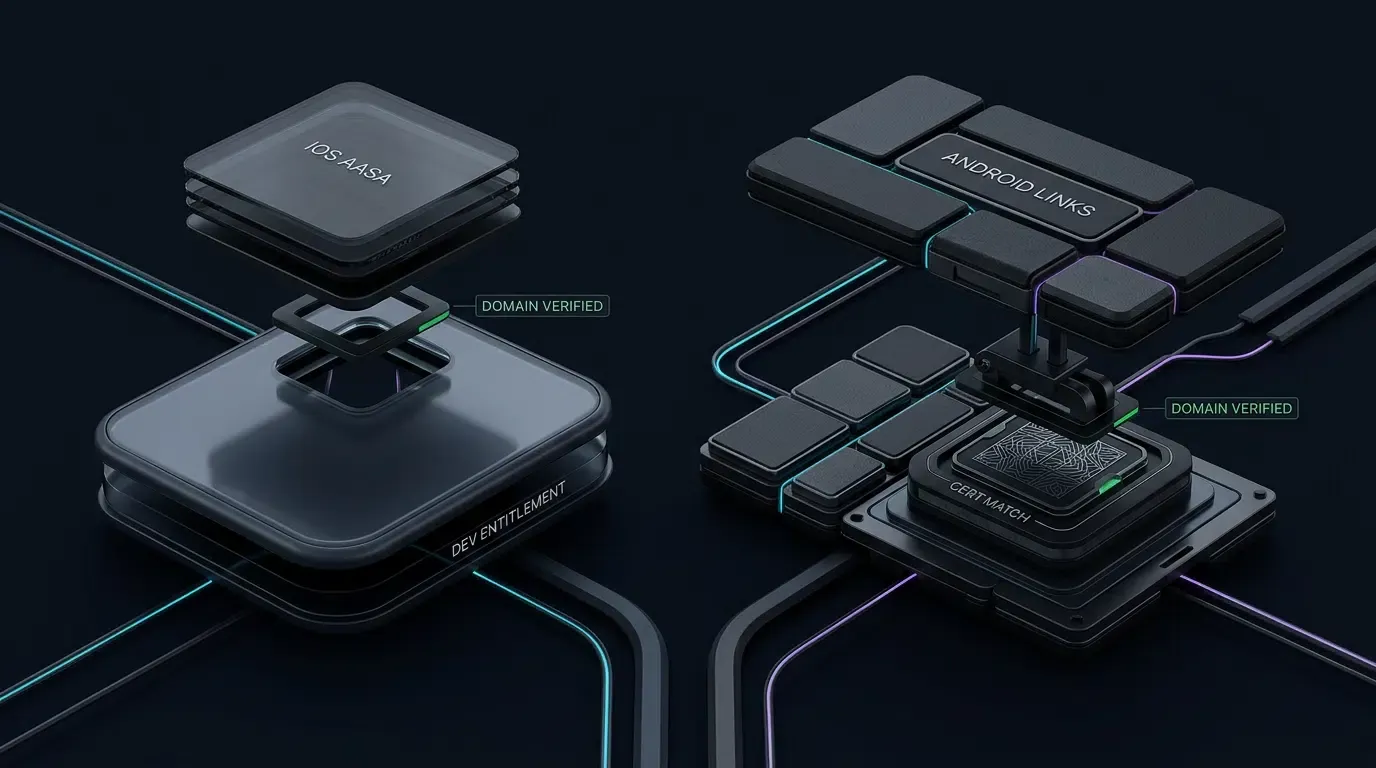
Apple provides an alternative query parameter for Associated Domains entitlements: ?mode=developer.
When an app binary is compiled with this entitlement flag, the operating system bypasses the Apple CDN and fetches the apple-app-site-association file directly from the target web server over HTTPS. However, two strict operational prerequisites must be met:
- Development Provisioning Profile: The mobile application must be signed with an Apple Development Provisioning Profile. The developer mode entitlement is ignored or rejected by the operating system if embedded within binaries signed with Ad Hoc, Enterprise, or App Store distribution profiles. TestFlight builds use standard production-style CDN caching and cannot use
?mode=developer. - Device-Side Developer Settings: The physical test device must explicitly enable Developer Mode (on iOS 16 and later) and toggle Associated Domains Development to active.
To configure developer mode in your staging build, open the Xcode .entitlements file and declare the development domain entry (replace staging.example.com with your assigned staging domain):
<?xml version="1.0" encoding="UTF-8"?>
<!DOCTYPE plist PUBLIC "-//Apple//DTD PLIST 1.0//EN" "http://www.apple.com/DTDs/PropertyList-1.0.dtd">
<plist version="1.0">
<dict>
    <key>com.apple.developer.associated-domains</key>
    <array>
        <!-- Staging developer mode entry to bypass Apple CDN on development-signed builds -->
        <string>applinks:staging.example.com?mode=developer</string>
    </array>
</dict>
</plist>
Verify that the compiled application bundle’s embedded entitlements contain this declaration using codesign on macOS:
codesign -d --entitlements - /path/to/Payload/YourApp.app
On the physical iOS test device, complete the hardware configuration:
- On iOS 16 and later, navigate to Settings
Privacy and Security Developer Mode and turn it on. Restart the device. - Navigate to Settings
Developer Universal Links. - Enable Associated Domains Development.
- Optionally, toggle Diagnostics Logging to capture validation handshakes via the
swcutiltool on macOS or within a unifiedsysdiagnosestream inspecting theswcdsystem daemon.
Validating Apple App Site Association Syntax and Entitlements
The staging web server must host the apple-app-site-association file inside the /.well-known/ directory served with Content-Type application/json, returning an HTTP 200 status code without redirects.
Below is a minimal valid configuration using the modern components schema:
{
  "applinks": {
    "apps": [],
    "details": [
      {
        "appIDs": [ "TEAMID1234.com.example.uatapp.staging" ],
        "components": [
          {
            "/": "/staging/*",
            "comment": "Matches all staging deep link routing paths"
          },
          {
            "/": "/download/*",
            "exclude": true,
            "comment": "Excludes static binary download endpoints"
          }
        ]
      }
    ]
  }
}
The string in appIDs must match the application identifier defined in the app’s code signing configuration (<AppIDPrefix>.<BundleID>, where AppIDPrefix is typically your Apple Developer Team ID). A common failure mode is serving the file as text/plain or returning an invalid JSON body (such as trailing commas). Any syntax error in the AASA file causes the iOS validation daemon to reject the association entirely.
Android App Links Verification and Digital Asset Links in Staging
Implementing Isolated AutoVerify and Custom Scheme Filters
Android App Links rely on Digital Asset Links to verify ownership of a web domain. On Android 6.0 and later, declaring android:autoVerify="true" within an activity intent filter instructs the operating system Package Manager to verify domain ownership upon app installation.
To maintain clean separation between verified App Links and custom URI fallbacks, declare them in separate intent filters. Custom schemes should never be placed inside an android:autoVerify="true" filter.
In your staging build variant, configure app/src/main/AndroidManifest.xml with trailing-slash path prefixes to prevent greedy matching:
<activity
    android:name=".MainActivity"
    android:exported="true"
    android:launchMode="singleTask">

    <!-- Verified Android App Links Filter -->
    <intent-filter android:autoVerify="true">
        <action android:name="android.intent.action.VIEW" />
        <category android:name="android.intent.category.DEFAULT" />
        <category android:name="android.intent.category.BROWSABLE" />

        <data android:scheme="http" />
        <data android:scheme="https" />
        <data
            android:host="staging.example.com"
            android:pathPrefix="/staging/" />
    </intent-filter>

    <!-- Isolated Custom URL Scheme Filter for Web Fallbacks -->
    <intent-filter>
        <action android:name="android.intent.action.VIEW" />
        <category android:name="android.intent.category.DEFAULT" />
        <category android:name="android.intent.category.BROWSABLE" />

        <data
            android:scheme="opoinstall-scheme"
            android:host="uat-launch"
            android:pathPrefix="/staging/" />
    </intent-filter>
</activity>
Serving and Verifying assetlinks JSON on Staging Hosts
The staging host must serve https://<domain>/.well-known/assetlinks.json with Content-Type application/json. The system verifier on Android requires the domain to be reachable via DNS from the verifier’s perspective, resolve over standard HTTPS, and present a valid TLS certificate chain trusted by the system trust store. Private staging hosts fail domain verification if the verifier cannot resolve the host’s DNS or cannot establish a trusted TLS connection.
The SHA-256 fingerprint in the assetlinks.json file must match the exact certificate used to sign the installed binary:
- Debug and Staging Builds: Extract the fingerprint from your local debug or staging keystore.
- Play App Signing: If distributing via Google Play testing tracks, use the Play App Signing certificate fingerprint rather than your local upload key.
- Extract the SHA-256 fingerprint from the active signing keystore:
keytool -list -v -keystore ~/.android/debug.keystore -alias androiddebugkey -storepass android -keypass android - Host the
.well-known/assetlinks.jsonon your staging web server (fingerprints below are placeholders and must be replaced with your keystore values):[ { "relation": ["delegate_permission/common.handle_all_urls"], "target": { "namespace": "android_app", "package_name": "com.example.uatapp.staging", "sha256_cert_fingerprints": [ "14:6D:E9:01:02:03:04:05:06:07:08:09:0A:0B:0C:0D:0E:0F:10:11:12:13:14:15:16:17:18:19:1A:1B:1C:1D" ] } } ]
Android Domain Verification Workflow and Verification States
To reliably test domain verification on physical hardware, follow the sequential verification workflow:
- Reset Verification State:
adb shell pm set-app-links --package com.example.uatapp.staging 0 all - Trigger Domain Re-Verification:
adb shell pm verify-app-links --re-verify com.example.uatapp.staging - Wait and Poll Verification Results: Allow sufficient time for the system verification agent to complete background polling, then query:
adb shell pm get-app-links com.example.uatapp.staging - Evaluate Output Status:
verified: Domain association passed cryptographic validation. The operating system will open matching URLs in the app, provided the path matches declared filters and the user has not disabled link handling.none: Verification has not yet resolved or is pending network retry. Allow the background agent time to complete before concluding verification failed.1024or higher: OEM-specific or custom verifier check errors. Verify network accessibility, DNS resolution, and TLS certificate validity.
- Check User Link Preferences:
Even when a domain is
verified, a user can disable supported link handling in device settings. Verify user-level routing policy via:# Check link handling policy for the target user (e.g., User 0) adb shell pm get-app-links --user 0 com.example.uatapp.staging
Strict Whitelisting and Fallback Handling in Staging WebViews
Custom Scheme Fallback Limitations in Mobile Browsers
While Universal Links and App Links provide direct system routing, custom URL schemes remain necessary components of a mobile deep linking infrastructure:
- Sandboxed In-App Browsers: Applications such as WeChat, Line, or older social networking webviews intentionally intercept or block Universal Link navigations to keep users within their native interface.
- Address Bar Manual Entry: If a user pastes a Universal Link URL directly into Mobile Safari’s address bar, iOS defaults to standard web navigation rather than launching the application.
- Absence of Native Application: When a custom URL scheme is executed in Mobile Safari on a device that does not have the app installed, the browser displays a modal alert: “Safari cannot open the page because the address is invalid”.
Attribution web engines mitigate this by deploying timed fallback scripts on landing pages. When a link is triggered, the script attempts an immediate custom scheme launch while scheduling a JavaScript timer. If the application is installed, the browser moves to the background and the timer is suspended. If the timer elapses while the web page remains in the foreground, the script executes a fallback redirect to an app download page. Client-side timers cannot prevent the Safari alert modal if the user triggers a direct scheme navigation on an uninstalled device; empirical verification on physical hardware is required to evaluate user experience.
Safe WebView Interception Across Android and iOS
When embedding deep link verification within staging hybrid containers, native webview controllers must parse and delegate custom schemes rather than attempting direct web navigation. Navigation actions should be validated strictly against allowed schemes, hosts, and paths, and restricted to user-initiated main-frame requests.
In Android WebView, intercept and validate custom schemes inside shouldOverrideUrlLoading. Parse the URI completely and supply an explicit web fallback if the native intent cannot be started:
webView.setWebViewClient(new WebViewClient() {
    @Override
    public boolean shouldOverrideUrlLoading(WebView view, WebResourceRequest request) {
        if (request == null || request.getUrl() == null) {
            return false;
        }

        Uri uri = request.getUrl();
        String scheme = uri.getScheme();
        String host = uri.getHost();
        String path = uri.getPath();

        // 1. Controlled custom scheme routing
        if ("opoinstall-scheme".equalsIgnoreCase(scheme)) {
            // Require user-initiated main-frame click
            if (!request.isForMainFrame() || !request.hasGesture()) {
                Log.w("UAT_WebView", "Blocked background or subframe custom scheme execution: " + uri);
                return true; // Consume and block navigation
            }

            // Strictly validate host and path prefix
            if ("uat-launch".equalsIgnoreCase(host) && path != null && path.startsWith("/staging/")) {
                Intent intent = new Intent(Intent.ACTION_VIEW, uri);
                intent.addFlags(Intent.FLAG_ACTIVITY_NEW_TASK);
                try {
                    view.getContext().startActivity(intent);
                    return true; // Dispatched to native app
                } catch (ActivityNotFoundException e) {
                    Log.w("UAT_WebView", "Unable to open the app for scheme URI: " + uri);
                    // Explicit web fallback when custom scheme fails
                    view.loadUrl("https://staging.example.com/download?fallback=true");
                    return true;
                }
            } else {
                Log.w("UAT_WebView", "Rejected unauthorized custom scheme host or path: " + uri);
                return true; // Consume and reject unapproved target
            }
        }

        // 2. Controlled App Link domain routing on matching paths
        if (("https".equalsIgnoreCase(scheme) || "http".equalsIgnoreCase(scheme)) &&
            "staging.example.com".equalsIgnoreCase(host) &&
            path != null && path.startsWith("/staging/")) {

            if (request.isForMainFrame() && request.hasGesture()) {
                Intent intent = new Intent(Intent.ACTION_VIEW, uri);
                try {
                    view.getContext().startActivity(intent);
                    return true;
                } catch (ActivityNotFoundException e) {
                    return false; // Fallback to loading the web URL in the webview
                }
            }
        }

        // Allow webview to handle normal web paths (such as /download/ or /staging-old)
        return false;
    }
});
On iOS, WKWebView validates and delegates custom navigation in decidePolicyForNavigationAction. Verify that the navigation target is the main frame and parse the request URL using URLComponents:
extension StagingWebViewController: WKNavigationDelegate {
    func webView(
        _ webView: WKWebView,
        decidePolicyFor navigationAction: WKNavigationAction,
        decisionHandler: @escaping (WKNavigationActionPolicy) -> Void
    ) {
        guard let url = navigationAction.request.url,
              let components = URLComponents(url: url, resolvingAgainstBaseURL: false) else {
            decisionHandler(.cancel)
            return
        }

        let scheme = components.scheme?.lowercased()
        let host = components.host?.lowercased()
        let path = components.path

        // 1. Controlled custom scheme routing
        if scheme == "opoinstall-scheme" {
            // Strictly require main-frame link activation (exclude new windows and subframes)
            guard navigationAction.targetFrame?.isMainFrame == true &&
                  navigationAction.navigationType == .linkActivated else {
                print("[UAT_WKWebView] Blocked non-main-frame or background custom scheme trigger: \(url)")
                decisionHandler(.cancel)
                return
            }

            // Strictly validate host and path boundaries
            if host == "uat-launch" && path.hasPrefix("/staging/") {
                UIApplication.shared.open(url, options: [:]) { success in
                    if !success {
                        print("[UAT_WKWebView] Unable to open the app. Redirecting to staging fallback.")
                        if let fallbackUrl = URL(string: "https://staging.example.com/download?fallback=true") {
                            webView.load(URLRequest(url: fallbackUrl))
                        }
                    }
                }
            } else {
                print("[UAT_WKWebView] Rejected unapproved scheme target: \(url)")
            }
            decisionHandler(.cancel)
            return
        }

        // 2. Allow standard web navigation for web endpoints
        decisionHandler(.allow)
    }
}
End to End Deep Linking Test Protocols and Path Consistency
Cross Platform Routing Path Alignment Matrix
Different operating systems apply different path-matching logic. In Android, pathPrefix="/staging" matches /staging/demo but also greedily matches /staging-old. In contrast, an iOS AASA component defining /staging/* requires the trailing slash delimiter and will not match /staging-old.
To ensure consistent routing across platforms, configure Android with android:pathPrefix="/staging/" and verify test URLs against the alignment matrix below:
| Request URL Path | Android pathPrefix="/staging/" |
iOS AASA components: ["/": "/staging/*"] |
Expected UAT Routing Result |
|---|---|---|---|
https://staging.example.com/staging/demo |
Match | Match | Opens native app on designated view |
https://staging.example.com/staging-old |
No Match | No Match | Remains in web browser |
https://staging.example.com/download/demo |
No Match | Excluded ("exclude": true) |
Serves download or fallback page |
Engineers can verify local AASA matching rules on macOS using swcutil verify and examine live validation states on physical iOS hardware via sysdiagnose:
# Verify local AASA pattern against target test URL on macOS
swcutil verify -d staging.example.com -j apple-app-site-association -u https://staging.example.com/staging/demo
Test Protocols for Cold Launches Warm Resumes and Deferred Attribution
Validating deep link performance requires testing three distinct operational lifecycle scenarios on physical test devices. Engineers preparing staging test runs can download verified client frameworks from the mobile SDK download repository.
To establish verifiable end-to-end testing, distinguish between verifying OS domain association and verifying SDK parameter passing:
- Direct Domain Association Check: Tap
https://staging.example.com/staging/demodirectly from an external app (such as Apple Notes or standard mobile email). This tests system-level domain association and App Link/Universal Link routing into the native app, confirming OS delivery without running web scripts. - Instrumented Web SDK Parameter Check: Route through an instrumented staging H5 page (
https://staging-app.example.com/onboard.html?channelCode=uat_qa_track&uat_case=staging_demo). The Web JS SDK parseschannelCodeanduat_casefrom the page query string and binds them to the launch button:// Staging H5 entry point binding URL parameters to the wake-up / install trigger const urlParams = new URLSearchParams(window.location.search); const installer = new OpoInstall({ appKey: "YOUR_STAGING_APP_KEY", channelCode: urlParams.get("channelCode") || "uat_qa_track", onready: function() { document.getElementById("launchBtn").onclick = function() { installer.wakeupOrInstall({ data: { uat_case: urlParams.get("uat_case") || "staging_demo" } }); }; } });
Execute the three operational scenarios using this instrumented staging setup:
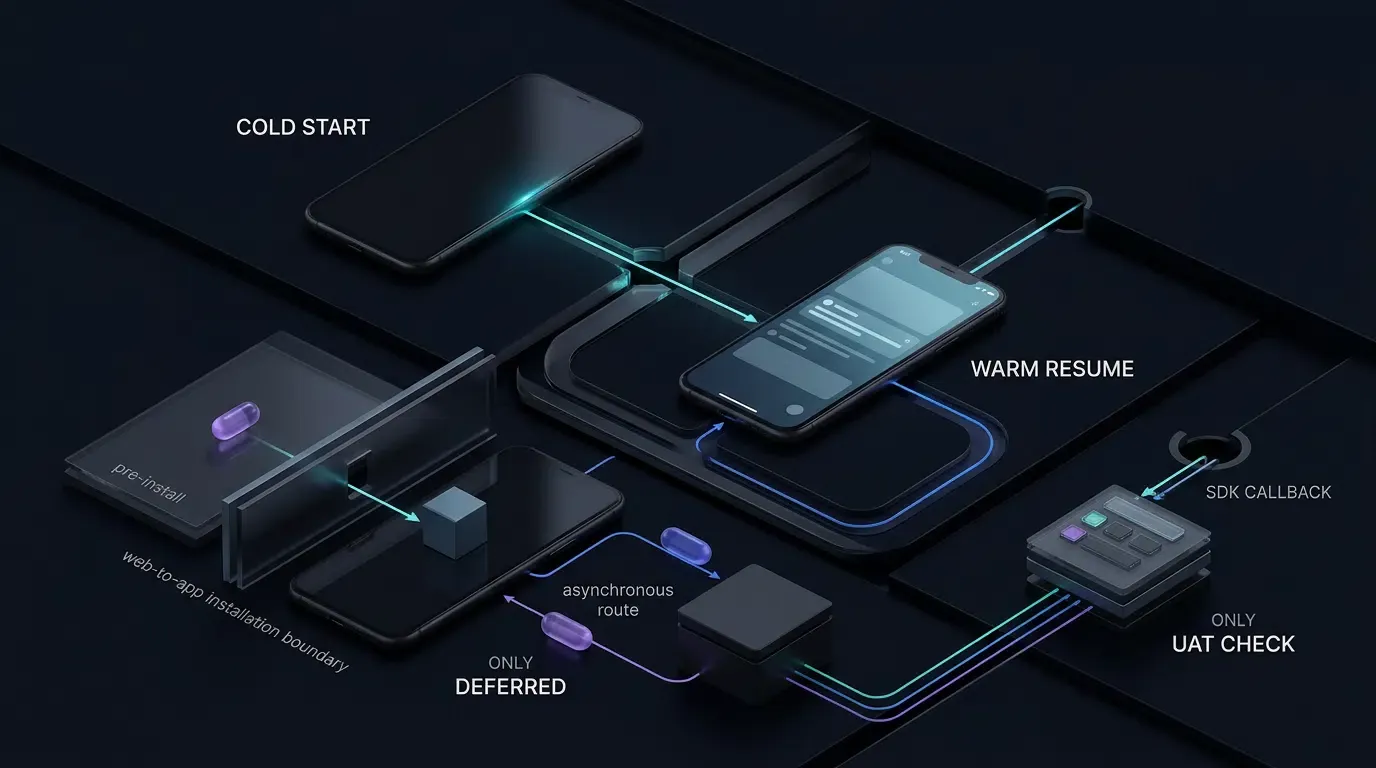
- Scenario 1: Cold Launch via Direct Universal Link: Terminate the target app completely via the operating system task manager. Open Mobile Safari or Chrome, navigate to your staging test page, and tap the Universal Link or App Link. Confirm system delivery, verify that the SDK callback reports
channelCode == "uat_qa_track"anduat_case == "staging_demo", and confirm that the host app router navigates to the target destination screen. - Scenario 2: Warm Resume via Custom Scheme: Launch the application and press the device home button to send the process to the background. In a messaging app or browser, tap a custom URL scheme containing updated parameters. Verify that the incoming intent payload is captured and refreshes the current UI state without creating duplicate activity instances.
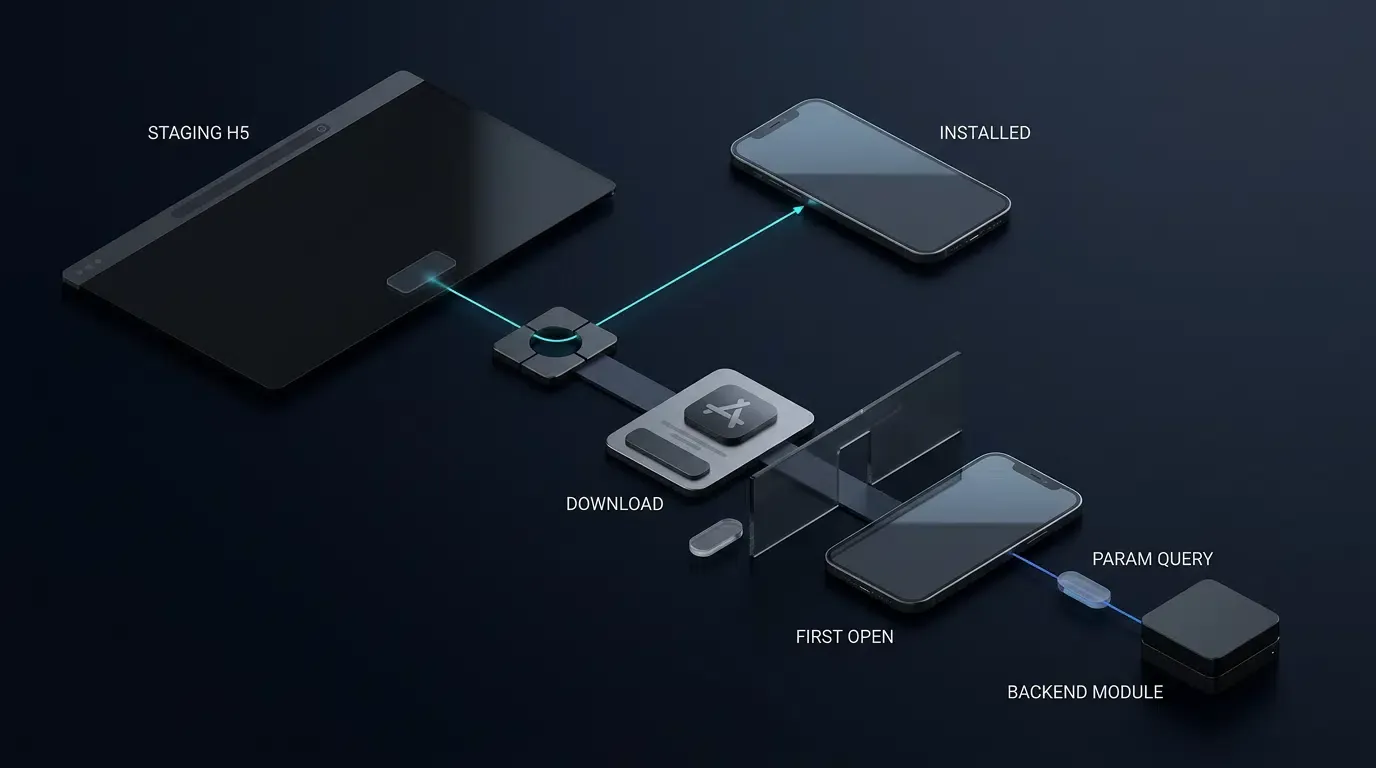
- Scenario 3: Deferred Deep Linking via Staging H5 Link: Completely uninstall the pre-release build from the test device. Open Mobile Safari or Chrome, navigate to the staging H5 page, and tap the download button to record the web click context. Sideload the pre-release binary. Launch the newly installed binary and verify that the attribution SDK retrieves the query parameters configured on the prior web page via Android
getInstallParamor iOSgetInstallParmsCompleted. Record click, install, first open, and parameter match as discrete pipeline steps.
Dual Platform SDK Lifecycle Integration
To handle deep linking in Android using the official OpoInstall Android SDK v2.1.0, configure your custom Application class to call OpoInstall.initialize(this). In the launcher activity, call OpoInstall.getInstance().start(this) and register deep link handling inside both onCreate and onNewIntent. Validate specific test parameters (such as uat_case=staging_demo) across three distinct verification checkpoints: system delivery, parameter match, and destination arrival:
package com.example.uatapp;

import android.content.Intent;
import android.net.Uri;
import android.os.Bundle;
import android.util.Log;
import androidx.appcompat.app.AppCompatActivity;
import com.opoinstall.api.OpoData;
import com.opoinstall.api.OpoError;
import com.opoinstall.api.OpoInstall;
import com.opoinstall.api.ResultCallBack;
import org.json.JSONObject;

public class MainActivity extends AppCompatActivity {
    private static final String TAG = "UAT_DeepLink";

    @Override
    protected void onCreate(Bundle savedInstanceState) {
        super.onCreate(savedInstanceState);
        setContentView(R.layout.activity_main);

        // Start SDK telemetry collection
        OpoInstall.getInstance().start(this);

        // Process deep link if launched cold from URI
        handleIncomingIntent(getIntent());
    }

    @Override
    protected void onNewIntent(Intent intent) {
        super.onNewIntent(intent);
        setIntent(intent);
        // Process deep link on warm resume
        handleIncomingIntent(intent);
    }

    private void handleIncomingIntent(Intent intent) {
        if (intent == null || !Intent.ACTION_VIEW.equals(intent.getAction())) {
            return;
        }

        Uri data = intent.getData();
        if (data == null) return;

        String scheme = data.getScheme();
        String host = data.getHost();
        String path = data.getPath();

        // Checkpoint 1: Ingress intent matches declared staging rules
        boolean isCustomScheme = "opoinstall-scheme".equalsIgnoreCase(scheme) &&
                                 "uat-launch".equalsIgnoreCase(host) &&
                                 path != null && path.startsWith("/staging/");
        boolean isAppLink = ("https".equalsIgnoreCase(scheme) || "http".equalsIgnoreCase(scheme)) &&
                            "staging.example.com".equalsIgnoreCase(host) &&
                            path != null && path.startsWith("/staging/");

        if (isCustomScheme || isAppLink) {
            OpoInstall.getInstance().handleDeepLink(intent, new ResultCallBack<OpoData>() {
                @Override
                public void onResult(OpoData opoData) {
                    if (opoData != null) {
                        // Checkpoint 2: Parameters evaluated against expected test case
                        boolean channelMatched = "uat_qa_track".equals(opoData.getChannelCode());
                        boolean caseMatched = false;
                        String bindData = opoData.getBindData();
                        if (bindData != null) {
                            try {
                                JSONObject json = new JSONObject(bindData);
                                caseMatched = "staging_demo".equals(json.optString("uat_case"));
                            } catch (Exception ignored) {}
                        }
                        Log.i(TAG, "Wakeup resolved. Channel matched: " + channelMatched + ", Case matched: " + caseMatched);

                        // Trigger host application router; Checkpoint 3 is recorded when destination screen appears
                        if (channelMatched && caseMatched) {
                            navigateToStagingDemo();
                        } else {
                            Log.w(TAG, "Parameters mismatched; aborting destination routing.");
                        }
                    }
                }

                @Override
                public void onError(OpoError opoError) {
                    Log.w(TAG, "Wakeup handling failed. Error code: " + opoError.getErrorCode());
                }
            });
        }
    }

    private void navigateToStagingDemo() {
        // Dispatch navigation to destination activity or fragment
        Intent demoIntent = new Intent(this, StagingDemoActivity.class);
        startActivity(demoIntent);
        Log.i(TAG, "Expected parameters matched; host navigation still needs verification upon destination view display.");
    }
}
In iOS applications using the modern SceneDelegate architecture, declare OpoInstallSDK.h inside your Objective-C Bridging Header (<Target>-Bridging-Header.h). In Info.plist, ensure com.opoinstall.APP_KEY and URL Types (CFBundleURLSchemes) are registered. Initialize the SDK in AppDelegate or SceneDelegate and register the delegate to receive callbacks:
import UIKit

class SceneDelegate: UIResponder, UIWindowSceneDelegate, OpoInstallDelegate {

    var window: UIWindow?

    func scene(
        _ scene: UIScene,
        willConnectTo session: UISceneSession,
        options connectionOptions: UIScene.ConnectionOptions
    ) {
        guard let _ = (scene as? UIWindowScene) else { return }

        // Initialize SDK and register delegate
        OpoInstallSDK.initWith(self)

        // Process Universal Links on cold launch with ingress validation
        for userActivity in connectionOptions.userActivities {
            if isValidStagingActivity(userActivity) {
                OpoInstallSDK.continue(userActivity)
            }
        }

        // Process Custom URL Schemes on cold launch with ingress validation
        for urlContext in connectionOptions.urlContexts {
            if isValidStagingUrl(urlContext.url) {
                OpoInstallSDK.handLinkURL(urlContext.url)
            }
        }
    }

    // Warm resume from background via Universal Link
    func scene(_ scene: UIScene, continue userActivity: NSUserActivity) {
        if isValidStagingActivity(userActivity) {
            OpoInstallSDK.continue(userActivity)
        }
    }

    // Warm resume from background via Custom URL Scheme
    func scene(_ scene: UIScene, openURLContexts URLContexts: Set<UIOpenURLContext>) {
        for urlContext in URLContexts {
            if isValidStagingUrl(urlContext.url) {
                OpoInstallSDK.handLinkURL(urlContext.url)
            }
        }
    }

    // Ingress validation helper for Universal Links
    private func isValidStagingActivity(_ userActivity: NSUserActivity) -> Bool {
        guard userActivity.activityType == NSUserActivityTypeBrowsingWeb,
              let url = userActivity.webpageURL,
              let components = URLComponents(url: url, resolvingAgainstBaseURL: false) else {
            return false
        }
        let scheme = components.scheme?.lowercased()
        let host = components.host?.lowercased()
        let path = components.path
        return (scheme == "https" || scheme == "http") &&
               host == "staging.example.com" &&
               path.hasPrefix("/staging/")
    }

    // Ingress validation helper for Custom URL Schemes
    private func isValidStagingUrl(_ url: URL) -> Bool {
        guard let components = URLComponents(url: url, resolvingAgainstBaseURL: false) else {
            return false
        }
        let scheme = components.scheme?.lowercased()
        let host = components.host?.lowercased()
        let path = components.path
        return scheme == "opoinstall-scheme" && host == "uat-launch" && path.hasPrefix("/staging/")
    }

    // OpoInstallDelegate callback using official OpoInstallData type
    func getWakeUpParams(_ appData: OpoInstallData?) {
        guard let data = appData else { return }
        let channelMatched = (data.channelCode == "uat_qa_track")
        var caseMatched = false
        if let customDict = data.data as? [String: Any] {
            caseMatched = (customDict["uat_case"] as? String == "staging_demo")
        }

        print("[UAT_DeepLink] Wakeup callback. Channel matched: \(channelMatched), Case matched: \(caseMatched)")

        // Trigger host application router; Checkpoint 3 is recorded when destination view appears
        if channelMatched && caseMatched {
            navigateToStagingDemo()
        } else {
            print("[UAT_DeepLink] Parameters mismatched; aborting destination routing.")
        }
    }

    private func navigateToStagingDemo() {
        // Execute UI navigation to destination controller
        print("[UAT_DeepLink] Expected parameters matched; host navigation still needs verification upon destination view display.")
    }
}
Staging vs Production Deep Link Verification Comparison
Maintaining separate testing protocols ensures QA coverage without introducing invalid configurations into production release artifacts:
| Verification Dimension | Production Environment | Sandbox UAT Environment | Key QA Testing Objective |
|---|---|---|---|
| iOS Domain Verification | Routed via Apple public CDN | Routed directly via ?mode=developer on development builds |
Fast AASA validation without CDN delay |
| Android Asset Links | Requires release keystore SHA-256 | Configured for debug and staging keystores | Verification of domain association on debug builds |
| Attribution Data Storage | Production analytics database | Isolated sandbox AppKey or QA test channel | Granular filtering of test event traffic |
| Link Entry Point | Public marketing campaigns | Controlled staging H5 test page | Granular injection of parameterized test payloads |
Troubleshooting Common Deep Link Failures in Sandbox Environments
Root Causes of Deep Link Resolution Failures in Staging
When deep link verifications fail during UAT cycles, the underlying cause typically traces to configuration mismatches across operating system security layers:
- Server MIME Type and Header Rejections: Both Apple and Android require domain association files to be delivered with exact headers. If the staging server returns
text/plainortext/htmlinstead ofapplication/json, the operating system daemon aborts verification. - Identifier Discrepancies Across Build Flavors: Gradle build variants and Xcode schemes often append suffixes to package names (e.g.,
com.example.app.staging). If theassetlinks.jsonpackage name or the AASA Application Identifier (<AppIDPrefix>.<BundleID>) references the production identifier while the installed binary uses the staging suffix, domain association is denied. - Lifecycle Callback Absence in Custom Activities: If an incoming Android intent target activity fails to implement
onNewIntentor neglects to callsetIntent(intent), subsequent calls tohandleDeepLinkwill read the stale initialization intent rather than the newly delivered deep link parameters. - Safari Navigation History Flags: If a tester manually taps the top-right breadcrumb domain button in Mobile Safari (e.g.,
staging.example.com >), iOS remembers that the user chose to view the web page rather than opening the native app. Subsequent clicks on Universal Links for that domain will open Safari by default until the user long-presses a link and selects Open in [App Name].
Mobile Attribution Sandbox UAT Diagnostic Matrix
Review this diagnostic reference when investigating routing errors during pre-release staging runs:
| Symptom | Probable Technical Root Cause | Diagnostic Command or Verification Step | Remediation Action |
|---|---|---|---|
| iOS link opens Safari instead of App on development build | AASA file missing, invalid JSON, or cached on client | Inspect compiled entitlements via codesign; verify Developer Mode toggle |
Ensure ?mode=developer is declared and binary is signed with Development Profile |
| iOS link opens Safari on TestFlight build | AASA path rule mismatch or Apple CDN propagation pending | Check entitlements for standard associated domain; inspect AASA with swcutil verify; inspect swcd daemon in sysdiagnose for User Approval and Site/Fmwk Approval; check public CDN direct lookup API as secondary observation |
Validate AASA JSON syntax, confirm domain association approvals in device logs, and wait for Apple CDN origin poll |
| Android shows Disambiguation Dialog or opens browser | android:autoVerify domain verification failed or user disabled links |
Execute adb shell pm get-app-links <package> and check user settings |
Inspect verifier DNS/TLS reachability; confirm staging keystore SHA-256 fingerprint in assetlinks.json |
| App opens but returns empty payload | Callback not bound to active lifecycle event or invalid parameters | Inspect onNewIntent or scene(_:openURLContexts:) |
Ensure SDK routing delegate executes on launcher thread and parses expected keys |
| Safari displays Invalid Address alert | Custom scheme executed on uninstalled device | Inspect web fallback timer and test on physical device | Provide visible web fallback redirect upon timeout |
Frequently Asked Questions
How does Apple developer mode resolve Universal Link caching issues in UAT?
Why do Android App Links fail automatic verification in private staging networks?
Can deep link parameters be verified in UAT without releasing an app to public stores?
How do testing teams isolate UAT attribution events from live marketing analytics?
Summary and Decision Framework
Establishing a dedicated mobile attribution sandbox UAT environment allows engineering and QA teams to validate complex deep linking and parameter restoration behaviors under controlled staging conditions. By implementing developer mode entitlements to bypass CDN caching delays, hosting staging domain association files, and handling fallback protocols within WebViews, teams ensure release candidates transition smoothly to public distribution without deep link breakage.
Before signing off on a mobile release candidate, verify UAT readiness against this technical checklist:
| Verification Stage | Technical Requirement | Inspection Method | Status Target |
|---|---|---|---|
| iOS Associated Domains | ?mode=developer entitlement declared for development builds |
Inspect compiled mobile binary entitlements via codesign |
Ready for verification |
| Android App Links | android:autoVerify="true" and valid staging fingerprint |
Execute adb shell pm get-app-links |
Ready for verification |
| Domain Association Files | Valid AASA and assetlinks files served over HTTPS | Verify HTTP 200 and correct JSON formatting | Ready for verification |
| Lifecycle Delegates | Callbacks bound in onNewIntent and continueUserActivity |
Verify parameter extraction in console debug logs | Ready for verification |
| Scheme Fallback | Explicit fallback handling without unhandled exceptions | Test links on clean mobile device instances | Ready for verification |
To establish unified deep linking and attribution pipelines across staging and production, review the technical capabilities of the OpoInstall documentation center and configure your staging application channels in the OpoInstall developer console.
| Term | Definition | Related Entity | Search Intent Role |
|---|---|---|---|
| UAT | User Acceptance Testing phase validating deep links in staging. | Universal Links | Informational and Engineering |
| Universal Links | iOS standard for HTTP to native app redirection. | Apple App Site Association | Technical and Navigational |
| App Links | Android standard for verified HTTP to native app redirection. | Digital Asset Links | Technical and Navigational |
| Custom URL Scheme | Proprietary URI protocol used as a fallback for native app launch. | WebView | Technical and Troubleshooting |
Related Materials
-
Concepts: User Acceptance Testing, Developer Mode Entitlements, Deep Link Fallback Mechanics, Domain Verification Lifecycles
-
Technologies: Apple Universal Links, Android App Links, Apple App Site Association, Digital Asset Links, WebView Navigation Interceptors
-
Standards and Official References:
-
SDK Documentation and Tools:
Share this article