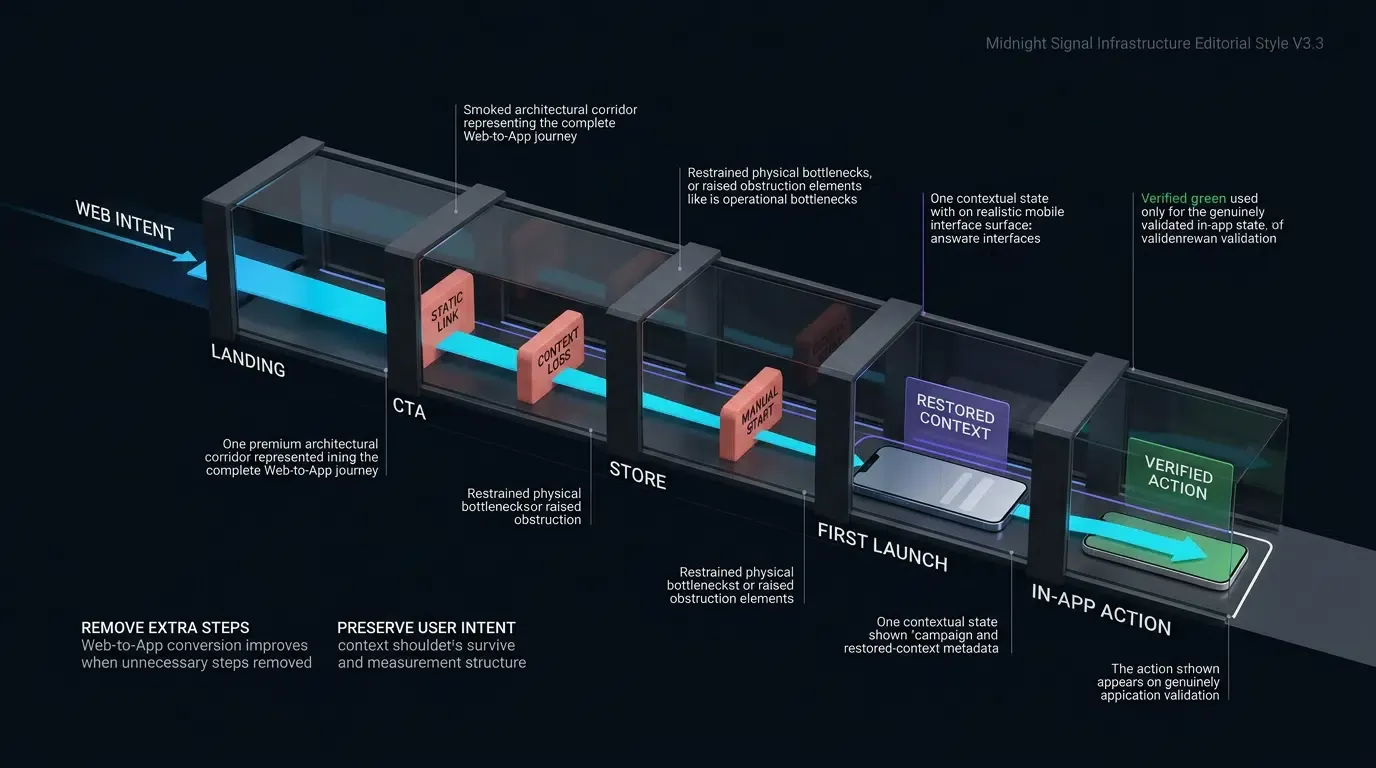
How do I add a smart app banner to my website? Adding a smart app banner requires inserting the apple-itunes-app meta tag into your website’s HTML head, defining your unique app-id, and passing routing parameters via app-argument to enable native Safari app wakeups and App Store fallbacks.
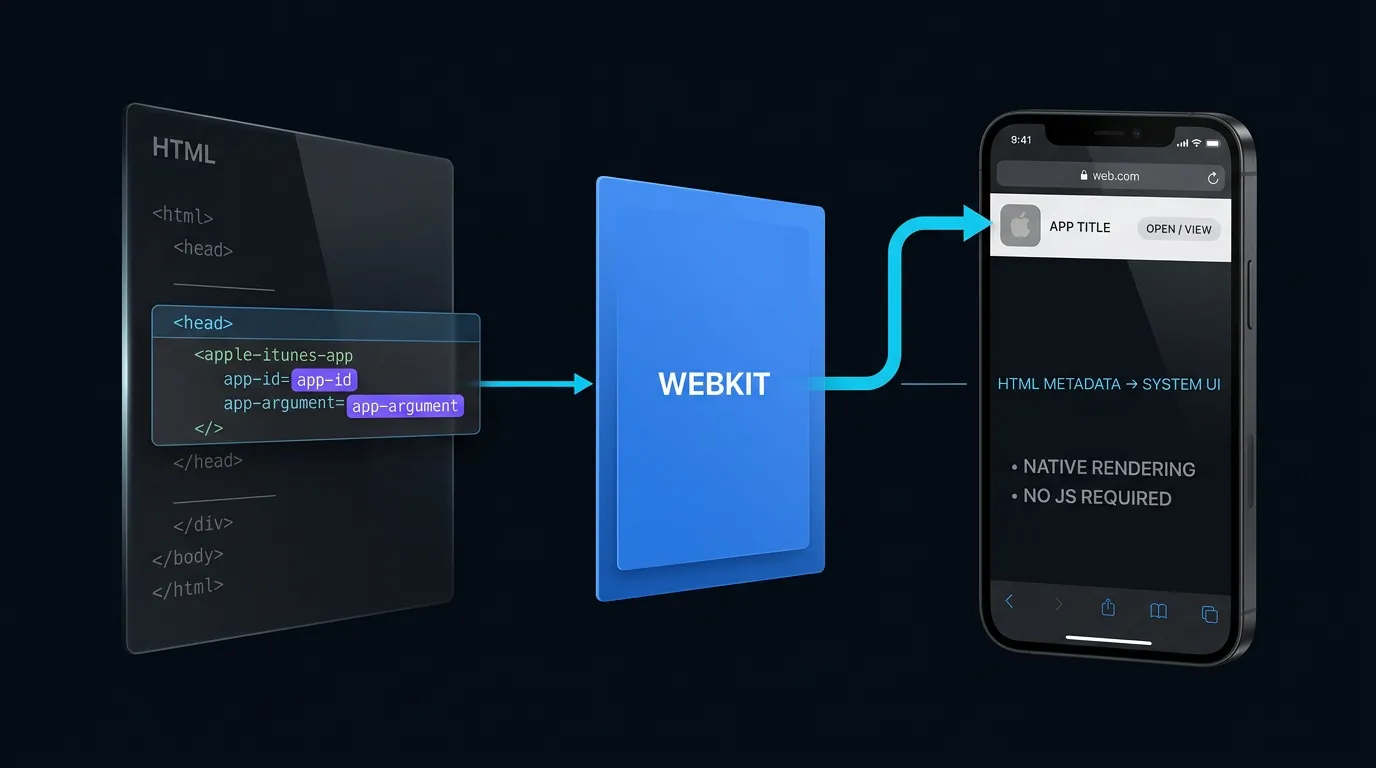
An Apple Smart App Banner is a native Safari promotional component declared via an HTML meta tag that displays an unobtrusive download or open prompt at the top of web pages on iOS and iPadOS. Rendered directly by WebKit, it determines local application availability, presenting an Open button that transmits contextual parameters to installed apps, or a View button routing uninstalled users to the App Store.
| Term | Definition | Related Entity | Search Intent Role |
|---|---|---|---|
| Smart App Banner | A Safari-native promotional component configured via the apple-itunes-app meta tag. | Apple WebKit | Informational / Commercial |
| App Argument | A metadata attribute within the banner defining the URL string passed to the native app upon launch. | Custom URL Scheme | Technical / Informational |
| Web to App | The architectural process of routing web browser visitors into native mobile apps. | Mobile Deep Linking | Informational |
Why Safari Smart App Banners Remain Essential for iOS Acquisition
Native Safari Integration: Zero JavaScript Overhead and Consistent OS-Level Rendering
Apple’s native Smart App Banner represents an integrated bridge between web content and iOS applications. Unlike custom JavaScript banners that require client-side DOM manipulation, third-party styling libraries, and ongoing layout recalculations, native Smart App Banners are rendered directly by WebKit at the operating system level.
Because WebKit manages the layout natively, the banner produces zero JavaScript execution overhead and does not block the browser’s main thread during initial page load. The banner renders consistently across iOS and iPadOS form factors, adapting smoothly to viewport rotations, Safe Area insets on modern iPhone hardware, and system accessibility settings such as Dynamic Type.
Eliminating Store Search Friction: Automatic Fetching of App Icon, Title, Rating, and Price
Configuring a standard promotional prompt on the web typically requires marketing teams to query App Store APIs manually to display current application icons, developer titles, localized pricing, and aggregate star ratings. When application metadata changes—such as an icon update for a seasonal campaign or an introductory price promotion—static custom banners quickly become outdated.
Native Smart App Banners eliminate this maintenance burden. Upon reading a valid app-id, WebKit communicates directly with local App Store services to fetch the application’s production metadata automatically. Safari displays the official App Store icon, title, current rating, and localized pricing (e.g., “Free” or local currency) without requiring web developers to hardcode marketing assets or manage localized string tables.
System-Level State Detection: How WebKit Distinguishes Installed from Uninstalled Users
A persistent challenge in web-to-app routing is identifying whether a visiting device currently has the native application installed. For privacy and security reasons, browser sandboxes strictly prohibit webpage JavaScript from querying local application registries or inspecting installed package lists.
Native Smart App Banners resolve this challenge at the platform layer. Safari determines whether the application is available on the device using system-level mechanisms unavailable to webpage JavaScript. If the application corresponding to the declared app-id is installed, Safari renders an “OPEN” call-to-action (CTA). If the application is absent, the banner displays a “VIEW” CTA. This detection occurs entirely within the operating system boundary, preventing client-side fingerprinting while helping visitors receive an accurate, actionable prompt.
How to Structure the Apple iTunes App Meta Tag Syntax Correctly
Dissecting Core Tag Attributes: app-id and app-argument
The native Smart App Banner is configured through a single HTML <meta> element placed within the document <head>. The name attribute must be set exactly to apple-itunes-app, while the content attribute accepts a comma-delimited string of key-value pairs:
<meta name="apple-itunes-app" content="app-id=123456789, app-argument=myapp://product/detail/1024?campaign=spring_sale">
Apple’s current Smart App Banner documentation defines two primary supported parameters:
app-id(Required): The unique numeric identifier assigned to the application in App Store Connect. This identifier allows WebKit to resolve the correct store listing and query local application availability.app-argument(Optional): A valid URI string (such as a custom URL scheme or an HTTPS Universal Link) that Safari passes to the native application when the user taps “OPEN”.
Older Smart App Banner references documented an additional parameter, affiliate-data, used for partner tracking. Because current Apple documentation no longer lists affiliate-data as a standard Smart App Banner parameter, treat affiliate metadata as legacy behavior unless separately verified against current Apple Services partner guidelines.
Strict Formatting Rules: Validating Comma Delimiters and Attribute Quotations
WebKit’s metadata parser enforces rigid structural rules. Common syntax mistakes will cause Safari to ignore the tag:
- Attributes within the
contentstring must be separated by commas, not semicolons or pipes. - Attribute values must not contain unencoded whitespace or raw comma characters.
- Attribute values must not be wrapped in nested quotation marks inside the primary
contentattribute string.
A properly formed tag adheres to the following specification:
<meta name="apple-itunes-app" content="app-id=987654321, app-argument=https://app.example.com/promo/summer?source=safari_banner">
Server-Side Rendering Requirements: Rendering Smart App Banner Metadata Reliably in the Initial Document Head
Frontend architectures frequently attempt to inject or update the <meta name="apple-itunes-app"> tag dynamically using client-side JavaScript frameworks (such as React, Vue, or Angular) after evaluating single-page application (SPA) route parameters.
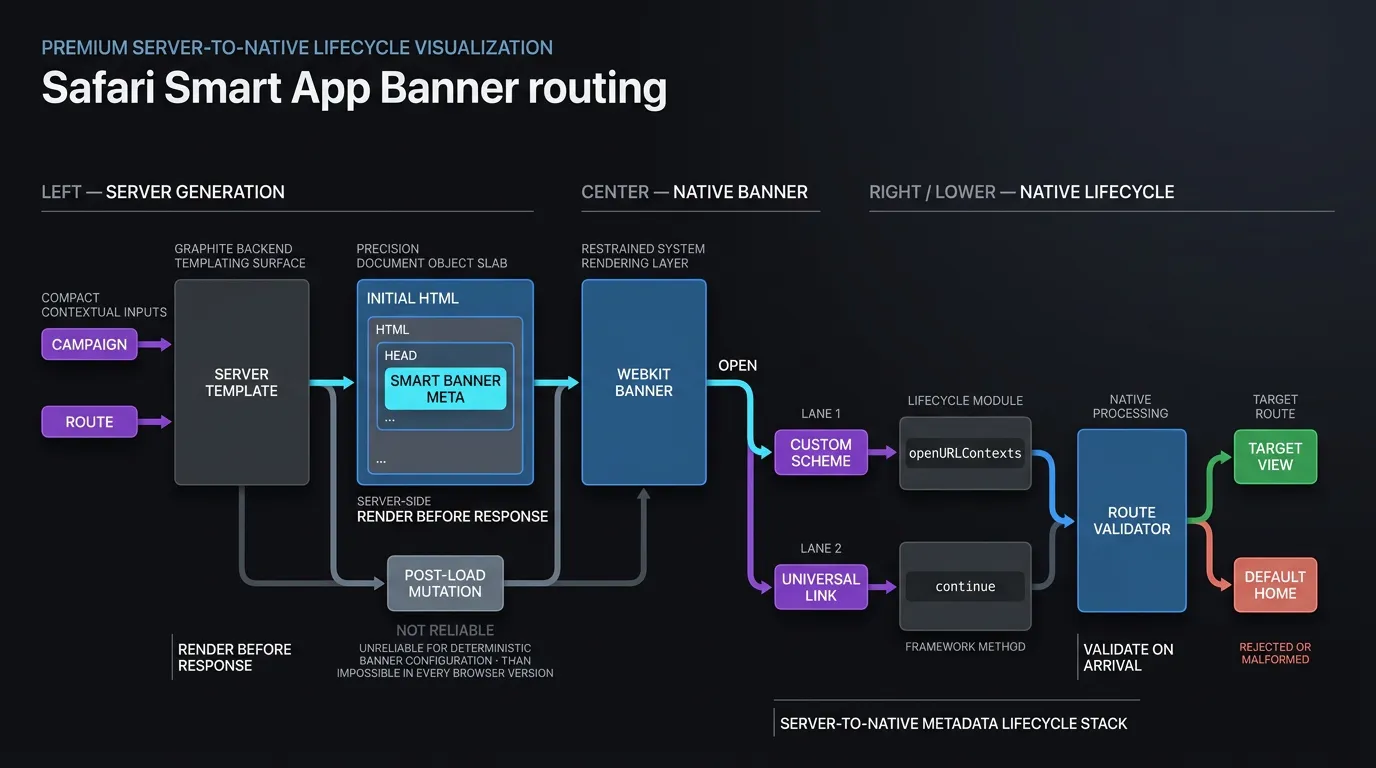
For deterministic Smart App Banner behavior, render the apple-itunes-app meta tag in the initial document <head>. Apple documents server-side generation of app-argument; do not rely on post-load client-side DOM mutations via document.head.appendChild() or attribute modification, as WebKit parses document metadata during initial document stream evaluation and may not re-evaluate banner configurations on subsequent client-side DOM changes.
Validating WebKit Meta Conformance against W3C Document Metadata Standards
The apple-itunes-app element complies with the W3C HTML5 Document Metadata Specification, which allows vendor-specific extensions within standard <meta> elements. WebKit adheres to RFC 3986 URI parsing standards when evaluating the nested app-argument payload.
Technical Mechanisms of Parameter Passing via App Argument
Encoding Deep Link Payloads into the app-argument String: Schemes vs. HTTPS URLs
The app-argument attribute establishes contextual routing into the native application. Web teams can supply either a custom URI scheme or an HTTPS Universal Link:
- Custom URL Scheme (
myapp://product/detail/1024?id=1024): Launches the application and delivers the payload to native custom URL delegates. Custom schemes provide direct app wakeups, but do not provide an independent web fallback if copied outside Safari. - HTTPS Universal Link (
https://app.example.com/detail/1024?id=1024): Passes a verified domain URL. This ensures unified parameter parsing across Universal Link delegates while maintaining a fully accessible web destination across other platforms.
Managing Query Parameter Escaping to Prevent URL Truncation in WebKit
When passing tracking tokens, referral codes, or nested payloads inside app-argument, developers must structure the URL correctly. Because WebKit uses commas to separate attributes within the content string, an unencoded comma inside a deep link parameter will truncate the app-argument prematurely.
Preserve standard URL syntax (scheme://host/path?query) while encoding reserved characters—such as commas, spaces, or nested delimiters—within query parameter values. In HTML source files, any ampersands (&) connecting multiple query parameters must be properly escaped as &:
<!-- Malformed: Unencoded comma truncates attribute parsing -->
<meta name="apple-itunes-app" content="app-id=123, app-argument=myapp://route?filter=red,blue">
<!-- Valid: Standard URL structure with HTML-escaped ampersand and encoded parameter values -->
<meta name="apple-itunes-app" content="app-id=123, app-argument=myapp://product/detail/1024?filter=red%2Cblue&campaign=spring_sale">
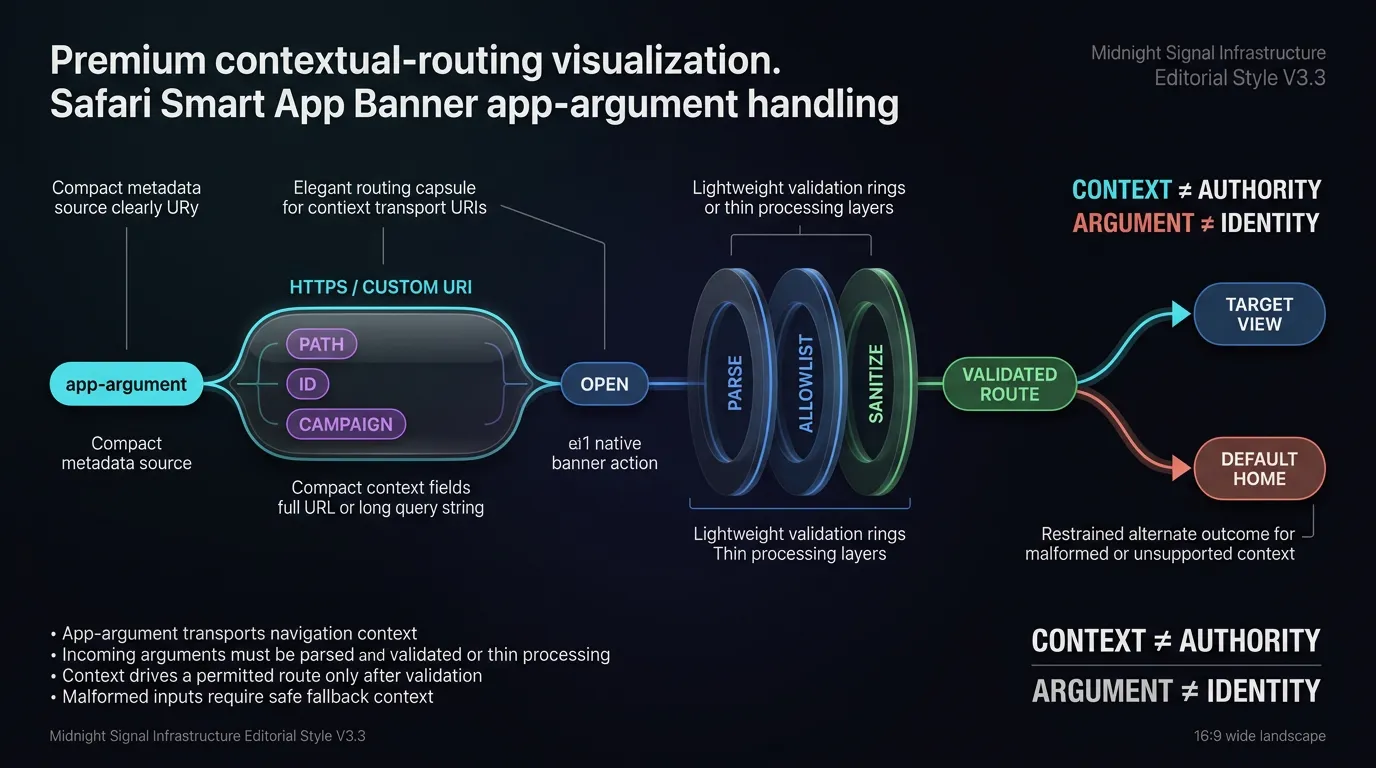
Treating Incoming Arguments as Untrusted Input: Enforcing Schema and Path Allowlisting
In accordance with OWASP Mobile Application Security Testing Guide Guidance on Insecure Deep Links, applications must treat all data delivered via app-argument as untrusted, external input. Because metadata is exposed on public web pages, attackers could craft unexpected parameters to target internal application routes.
Native iOS code must sanitize incoming URLs:
- Validate the incoming URL scheme and host against strict allowlists.
- Enforce path prefix verification before loading internal view controllers.
- Sanitize query parameter values against length and character set constraints, adopting a fail-closed posture for unknown keys.
- Use opaque, short-lived restoration identifiers rather than reusable user authentication credentials when passing session context.
Binding Dynamic Marketing Tokens Using Contextual Tag Generation
For web pages handling paid search or influencer traffic, server-side template engines should dynamically inject incoming UTM parameters and referral codes directly into the app-argument string before serving the page.
OpoInstall, a mobile attribution and deep linking platform, enables growth teams to synchronize web-based referral tokens with native SDK parameters. Review the SDK integration documentation for guidelines on mapping web parameters to native attribution listeners.
How Does Safari Handle App Installed States and User Dismissals
The Open vs. View State Cascade: How WebKit Routes Based on Local Bundle Registration
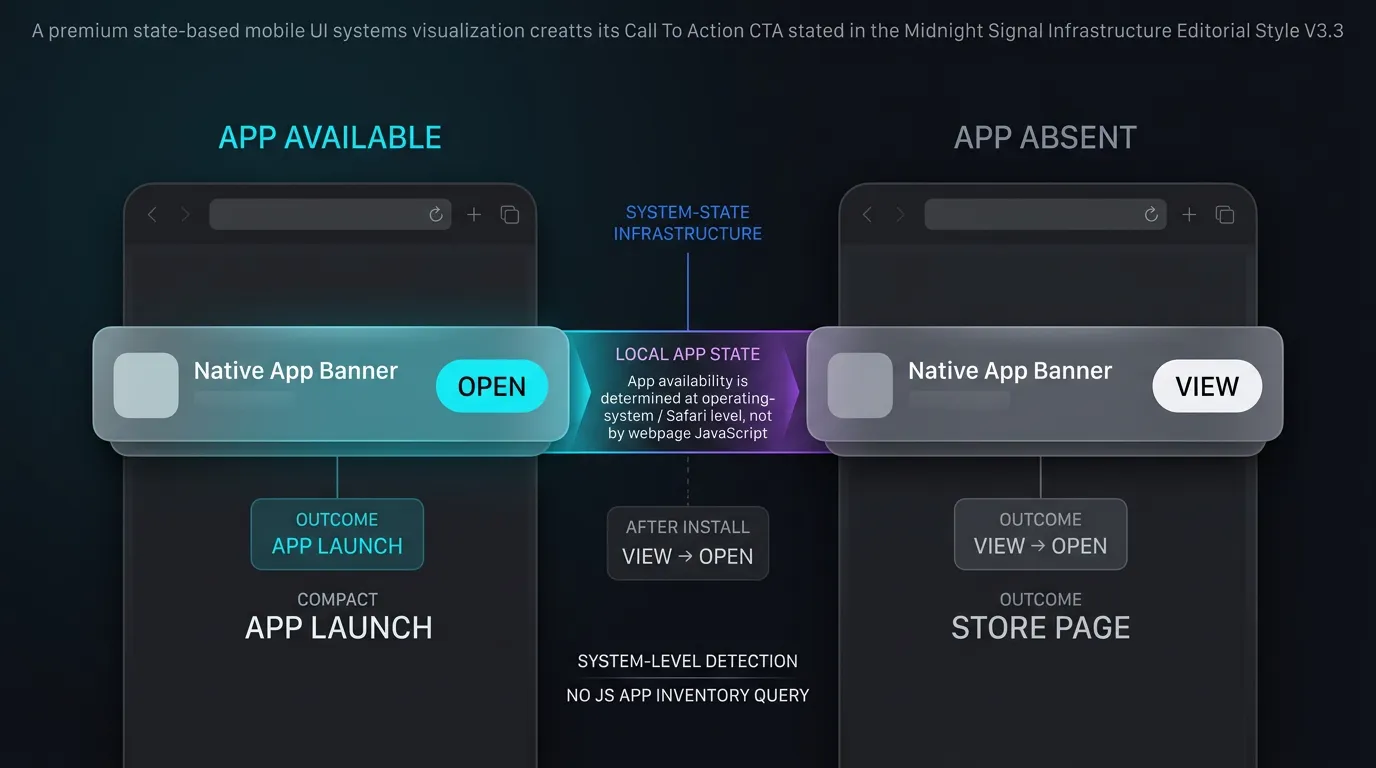
When a page containing the meta tag loads, WebKit initiates a background resolution sequence:
- Application Availability Check: WebKit checks whether an installed application on the device matches the declared
app-id. - Button State Configuration:
- If installed: The banner displays “OPEN”. Tapping this button invokes native application launch delegates, passing the
app-argumentstring. - If uninstalled: The banner displays “VIEW”. Tapping this button directs Safari to the App Store product page for that
app-id.
- If installed: The banner displays “OPEN”. Tapping this button invokes native application launch delegates, passing the
- App Store Return Flow: If an uninstalled user taps “VIEW”, downloads the app from the App Store, and returns to Safari, WebKit updates the banner CTA from “VIEW” to “OPEN”.
Persistent User Dismissals: Understanding Safari’s Suppression Behavior
If a user taps the “x” icon on the left side of the Smart App Banner, Safari interprets this action as an explicit dismissal.
Apple documents that after a user dismisses a Smart App Banner, the banner does not reappear when the user returns to that webpage. Safari does not expose a JavaScript API or meta attribute to force the native banner to reappear programmatically.
Private Browsing and Device Compatibility Constraints
Smart App Banner behavior on private tabs or specific device profiles should be evaluated against the targeted Safari and iOS releases. WebKit restricts certain cross-context interactions in private windows, and Smart App Banners are designed primarily for iOS and iPadOS Safari rather than desktop macOS environments.
Debugging Dismissal State Reset Protocols on Development Hardware
During quality assurance and engineering verification, developers frequently dismiss the banner during UI testing and subsequently find it suppressed on the test device.
For QA environments, clearing Safari website data may reset the locally observed suppression state on some iOS versions, though Apple does not document this as a formal Smart App Banner API contract. When evaluating banners on development hardware:
- Open Settings on the iOS test device.
- Navigate to Safari -> Advanced -> Website Data.
- Search for the testing domain and select Delete, or select Remove All Website Data.
- Force-quit Safari from the iOS App Switcher and relaunch the test URL in a standard tab.
[User Visits Web Page in Mobile Safari]
                 │
                 ▼
[WebKit Reads <meta name="apple-itunes-app">]
                 │
     ┌───────────┴───────────┐
     ▼                       ▼
[App Installed]      [App Not Installed]
     │                       │
     ▼                       ▼
[Renders "OPEN"]      [Renders "VIEW"]
     │                       │
     ▼                       ▼
[User Taps Button]    [User Taps Button]
     │                       │
     ▼                       ▼
[Passes app-argument] [Opens App Store Product Page]
     │
     ▼
[App Delegate Parses Context]
     │
     ▼
[Loads Targeted In-App Scene]
Native iOS Lifecycle Implementation for Handling Banner Arguments
Intercepting Custom Scheme and Universal Link Arguments in SceneDelegate
In modern iOS architectures utilizing UISceneDelegate (standard in iOS 13 and later), incoming URLs delivered by Smart App Banners are processed through scene lifecycle callbacks depending on whether app-argument is a custom scheme or a Universal Link:
- Custom URL Scheme (
myapp://): When a custom scheme is delivered, WebKit invokesscene(_:openURLContexts:). The application inspects theUIOpenURLContextset to extract and sanitize the URL. - Universal Link Routing (
https://): If your Smart App Banner routing strategy enters the app through a verified Universal Link, handle that URL through the standard Universal Link lifecycle (scene(_:continue:)withNSUserActivityTypeBrowsingWeb). Validate this routing against the Safari and iOS versions used in your target deployment matrix.
Legacy AppDelegate Handling for Non-Scene Architectures
For applications maintaining legacy, non-scene lifecycles (or supporting iOS 12 and earlier), custom schemes were traditionally intercepted via application(_:open:options:), and Universal Links via application(_:continue:restorationHandler:).
Apple currently deprecates application(_:open:options:) in favor of UIScene URL handling. Keep legacy AppDelegate methods only if your architecture explicitly supports non-scene application structures.
The technical implementation below demonstrates how to configure the HTML meta tag and handle incoming banner arguments securely across both custom scheme and Universal Link pathways. Developers can download certified native frameworks from the OpoInstall SDK download center.
<!-- HTML: Server-Rendered Document Head with Smart App Banner Metadata -->
<!DOCTYPE html>
<html lang="en">
<head>
<meta charset="UTF-8">
<meta name="viewport" content="width=device-width, initial-scale=1.0">
<title>Product Promotion Landing Page</title>
<!-- Configure Apple Smart App Banner for Safari on iOS/iPadOS -->
<!-- app-id: Required App Store Connect numeric identifier -->
<!-- app-argument: Optional valid URI string (Custom Scheme or Universal Link) -->
<!-- Note: HTML ampersands in query parameters must be written as & -->
<meta name="apple-itunes-app"
content="app-id=123456789, app-argument=myapp://product/detail/1024?utm_source=safari_banner&campaign=spring_sale">
</head>
<body>
<h1>Seasonal Campaign</h1>
<p>View this promotional item directly inside our mobile application.</p>
</body>
</html>
// iOS: Supporting SceneDelegate and Legacy AppDelegate for Smart App Banner Parameter Routing
// Reference integration example; verify method signatures against deployed iOS architecture.
import UIKit

// 1. Data Structure for Validated Banner Routes
struct ValidatedBannerRoute {
    let targetPath: String
    let parameters: [String: String]
}

// 2. Security Validator for Incoming app-argument URLs (Supporting Custom Schemes & Universal Links)
class BannerRouteValidator {
    private static let allowedSchemes = ["myapp", "https"]
    private static let allowedHosts = ["product", "promo", "event", "app.example.com"]
    private static let allowedPathPrefixes = ["/detail/", "/view/", "/promo/"]
    private static let allowedKeys = ["utm_source", "campaign", "id", "source"]

    static func validate(url: URL) -> ValidatedBannerRoute? {
        guard let scheme = url.scheme?.lowercased(), allowedSchemes.contains(scheme) else {
            return nil
        }
        guard let host = url.host?.lowercased(), allowedHosts.contains(host) else {
            return nil
        }

        let path = url.path
        if !path.isEmpty && !allowedPathPrefixes.contains(where: { path.hasPrefix($0) }) {
            return nil
        }

        var sanitizedParams: [String: String] = [:]
        if let components = URLComponents(url: url, resolvingAgainstBaseURL: false),
           let queryItems = components.queryItems {
            let validChars = CharacterSet(charactersIn: "abcdefghijklmnopqrstuvwxyzABCDEFGHIJKLMNOPQRSTUVWXYZ0123456789_-")
            for item in queryItems {
                // Fail-closed validation: reject URL if unknown query keys exist
                guard allowedKeys.contains(item.name) else { return nil }
                let value = item.value ?? ""
                if value.count <= 128 && value.rangeOfCharacter(from: validChars.inverted) == nil {
                    sanitizedParams[item.name] = value
                } else {
                    return nil
                }
            }
        }

        return ValidatedBannerRoute(targetPath: "\(host)\(path)", parameters: sanitizedParams)
    }
}

// 3. Modern Scene-Based Handling (iOS 13+)
class SceneDelegate: UIResponder, UIWindowSceneDelegate {

    var window: UIWindow?

    func scene(
        _ scene: UIScene,
        willConnectTo session: UISceneSession,
        options connectionOptions: UIScene.ConnectionOptions
    ) {
        guard let _ = (scene as? UIWindowScene) else { return }

        // Handle cold launch via custom URL scheme delivered by Smart App Banner
        if let urlContext = connectionOptions.urlContexts.first {
            handleIncomingURL(urlContext.url)
        }

        // Handle cold launch via Universal Link routing
        if let userActivity = connectionOptions.userActivities.first(where: { $0.activityType == NSUserActivityTypeBrowsingWeb }),
           let webpageURL = userActivity.webpageURL {
            handleIncomingURL(webpageURL)
        }
    }

    // Handle warm resume via custom URL scheme
    func scene(_ scene: UIScene, openURLContexts URLContexts: Set<UIOpenURLContext>) {
        if let url = URLContexts.first?.url {
            handleIncomingURL(url)
        }
    }

    // Handle warm resume via Universal Link routing
    func scene(_ scene: UIScene, continue userActivity: NSUserActivity) {
        if userActivity.activityType == NSUserActivityTypeBrowsingWeb, let webpageURL = userActivity.webpageURL {
            handleIncomingURL(webpageURL)
        }
    }

    private func handleIncomingURL(_ url: URL) {
        // For development/QA builds, log diagnostic URL structure; avoid logging sensitive tokens in production
        NSLog("[SmartAppBanner] Processing incoming app-argument URL: %@", url.absoluteString)

        if let route = BannerRouteValidator.validate(url: url) {
            DispatchQueue.main.async {
                AppNavigator.shared.routeToScene(path: route.targetPath, params: route.parameters)
            }
        } else {
            NSLog("[SmartAppBanner] Rejected unauthorized or malformed app-argument: %@", url.absoluteString)
            DispatchQueue.main.async {
                AppNavigator.shared.routeToDefaultHome()
            }
        }
    }
}

// 4. Legacy AppDelegate Handling (for Non-Scene Architectures / iOS 12 and Earlier)
@main
class AppDelegate: UIResponder, UIApplicationDelegate {

    var window: UIWindow?

    // Deprecated by Apple in favor of UIScene lifecycle; keep only for non-scene legacy support
    func application(
        _ app: UIApplication,
        open url: URL,
        options: [UIApplication.OpenURLOptionsKey : Any] = [:]
    ) -> Bool {
        NSLog("[SmartAppBanner] Legacy AppDelegate intercepted custom scheme: %@", url.absoluteString)

        if let route = BannerRouteValidator.validate(url: url) {
            DispatchQueue.main.async {
                AppNavigator.shared.routeToScene(path: route.targetPath, params: route.parameters)
            }
            return true
        }

        DispatchQueue.main.async {
            AppNavigator.shared.routeToDefaultHome()
        }
        return false
    }

    func application(
        _ application: UIApplication,
        continue userActivity: NSUserActivity,
        restorationHandler: @escaping ([UIUserActivityRestoring]?) -> Void
    ) -> Bool {
        if userActivity.activityType == NSUserActivityTypeBrowsingWeb, let webpageURL = userActivity.webpageURL {
            if let route = BannerRouteValidator.validate(url: webpageURL) {
                DispatchQueue.main.async {
                    AppNavigator.shared.routeToScene(path: route.targetPath, params: route.parameters)
                }
                return true
            }
        }
        return false
    }
}
Sanitizing and Routing Arguments to Dedicated View Controllers without Execution Vulnerabilities
Once intercepted by native lifecycle delegates, the raw app-argument string must pass through an internal validator before driving UI transitions:
- Allowlist Validation: Confirm that the requested route matches predefined navigation targets (e.g.,
/detail/,/promo/). - Parameter Type Enforcement: Cast incoming IDs to expected formats (such as positive integers or alphanumeric strings), rejecting unexpected symbols or unknown keys.
- Safe Fallback: If validation fails or the target item is unavailable, route the user safely to the default application home screen rather than crashing or presenting empty interfaces.
Safari Native Banners Versus Dynamic Cross-Platform App Banners
Comparative Architectural Analysis: Native WebKit Banners vs. JavaScript Banners
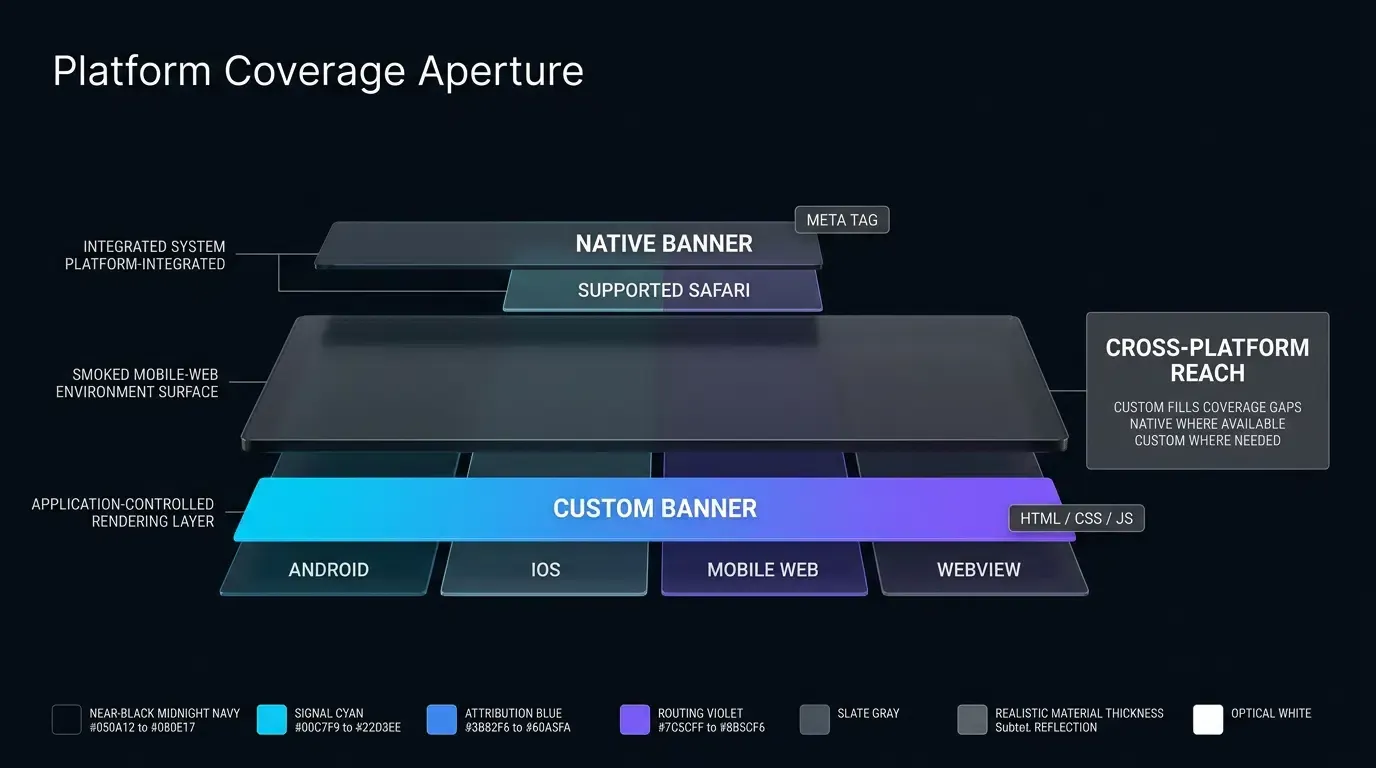
When planning web-to-app growth funnels, engineering teams must evaluate whether native Safari Smart App Banners meet their operational requirements or if a dynamic cross-platform banner architecture is required.
Native WebKit banners deliver zero-cost performance and authentic OS styling, but operate exclusively within Safari on iOS. For multi-channel platforms acquiring users across Android, Chrome, and embedded social webviews, relying solely on Apple’s native banner leaves non-Safari traffic unserved.
Evaluating Feature Trade-offs Across Operating Systems and Marketing Funnels
The table below contrasts the technical capabilities and limitations of Apple Smart App Banners against dynamic JavaScript-rendered banners:
| Evaluation Dimension | Apple Native Smart App Banner | Custom JavaScript App Banner |
|---|---|---|
| Supported Browsers | Safari on iOS and iPadOS only | Safari, Chrome, Firefox, In-App WebViews |
| Supported Platforms | iOS and iPadOS | iOS, Android, Desktop |
| Rendering Mechanism | Native OS-level WebKit rendering | HTML, CSS, and DOM JavaScript |
| Performance Overhead | Zero JavaScript execution overhead | Lightweight script download and DOM injection |
| Parameter Flexibility | Static or server-rendered app-argument |
Fully dynamic runtime client-side parameterization |
| Store Pricing Display | Automatically localized from App Store | Requires manual API integration or static text |
| User Dismissal | Managed by Safari; cannot be reset via JS | Developer-controlled cookie or session storage |
Frequently Asked Questions (FAQ)
Can I display a native Apple Smart App Banner on Android or Google Chrome?
Why is my Apple Smart App Banner not showing on iOS Safari?
Can I dynamically change the app-argument using client-side JavaScript?
Summary and Decision Framework
Configuring Safari Smart App Banners provides an efficient, JavaScript-free native bridge between mobile websites and native iOS applications. By utilizing the native <meta name="apple-itunes-app"> specification, engineering teams deliver a familiar, trustworthy installation prompt that respects platform design guidelines and automates App Store pricing display.
However, because native banners are restricted exclusively to Safari on iOS and depend on server-side metadata generation, comprehensive mobile growth strategies combine native banners with dynamic, cross-platform frameworks. Pairing native WebKit metadata with client-side attribution engines helps provide appropriate redirection paths into native application scenes across all mobile visitors.
To learn how to implement comprehensive mobile deep linking and parameter routing across web and native platforms, consult the SDK integration documentation, download the client libraries from the OpoInstall SDK download center, explore the mobile attribution implementation reference, or register your application on the OpoInstall developer console.
Related Materials
-
Concepts: Smart App Banner, Web to App Redirection, Custom URL Scheme, App Argument Parsing, App Store Optimization
-
Technologies: Apple WebKit, iOS UIKit, UIWindowSceneDelegate, Safari Metadata Engine
-
Standards: IETF RFC 3986 Uniform Resource Identifier, W3C HTML5 Document Metadata Specification, OWASP Mobile Application Security Testing Guide (MASTG)
-
APIs: Apple
apple-itunes-appMeta Tag, UIKitapplication(_:open:options:), WebKitdecidePolicyForNavigationAction -
Official Documentation & References:
Share this article