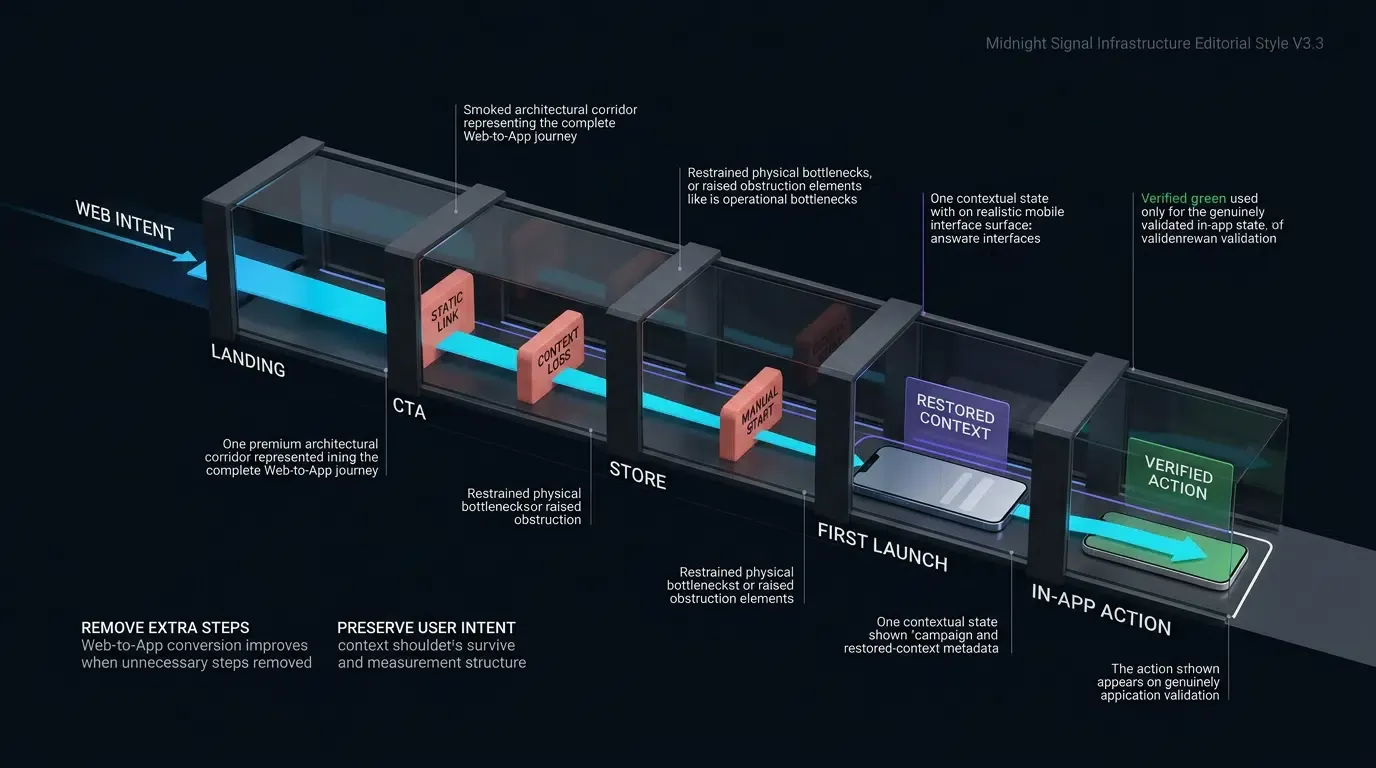
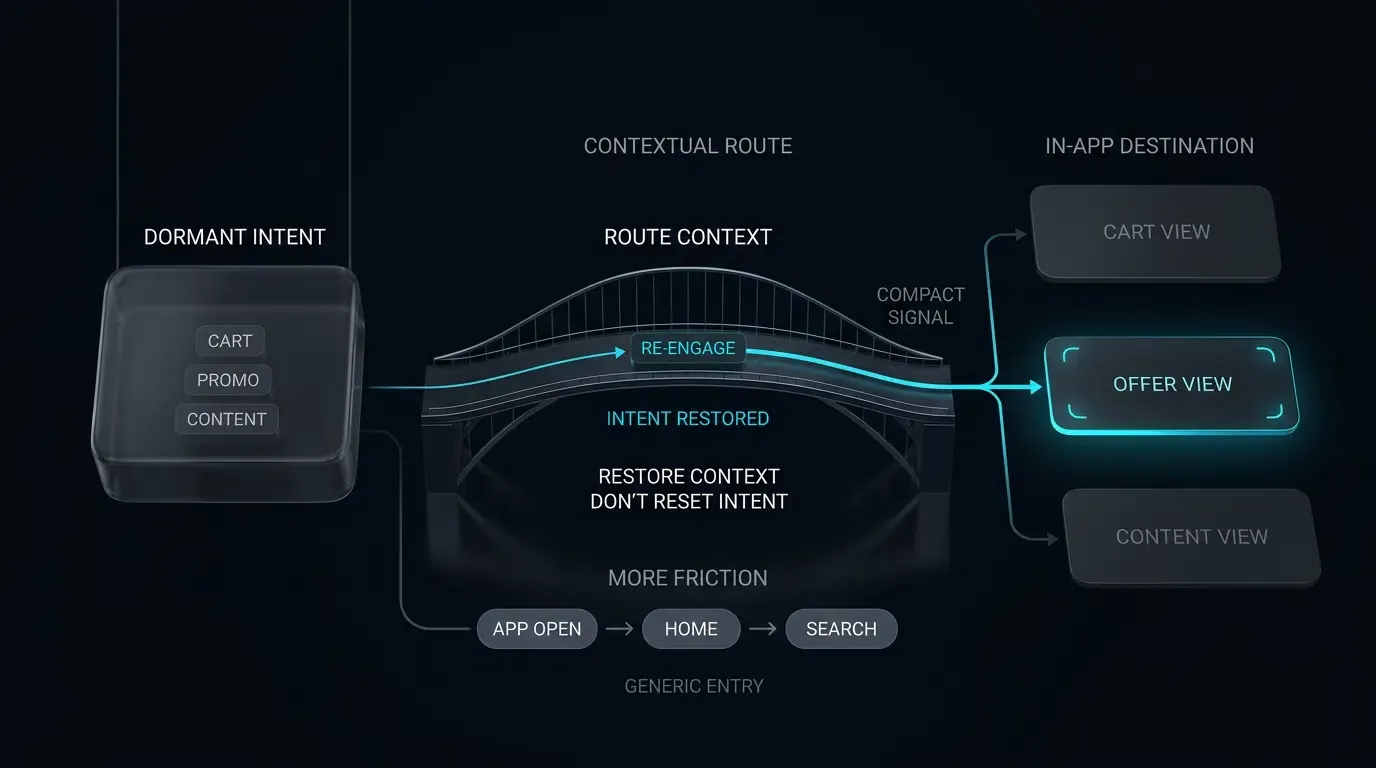
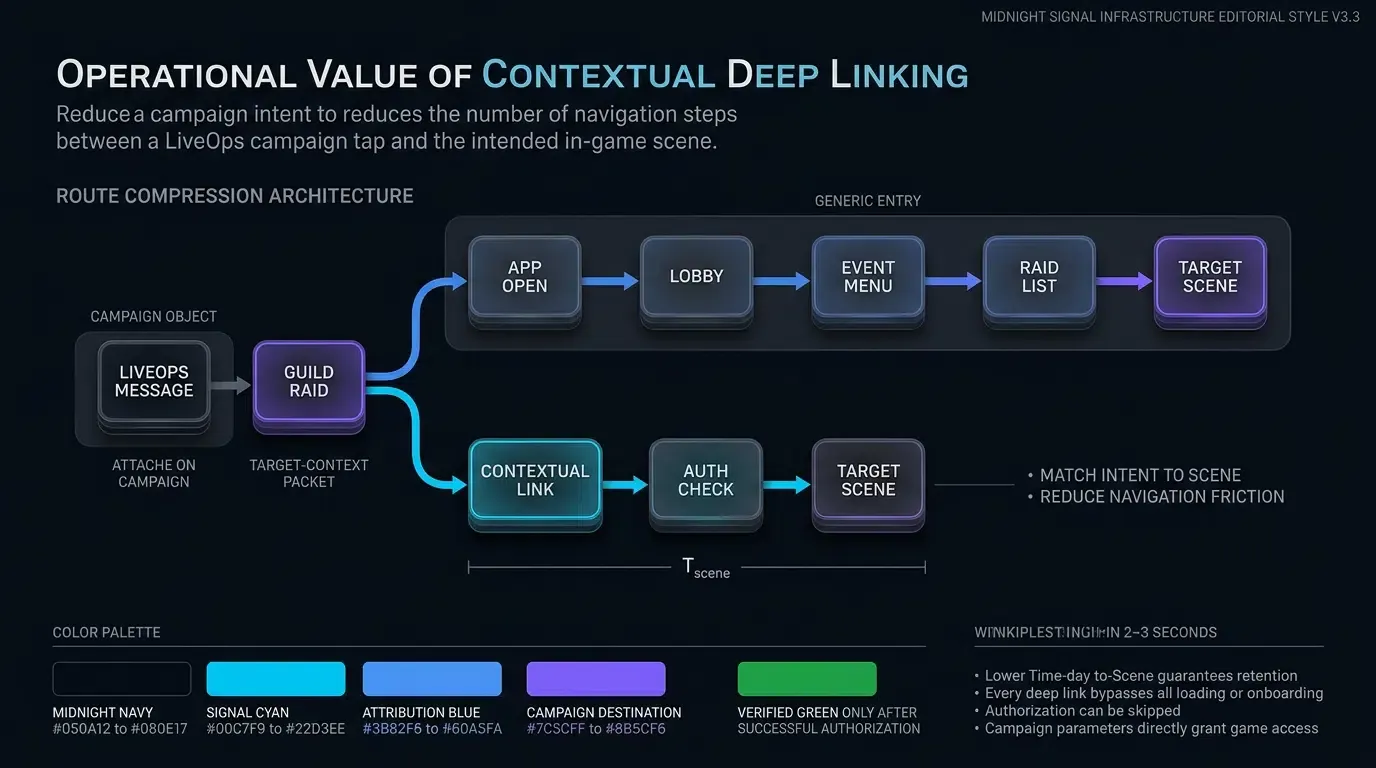
What are the best smart app banner alternatives for Android? The best smart app banner alternatives for Android are dynamic, JavaScript-rendered HTML banners that detect device platforms, adapt promotional messaging dynamically, and route users via verified App Links or Chrome Intent URIs with customizable fallback behavior.
A custom Smart App Banner is an application-defined, JavaScript-rendered web component that promotes native mobile application downloads and deep-link wakeups across Android and iOS browsers. Unlike proprietary WebKit meta tags restricted to Safari on supported Apple platforms and documented
SFSafariViewControllercontexts, custom banners dynamically adapt styling, detect client runtime environments, and pass contextual marketing parameters directly into native app onboarding flows.
| Term | Definition | Related Entity | Search Intent Role |
|---|---|---|---|
| Smart App Banner | A web-based promotional component that presents dynamic app launch or download CTAs. | Web to App Redirection | Informational / Commercial |
| Web to App | The architectural process of routing web browser visitors into native mobile apps. | Mobile Deep Linking | Informational |
| Custom URL Scheme | An app-defined URI scheme used to route URLs into a native application. | Deep Link Routing | Technical / Informational |
Why Apple Native Smart App Banners Fail on Android Devices
The Proprietary WebKit Barrier: Why Android Chrome, Firefox, and Samsung Internet Ignore <meta name="apple-itunes-app">
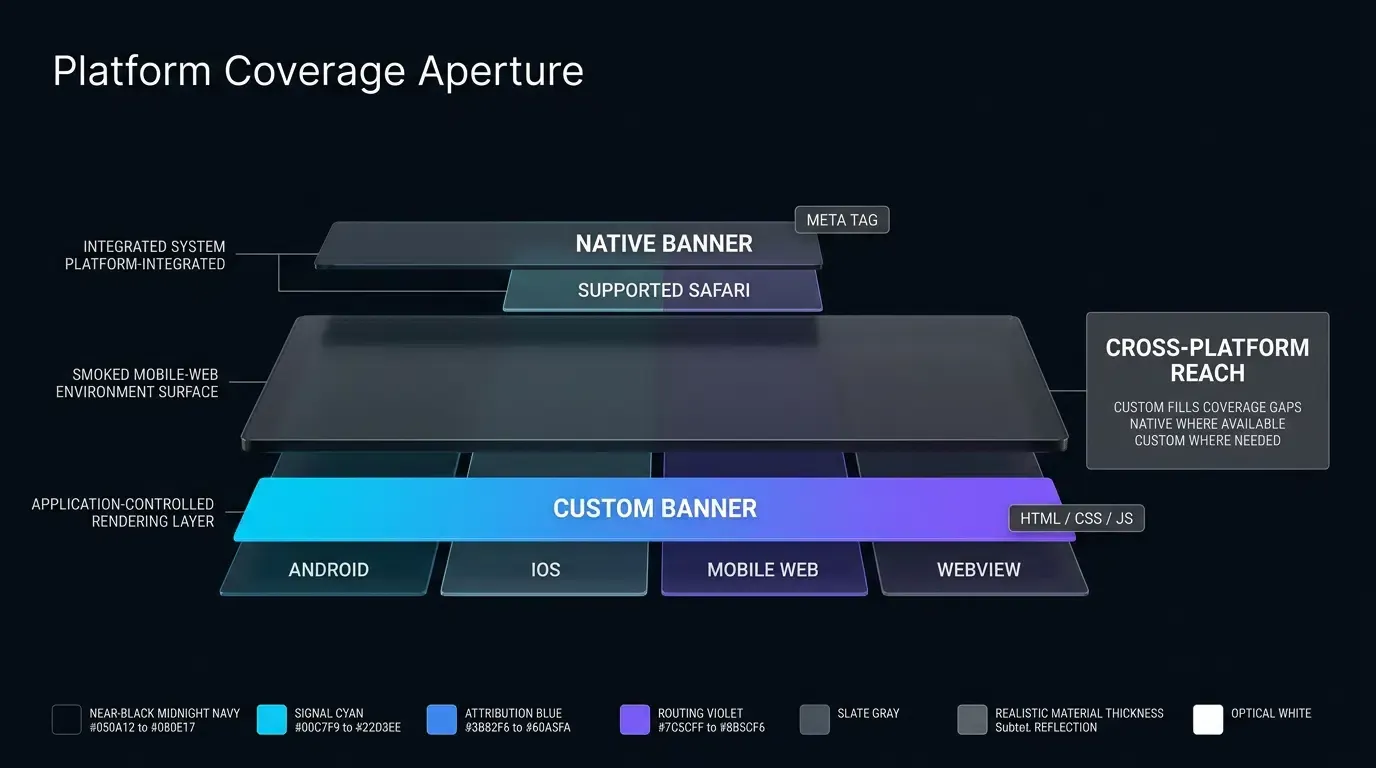
Apple implements Smart App Banners as an Apple-controlled web UI feature on supported Apple platforms, configured through an HTML <meta> element with name="apple-itunes-app" in Safari and documented SFSafariViewController contexts.
When non-Safari browsers—such as Google Chrome, Mozilla Firefox, Microsoft Edge, or Samsung Internet on Android—parse a webpage containing this meta tag, their rendering engines do not render Safari Smart App Banners. As a result, relying exclusively on Apple’s native <meta> tag leaves Android users without an interactive visual prompt, direct app wakeup triggers, or automated store redirection pathways.
The Android Market Blind Spot: Overcoming Coverage Gaps in Mobile Web Acquisition
Because Android represents a substantial portion of global mobile operating system usage, relying solely on Safari-native meta tags creates a significant promotional gap in multi-platform acquisition strategies.
When marketing campaigns drive mobile web visitors to product landing pages, content hubs, or promotional microsites, Android visitors frequently constitute a major share of incoming traffic. Without an Android-compatible banner framework, growth teams lack an automated, low-friction mechanism to transition these mobile web visitors into native application sessions at the top of the acquisition funnel.
The Inflexibility of Static Metadata: Overcoming the Inability to Pass Dynamic Marketing Tokens on the Fly
Even within supported Safari contexts, Apple’s native Smart App Banner operates under rigid functional boundaries. The native banner requires pre-configured or server-rendered app-argument strings, making it difficult to attach dynamic client-side marketing tokens (such as runtime referral codes, dynamic session parameters, or real-time campaign identifiers) after initial page compilation.
Custom Smart App Banners address these constraints. By deploying promotional banners using dynamic HTML, CSS, and JavaScript, frontend teams gain programmatic control over banner visibility, visual styling, copy localization, and real-time query parameter binding across mobile operating systems.
Architectural Requirements for Cross-Platform Smart App Banners
Dynamic User-Agent and Runtime Environment Classification
A production-grade custom Smart App Banner evaluates the client environment before rendering. Because screen dimensions, platform conventions, and deep linking protocols vary across operating systems, client-side scripts classify incoming traffic using heuristic platform detection combined with capability checks:
- Android Devices: Render Google Play Store badges, adapt copy to platform conventions, and route clicks through verified Android App Links or Chrome Intent URIs.
- iOS and iPadOS Devices: Render Apple App Store badges and route clicks through verified Universal Links or custom URL schemes, accounting for modern iPadOS desktop-style user agent headers via touch-capability heuristics.
- Desktop Browsers: Suppress mobile app banners, or present alternative CTAs such as SMS download links or desktop QR code modals.
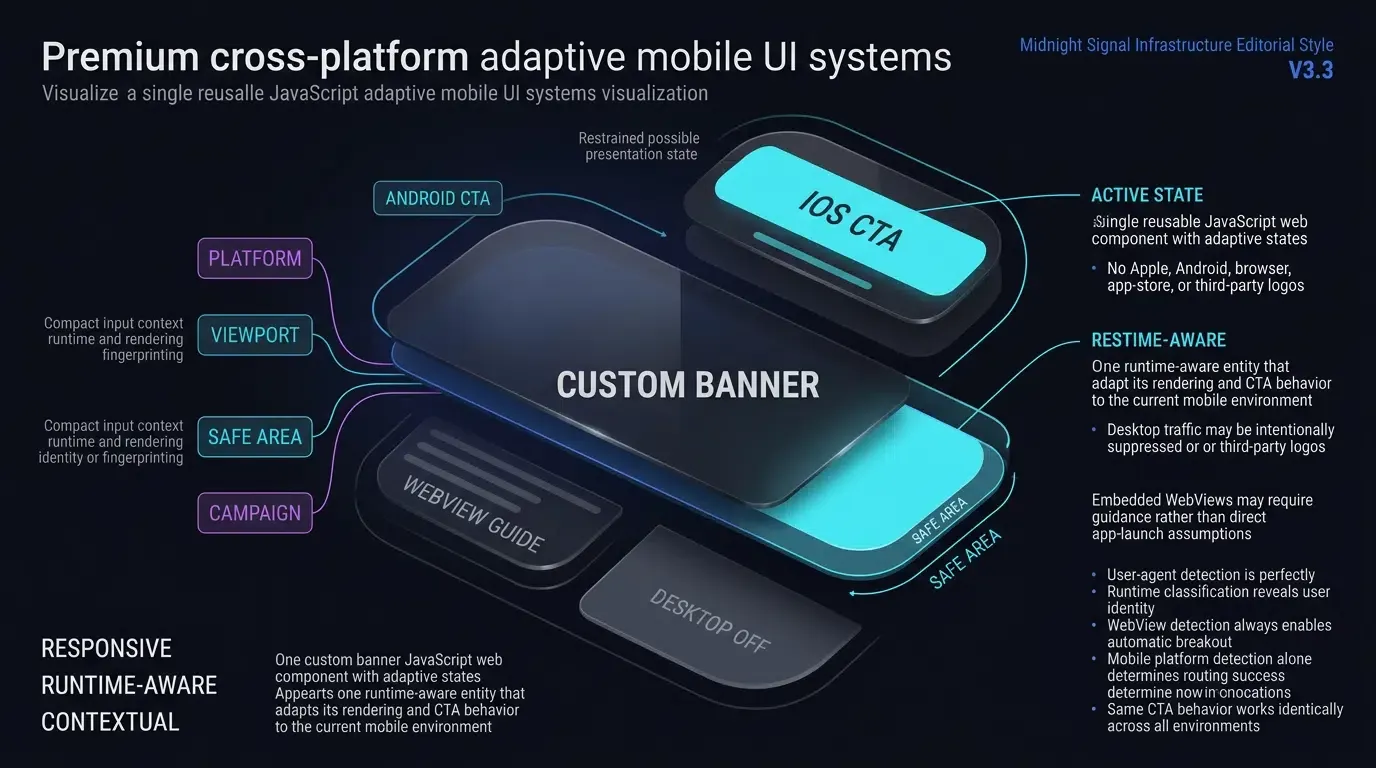
Responsive Viewport Integration: Floating Top and Bottom Anchors with CSS Safe Area Support
Custom banners render directly within the Document Object Model (DOM), requiring deliberate layout management to avoid viewport clipping or layout instability:
- Top Positioning: Traditional placement aligns the banner at the top of the webpage, shifting the main page content downward using layout containers or dynamic padding adjustments.
- Bottom Floating Bar: A common modern layout anchors the banner as a sticky footer at the bottom of the viewport, avoiding visual disruption of top navigation menus.
- Safe Area Insets: On modern edge-to-edge mobile displays, CSS rules should incorporate
env(safe-area-inset-top)orenv(safe-area-inset-bottom)to ensure banner content does not overlap hardware notches or system navigation bars.
Complying with Browser User-Gesture Constraints: Triggering Handoffs via Interactive Elements
Modern mobile browsers enforce security policies that restrict automated, programmatic deep-link navigations executing without explicit user activation. Programmatic redirects initiated via automated timer loops or on-load scripts are routinely restricted by mobile browsers.
Custom Smart App Banners align with common mobile-browser user-activation requirements by providing an interactive call-to-action button (e.g., “GET” or “OPEN”). The subsequent deep-link handoff executes directly within a trusted user-gesture event handler (such as a click listener), though exact activation handling varies by browser.
Multi-Tiered Routing Cascade: Verified App Links, Chrome Intent URIs, and Fallback Store Redirection
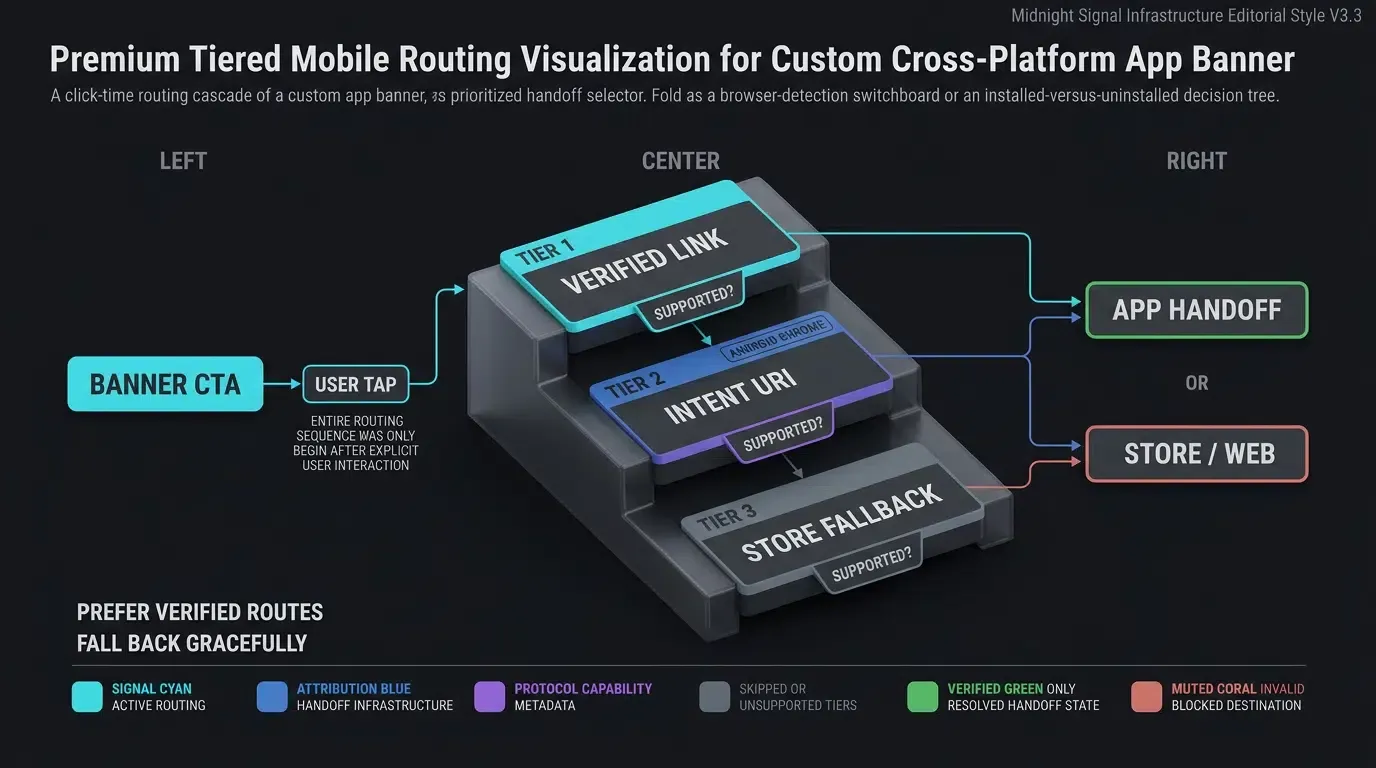
A resilient cross-platform banner coordinates a multi-tiered routing cascade rather than relying on a single link format:
- Tier 1: Verified HTTPS Links: Use verified HTTPS App Links on Android and Universal Links on iOS as the preferred routing primitive, while accounting for platform-specific browser behavior. On iOS Safari, same-domain navigation may intentionally remain in the browser, and third-party browser handling varies.
- Tier 2: Chrome Intent URIs: On Android Chrome, the banner formats requests using the
intent://syntax, specifying target package names and explicitS.browser_fallback_urldestinations. - Tier 3: Contextual Store Redirection: If the application is absent or cannot be resolved, the fallback layer routes the browser to Google Play or the App Store while capturing attribution context where supported.
How to Implement Dynamic Parameter Passing Inside Custom Web Banners
Extracting Campaign Context: Capturing UTM Parameters, Referral Tokens, and Promo Codes
Unlike static meta tags, custom Smart App Banners can extract runtime context from the hosting page URL. When a visitor arrives via paid ads or influencer campaigns, the URL frequently contains query strings:
https://www.example.com/promo?target=product_detail&id=SKU_5501&utm_source=summer_campaign&promo=SAVE20
The banner’s JavaScript layer extracts these parameters, sanitizes the values, and binds them to the interactive CTA button, ensuring that incoming marketing context travels into the app launch payload.
Sanitizing Banner Query Strings: Enforcing Alphanumeric and Length Constraints Before Handoff
In accordance with OWASP Mobile Application Security Testing Guide Guidance on Insecure Deep Links, all parameters extracted from web URLs must be treated as untrusted, user-controllable input.
Before appending parameters to native launch payloads:
- Enforce strict allowlists on target destination scenes (e.g.,
product_detail,promo_hub,category_view). - Validate identifier values against alphanumeric regular expressions (e.g., matching application-defined schema patterns such as
^[A-Za-z0-9_-]{1,64}$). - Truncate campaign strings to safe application-defined length boundaries (e.g.,
characters) to reduce parser abuse, injection risks, and malformed intent parsing.
Integrating Representative Web-to-App SDK Routing Handlers
A representative OpoInstall Web SDK integration may expose a wake-or-install handoff method; verify the exact method name, constructor, CDN path, and parameter schema against the production SDK version deployed in your environment.
OpoInstall, a mobile attribution and deep linking platform, evaluates the client platform, generates the appropriate App Link or Universal Link payload, and captures context on the attribution backend. Review the SDK integration documentation for full API parameter options.
Bridging the Install Gap: Enabling Deferred Parameter Restoration for Newly Installed Android Users
When an uninstalled Android user taps the custom banner, they are routed to the Google Play Store. Arbitrary webpage query parameters do not automatically survive an app-store installation transition.
OpoInstall supports deferred parameter restoration across store installations. By recording click-time context and correlating it with post-install launch signals via native SDK hooks, the application retrieves the original banner parameters upon initial launch, enabling automated promo code binding and scene restoration without requiring manual user input where supported by the deployed attribution system and permitted by platform privacy policies.
Managing User Dismissals and Viewport Layouts Across Modern Mobile Browsers
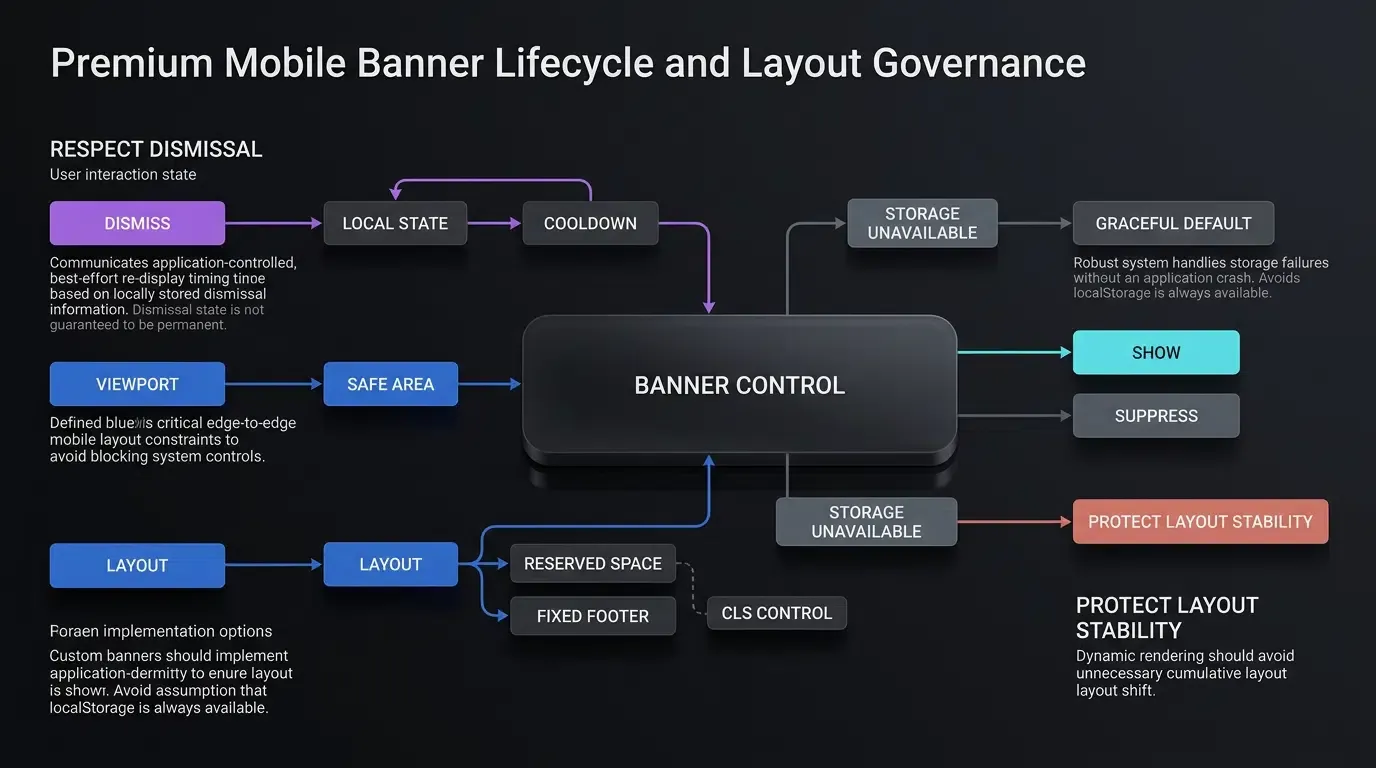
Managing Safari-Controlled Dismissal with Developer-Controlled localStorage Policies
In Apple’s native Safari Smart App Banner, tapping the “x” dismiss button causes Safari to suppress the banner on subsequent visits to that page. Apple does not expose a web API for a site to programmatically reset or schedule that native dismissal.
Custom Smart App Banners replace unconfigurable browser suppression with an application-defined re-display policy using the W3C Web Storage API (localStorage):
- When a user taps the banner’s close icon, the script records a dismissal timestamp in
localStorage. - On subsequent page visits, the script evaluates the stored timestamp against a configurable cool-down window.
- Once the window expires, the banner automatically becomes eligible for display again, re-engaging returning visitors without causing immediate banner fatigue.
- This represents a best-effort, origin-scoped dismissal state subject to browser storage availability and user-initiated storage clearing.
Configuring Graceful Re-Display Windows
Growth teams can configure custom dismissal thresholds based on user engagement frequency:
function isBannerDismissed() {
    try {
        var dismissedTime = localStorage.getItem("smart_banner_dismissed_at");
        if (!dismissedTime) return false;

        var coolDownPeriod = 7 * 24 * 60 * 60 * 1000; // Illustrative 7-day cool-down window
        var now = new Date().getTime();
        return (now - parseInt(dismissedTime, 10)) < coolDownPeriod;
    } catch (e) {
        // In storage-restricted environments, dismissal persistence is unavailable; fallback gracefully
        return false;
    }
}
If the user dismissed the banner within the active cool-down window, the script suppresses rendering. If the period has elapsed, the banner renders normally.
Mitigating Cumulative Layout Shift (CLS): Reserving Viewport Space for Fixed and Sticky Banners
Injecting dynamic HTML elements into the DOM after page load can cause Cumulative Layout Shift (CLS), a Core Web Vital metric measuring visual page stability. If a top banner suddenly inserts into the DOM, it pushes the rest of the webpage downward, potentially triggering accidental clicks.
To maintain visual layout stability:
- Sticky Bottom Banners: Position the banner as a fixed footer overlay (
position: fixed; bottom: 0; left: 0; right: 0;). Overlays float above page content and do not shift the underlying DOM layout. - Pre-Allocated Top Containers: If top placement is required, allocate a fixed-height placeholder wrapper in the initial HTML structure, or apply CSS transitions (
transform: translateY()) to slide the banner smoothly into view.
Handling In-App Social WebViews: Displaying Browser Breakout Prompts Inside Restrictive Containers
When links are opened inside embedded webviews within social media applications (such as WeChat, Line, or Instagram), native app deep links and direct APK downloads are frequently intercepted or restricted by the host container’s sandbox.
Custom Smart App Banners can inspect browser runtime indicators to heuristically detect restricted social webviews. When an in-app container is identified, the banner can adjust its CTA to display visual guidance (e.g., an instructional prompt directing the user to open the link in the device’s default system browser), enabling users to navigate outside the embedded webview.
Production Frontend Implementation for Responsive Web to App Banners
Structuring Lightweight HTML, CSS, and JavaScript Components
A production custom banner component should be lightweight, self-contained, and free from heavy third-party framework dependencies. The implementation encapsulates markup, responsive styling, dismissal logic, and SDK binding within a modular script.
Integrating Client-Side Routing with Resilient Pre-Ready Fallbacks
The component initializes a static fallback handler immediately upon mounting. If the external SDK loads and initializes successfully, the interactive CTA upgrades to execute dynamic deep linking. If the script fails to load, throws initialization errors, or never becomes ready, the button maintains functional store routing, preventing dead-click states during network delays.
The technical implementation below demonstrates how to structure a complete, responsive Smart App Banner with platform gating, dismissal persistence, defensive parameter normalization, and dual-tier execution fallbacks:
```html
<!-- HTML & CSS: Modular, Responsive Custom Smart App Banner Component -->
<div id="customSmartBanner" class="smart-banner-container" style="display: none;">
<div class="smart-banner-content">
<button id="bannerCloseBtn" class="smart-banner-close" aria-label="Close Banner">×</button>
<img src="https://cdn.example.com/assets/app-icon.png" alt="App Icon" class="smart-banner-icon">
<div class="smart-banner-info">
<span class="smart-banner-title">Example Mobile App</span>
<span class="smart-banner-subtitle">Fast, secure in-app experience</span>
<div class="smart-banner-rating">★★★★★ <span>(4.8)</span></div>
</div>
<button id="bannerActionBtn" class="smart-banner-action">GET APP</button>
</div>
</div>
<style>
.smart-banner-container {
position: fixed;
bottom: 0;
left: 0;
right: 0;
z-index: 99999;
background-color: #ffffff;
box-shadow: 0 -2px 10px rgba(0, 0, 0, 0.1);
padding: 10px 16px;
padding-bottom: calc(10px + env(safe-area-inset-bottom, 0px));
font-family: -apple-system, BlinkMacSystemFont, "Segoe UI", Roboto, Helvetica, Arial, sans-serif;
}
.smart-banner-content {
display: flex;
align-items: center;
max-width: 600px;
margin: 0 auto;
}
.smart-banner-close {
background: none;
border: none;
font-size: 22px;
color: #888888;
cursor: pointer;
padding: 0 8px 0 0;
}
.smart-banner-icon {
width: 44px;
height: 44px;
border-radius: 10px;
margin-right: 12px;
object-fit: cover;
}
.smart-banner-info {
flex: 1;
display: flex;
flex-direction: column;
}
.smart-banner-title {
font-size: 14px;
font-weight: 600;
color: #222222;
}
.smart-banner-subtitle {
font-size: 12px;
color: #666666;
}
.smart-banner-rating {
font-size: 11px;
color: #ff9500;
}
.smart-banner-action {
background-color: #007aff;
color: #ffffff;
border: none;
border-radius: 18px;
padding: 8px 18px;
font-size: 13px;
font-weight: 600;
cursor: pointer;
white-space: nowrap;
}
</style>
```
```javascript
// JavaScript: Banner Dismissal Management, Platform Gating, and Resilient SDK Integration
// Representative integration example. Verify the script URL, constructor, callback lifecycle,
// parameter schema, and wakeupOrInstall() signature against the production OpoInstall Web SDK release.
(function() {
var DISMISS_KEY = "custom_smart_banner_dismissed_at";
var COOL_DOWN_MS = 7 * 24 * 60 * 60 * 1000; // Illustrative 7-day cool-down window
// 1. Evaluate Platform Eligibility: Identify mobile platforms and account for iPadOS desktop UA
function getMobilePlatform() {
var ua = navigator.userAgent || navigator.vendor || window.opera;
if (/Android/i.test(ua)) {
return "android";
}
// iOS detection including iPadOS desktop-style UA with touch support
var isIOS = /iPad|iPhone|iPod/.test(ua) && !window.MSStream;
var isIPadOS = (navigator.platform === "MacIntel" && navigator.maxTouchPoints > 1);
if (isIOS || isIPadOS) {
return "ios";
}
return "unsupported_desktop";
}
var platform = getMobilePlatform();
if (platform === "unsupported_desktop") {
return; // Do not render mobile app banner on desktop browsers
}
// 2. Evaluate Dismissal State via Local Storage
function shouldShowBanner() {
try {
var dismissedAt = localStorage.getItem(DISMISS_KEY);
if (!dismissedAt) return true;
var now = new Date().getTime();
return (now - parseInt(dismissedAt, 10)) > COOL_DOWN_MS;
} catch (e) {
// In storage-restricted environments, dismissal persistence is unavailable; fallback to display
return true;
}
}
if (!shouldShowBanner()) {
return; // Suppress rendering if dismissed within active cool-down window
}
var bannerContainer = document.getElementById("customSmartBanner");
var closeBtn = document.getElementById("bannerCloseBtn");
var actionBtn = document.getElementById("bannerActionBtn");
if (bannerContainer) {
bannerContainer.style.display = "block";
}
// Handle User Dismissal
if (closeBtn) {
closeBtn.addEventListener("click", function() {
try {
localStorage.setItem(DISMISS_KEY, new Date().getTime().toString());
} catch (e) {}
if (bannerContainer) {
bannerContainer.style.display = "none";
}
});
}
// 3. Initial Fallback Route: Ensure CTA is immediately functional during SDK load window
function executeStaticFallback() {
if (platform === "android") {
window.location.href = "https://play.google.com/store/apps/details?id=com.example.app";
} else if (platform === "ios") {
window.location.href = "https://apps.apple.com/app/id123456789";
}
}
function sanitizePayload() {
var urlParams = new URLSearchParams(window.location.search);
var rawTarget = urlParams.get("target") || "product_detail";
var rawId = urlParams.get("id") || "";
var rawSource = urlParams.get("utm_source") || "custom_banner";
var rawChannel = urlParams.get("channelCode") || "banner_organic";
var allowedScenes = ["product_detail", "promo_hub", "category_view", "checkout"];
var targetScene = allowedScenes.indexOf(rawTarget) !== -1 ? rawTarget : "product_detail";
// Defensive normalization: omit invalid identifiers rather than creating synthetic IDs
var idRegex = /^[A-Za-z0-9_-]{1,64}$/;
var targetId = idRegex.test(rawId) ? rawId : "";
var channelRegex = /^[A-Za-z0-9_-]{1,32}$/;
var channelCode = channelRegex.test(rawChannel) ? rawChannel : "banner_organic";
var campaignSource = rawSource.replace(/[^A-Za-z0-9_-]/g, "").substring(0, 32);
var payload = {
targetScene: targetScene,
campaignSource: campaignSource
};
if (targetId.length > 0) {
payload.targetId = targetId;
}
return {
payload: payload,
channelCode: channelCode
};
}
// Attach initial click listener (executes static fallback until upgraded by SDK)
var activeClickHandler = function() {
executeStaticFallback();
};
if (actionBtn) {
actionBtn.addEventListener("click", function(e) {
activeClickHandler(e);
});
}
// 4. Dynamic Script Injection for OpoInstall Web JS SDK
var script = document.createElement("script");
script.type = "text/javascript";
script.src = "https://web.cdn.opoinstallcloud.com/openinstall.js";
script.onload = function() {
try {
if (typeof OpenInstall === "function") {
var openInstall = new OpenInstall({
appKey: "YOUR_OPOINSTALL_APPKEY",
onready: function() {
var m = this;
// Upgrade CTA handler to execute dynamic deep linking once SDK is ready
activeClickHandler = function() {
var sanitized = sanitizePayload();
m.wakeupOrInstall({
data: sanitized.payload,
channelCode: sanitized.channelCode
});
};
}
}, actionBtn);
}
} catch (err) {
// Retain pre-attached static fallback if SDK initialization throws
}
};
script.onerror = function() {
// Retain pre-attached static fallback if SDK network request is blocked
};
document.head.appendChild(script);
})();
```
Client-Side Parameter Validation: Defensive Normalization and Safe-Default Fallbacks
Before binding parameters to the SDK handoff method, the script executes defensive validation and safe-default normalization:
- Validates target scene identifiers against an allowed array (
product_detail,promo_hub,category_view,checkout), defaulting toproduct_detailif unrecognized. - Enforces alphanumeric constraints and length limits on product IDs and campaign tokens based on illustrative application-level schema rules, omitting or replacing invalid values with clean defaults rather than creating malformed routing entries.
- Passes clean, structured objects to the underlying routing pipeline.
How Do Native Safari Banners Compare to Custom JavaScript Alternatives
Feature-by-Feature Architectural Comparison: Apple Meta Tags vs. Dynamic JS Banners
Selecting the optimal banner strategy requires evaluating platform reach, customization requirements, and parameter flexibility.
The matrix below contrasts the architectural differences between native Apple Smart App Banners and custom JavaScript alternatives:
| Evaluation Dimension | Apple Native Smart App Banner | Custom JavaScript Smart Banner (OpoInstall) |
|---|---|---|
| Banner Rendering Reach | Safari on supported Apple platforms; supported SFSafariViewController contexts on iOS/iPadOS |
Broad cross-browser support (Android, iOS, Chrome, Firefox, WebViews) |
| Native Handoff Behavior | OS-managed Safari launch | Browser- and platform-dependent (App Links, Intents, Universal Links) |
| Rendering Technology | OS-level WebKit rendering | Lightweight DOM HTML/CSS/JavaScript |
| Dynamic Parameters | Static or server-rendered app-argument |
Full runtime dynamic parameterization via URL query strings |
| Custom Styling & Branding | Fixed Apple system layout; no CSS customization | Fully customizable colors, fonts, copy, and positioning |
| Dismissal Management | Controlled by Safari; web API cannot reset | Developer-managed localStorage with custom cool-down window |
| Deferred Parameter Passing | Limited to direct app-argument wakeups | Supports deferred parameter restoration through deployed attribution SDK |
Decision Framework: When to Deploy Native Safari Meta Tags, Custom Banners, or Hybrid Configurations
Engineering teams can deploy one of three strategic banner configurations:
- Native Safari Banner Only: Suitable when building Apple-platform-exclusive applications that rely primarily on Safari web traffic and require zero JavaScript maintenance.
- Custom JavaScript Banner Only: Suitable when operating cross-platform products (Android and iOS) that require customized branding, dynamic parameter passing, and developer-controlled dismissal rules.
- Hybrid Deployment: Deploy
<meta name="apple-itunes-app">for Safari on Apple platforms while conditionally rendering a custom JavaScript banner for Android and non-Safari browsers, providing platform feel where available while maintaining coverage for Android users.
Frequently Asked Questions (FAQ)
Can I create an Android smart app banner using a native HTML meta tag?
How do custom smart app banners route users on Android without triggering browser errors?
How do I prevent a custom smart app banner from displaying after a user dismisses it?
Summary and Decision Framework
Bridging the mobile web-to-app conversion gap requires tools that reach visitors across all mobile platforms. Relying exclusively on Apple’s native Safari Smart App Banner leaves Android users and third-party iOS browser visitors without an interactive bridge to native applications.
Deploying dynamic, JavaScript-rendered Smart App Banners addresses this limitation by delivering responsive styling, custom branding, developer-controlled dismissal rules, and robust parameter passing across both Android and iOS. By combining customizable web components with deep linking and deferred attribution engines, growth teams reduce routing friction and support consistent user journeys across supported mobile browsers and platforms.
To explore cross-platform web banner integration and dynamic deep linking architectures, consult the SDK integration documentation or configure your application on the OpoInstall developer console.
Related Materials
-
Concepts: Smart App Banner, Web to App Redirection, Android App Banners, Parameter Passing, Cumulative Layout Shift
-
Technologies: OpoInstall Web JS SDK, Chrome Intent URIs, Android App Links, Universal Links
-
Standards: IETF RFC 3986 Uniform Resource Identifier, W3C HTML5 Web Storage, OWASP Mobile Application Security Testing Guide (MASTG)
-
APIs / Integration Patterns: OpoInstall Web SDK wake-or-install integration pattern, Web Storage API
-
Official Documentation & References:
Share this article