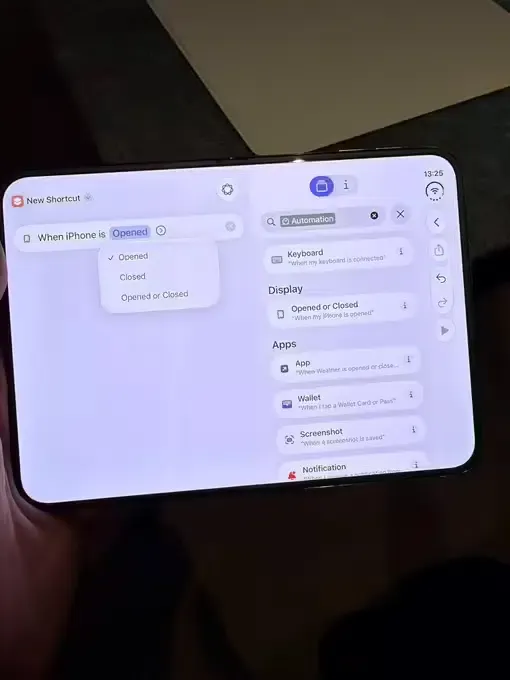
iPhone Duo Adds Open/Close Shortcuts Automation? Apple has included a dedicated “Opened or Closed” Personal Automation trigger inside the iOS Shortcuts app for the iPhone Duo, allowing users to trigger configured workflows when the foldable hardware changes state. Highlighted on October 25, 2026, by MacRumors following a hands-on demonstration by video creator Stephen Robles—and first spotted in simulator strings by researcher pdfu in September—the trigger is located under the Display category of Personal Automations. Rather than acting as an unrestricted background launcher, the feature operates within Apple’s device-bound automation rules, where trigger configuration, action-level permissions, lock-state constraints, and application scene lifecycles remain distinct architectural layers.
How the Opened or Closed Trigger Operates in iOS Personal Automation
At a Glance
- Confirmed Trigger Name and Location: The iPhone Duo includes an “Opened or Closed” trigger inside the Display section of Shortcuts Personal Automations, demonstrated by Stephen Robles and earlier identified in simulator code by pdfu.
- Device-Bound Scope: According to Apple’s Personal Automation architecture, automations are tied to the specific device, backed up to iCloud for restoration, and excluded from cross-device synchronization.
- Conditional Execution Boundaries: While supported Personal Automations can be configured to run without asking, actual execution still depends on individual action permissions, foreground constraints, and device lock status.
The addition of the “Opened or Closed” trigger brings physical hinge state transitions into the user-configurable automation layer on iOS. As reported by MacRumors and subsequent coverage from ITHome and Qudong China, users can bind either the opening or closing of the iPhone Duo to actions available in the Shortcuts library. A demonstrated consumer example involves dynamic wallpaper switching—applying a wide layout wallpaper when the inner display opens and reverting to a simpler wallpaper when the device closes.
To evaluate what this capability can and cannot do in production, engineering teams must refer to Apple’s official rules in Intro to Personal Automations in Shortcuts and Enable or Disable a Personal Automation:
- Event-Driven Local Scope: Personal Automations respond to events on the local hardware unit—such as time of day, arriving at a location, opening an app, or changing display state.
- iCloud Backup Without Cross-Device Sync: Unlike standard Shortcuts that sync across a user’s iPhone, iPad, and Mac, Personal Automations remain strictly local to the device where they are created. They back up to iCloud for device recovery but never propagate to other devices on the same Apple Account.
- Trigger Settings vs. Action-Level Permissions: When configuring a supported Personal Automation, users can toggle between receiving a confirmation notification (“Ask Before Running”) and allowing the trigger to “Run Immediately” (run without asking). However, selecting immediate execution at the trigger level does not grant unconditional silent execution to every downstream action. Individual actions—particularly those that switch foreground apps, access protected user data, or run while the device is locked—remain subject to iOS security policies and action-specific prompts.
Separating Trigger Events, App Intents, and Scene State Management
A common engineering pitfall when analyzing new OS automation triggers is conflating the hardware trigger with unconditional third-party application execution. On the iPhone Duo, five separate layers govern what happens when a user opens or closes the hinge:
[Layer 1: Hinge Open / Close Hardware Event]
                      │
                      ▼
[Layer 2: Shortcuts Personal Automation Trigger ("Opened or Closed")]
                      │
         ┌────────────┴────────────┐
         ▼                         ▼
[Ask Before Running]      [Run Without Asking (When Supported)]
 (Notification Prompt)     (Subject to Action & Lock-State Checks)
         │                         │
         └────────────┬────────────┘
                      ▼
[Layer 3: Configured Shortcut Action (System Setting vs. App Action)]
                      │
                      ▼
[Layer 4: App Intent / Open App / URL Action — Conditional Execution]
                      │
                      ▼
[Layer 5: App-Owned State & Scene Layout (UIWindowScene / SceneStorage)]
Conditional Boundaries for App Intents and URL Actions
Through Apple’s App Intents framework, third-party developers can expose app-specific actions and entities to the Shortcuts app so users can incorporate them into custom workflows. However, general App Intents support does not automatically guarantee how every action behaves under the “Opened or Closed” trigger:
- Foreground vs. Background Execution: Lightweight background intents (such as logging a state timestamp or toggling an in-app preference that does not require UI presentation) behave differently from actions that attempt to bring an application to the foreground (
Open ApporopenAppWhenRun). - Lock-State Restrictions: Closing the iPhone Duo frequently coincides with screen locking or outer-screen transition, while opening the device may require biometric authentication depending on user security settings. Actions that require an unlocked keychain or active foreground scene may pause or request confirmation until authentication completes.
- URL Schemes and Universal Links: While Shortcuts includes actions capable of opening URLs, Universal Links and custom URL schemes do not inherently monitor hinge posture, nor is there verified evidence that the “Opened or Closed” trigger bypasses standard system confirmation or foreground requirements when invoking deep links. Developers must treat posture-triggered URL or intent execution as a user-configured, conditional workflow that requires empirical testing on hardware.
Independent Responsibilities: OS Windowing vs. App State Continuity
When a foreground app is already active while the user opens or closes the iPhone Duo, the transition between the exterior screen and the wide interior display is managed by iOS windowing APIs (UIWindowScene and SwiftUI adaptive layouts)—not by Shortcuts.
If a user also configures an “Opened or Closed” automation that interacts with the same app during a posture transition, both events can occur in close temporal proximity. Preserving active navigation stacks, form inputs, or deep-linked views across screen geometry changes remains the responsibility of application business logic:
| System Layer | Confirmed Scope | Developer Verification Boundary |
|---|---|---|
| Shortcuts “Opened or Closed” Trigger | Fires a local Personal Automation when the iPhone Duo opens or closes | Verify which specific actions run without confirmation when closing (locking) vs. opening |
| App Intents Integration | Exposes developer-defined actions and parameters to the Shortcuts app | Test how openAppWhenRun and background intents behave during simultaneous screen transitions |
iOS Windowing (UIWindowScene) |
Resizes active scenes between the outer display and inner Split View | Ensure adaptive layout changes do not re-instantiate root views or discard active navigation state |
State Restoration (SceneStorage / NSUserActivity) |
Assists in saving and restoring view-level state across scene lifecycle events | Subject to iOS lifecycle limits; requires explicit developer implementation rather than automatic persistence |
Documented iOS 27 Posture Baseline vs. Reported iOS 27.1 Features
When designing layouts and testing automation interactions on the iPhone Duo, engineering teams should distinguish between Apple’s officially documented iOS 27 baseline and unverified secondary media claims regarding iOS 27.1.
Apple’s Official iOS 27 Posture and Split View Baseline
In the Apple Newsroom announcement for iPhone Duo and the official iPhone User Guide, Apple establishes the following hardware states and multitasking baseline:
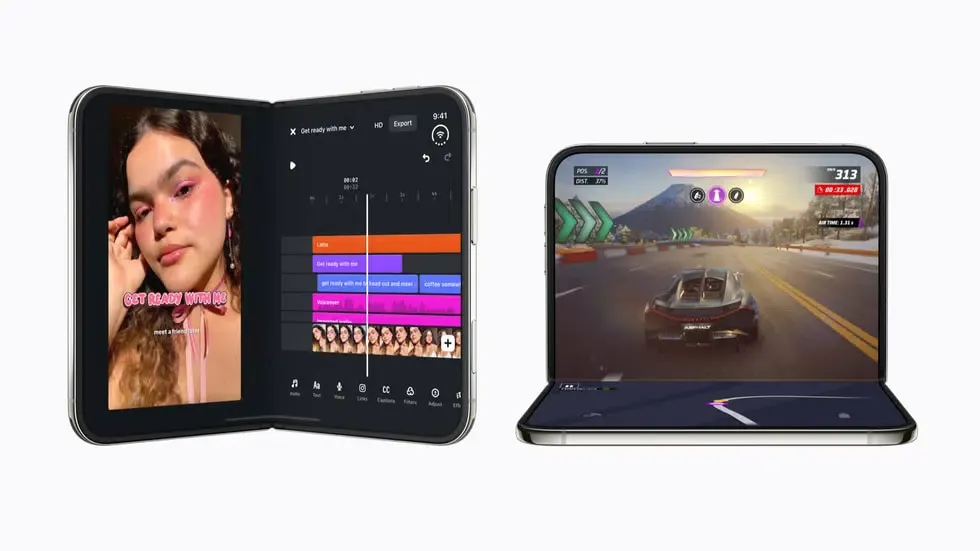
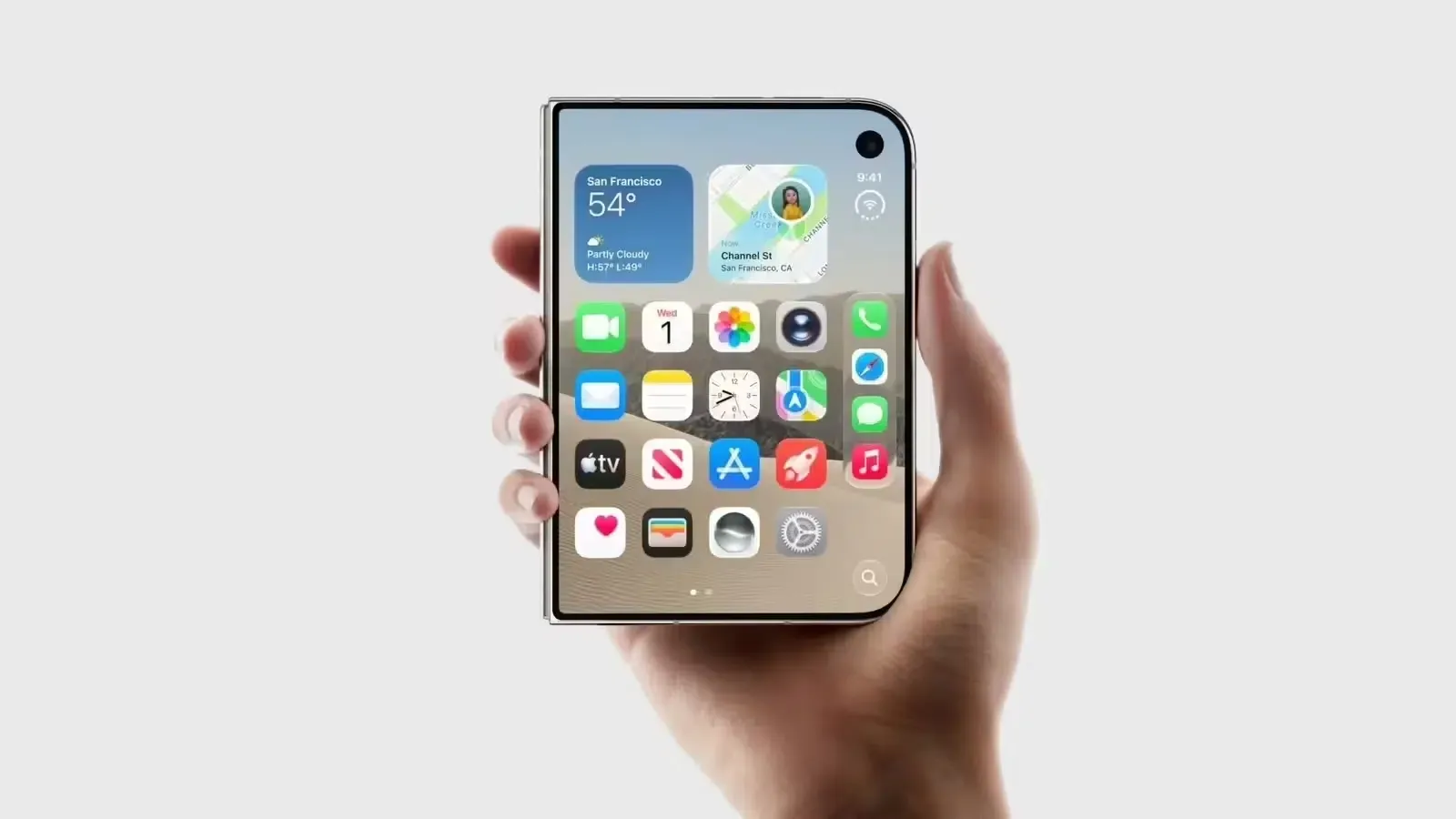
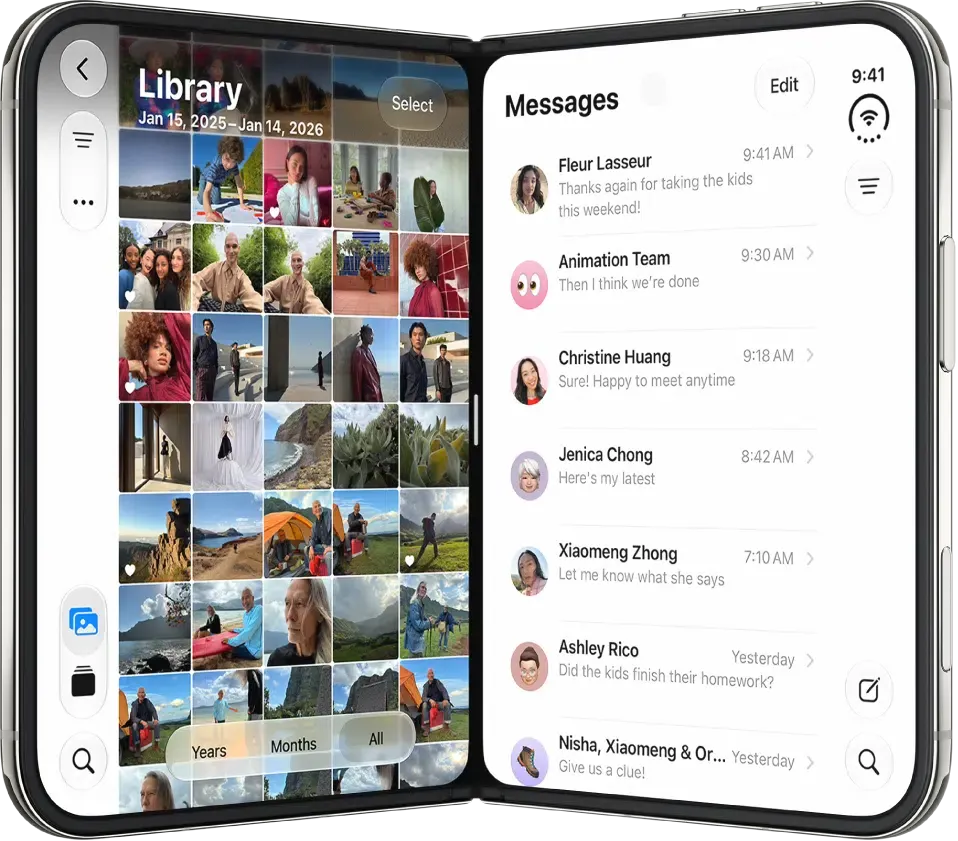
- Opened and Closed States: Opening the device activates the wide inner display, which officially supports running two apps side by side via iOS 27 Split View. Closing the device switches interaction to the exterior display for one-handed tasks.
- Partially Folded Postures: Apple documents three partially folded surface configurations—Book posture (held vertically or placed down for StandBy mode and Smart Capture), Tent posture (outer display facing the viewer for StandBy or external subject photo previews), and Chair or Laptop posture (inner display folded vertically for hands-free video controls and Duo FaceTime dual-screen calling).
Media-Reported iOS 27.1 Claims (Unverified by Official Documentation)
In their October 26 coverage of the Shortcuts trigger, Chinese outlets ITHome and Qudong China additionally claimed that iOS 27.1 introduces a half-folded hover desk-clock panel, split virtual keyboards with full-size trackpad simulation, and an advanced window manager supporting up to three side-by-side apps on the inner screen.
Because Apple’s official release materials and user guide currently document two-app Split View as the confirmed multitasking model—and no official Apple documentation has yet confirmed three-app side-by-side multitasking—developers should treat two-app Split View as the authoritative engineering baseline while viewing the iOS 27.1 claims as secondary media reports pending official confirmation.
Developer Testing Checklist for iPhone Duo Automations
Rather than assuming unconditional background execution, iOS engineering teams should validate their apps against the following testable scenarios:
App Intents and Execution Permissions
- Test Open vs. Close Trigger Directions Separately: Verify how your exposed App Intents behave when triggered by an “Opened” event (where the user is actively looking at the unlocked inner screen) versus a “Closed” event (where the device may immediately lock or transition to the outer screen).
- Audit
openAppWhenRunBehavior: If an App Intent brings the app to the foreground, test whether iOS requires manual user confirmation under different lock states even when the user enables “Run Immediately” on the Personal Automation. - Make Intent Handlers Idempotent: Ensure that rapid physical open-and-close cycles do not trigger duplicate network writes or conflicting navigation pushes if a user binds an intent to both directions.
Scene Continuity and Navigation State
- Preserve State Across Two-App Split View Transitions: Validate that transitioning an active app between the outer screen, full-width inner display, and Apple’s documented two-app Split View does not discard in-progress user state or deep-linked destination views.
- Verify
SceneStorageandNSUserActivityBoundaries: Confirm that view-state restoration tokens properly serialize and recover user context when a scene is resized or backgrounded during hinge movement.
Frequently Asked Questions (FAQ)
What is the exact name and location of the iPhone Duo fold automation trigger?
Do Opened or Closed Personal Automations sync across other Apple devices?
Does the Run Immediately setting guarantee silent execution for every action?
Does iPhone Duo support two apps or three apps side by side?
Key Takeaways for Engineering Teams
The discovery of the “Opened or Closed” trigger in iOS Shortcuts confirms that Apple is exposing foldable posture changes to user-configured Personal Automations on the iPhone Duo. For everyday users, this enables convenient local workflows such as changing wallpapers or adjusting display settings when opening or closing the device.
For iOS developers and product managers, the key architectural lesson is maintaining strict separation of concerns. Hardware posture triggers, Shortcuts execution permissions, third-party App Intents, and UIWindowScene layout transitions operate under distinct system rules. By testing App Intents across locked and unlocked hinge transitions and anchoring layout adaptation to Apple’s documented two-app Split View baseline, engineering teams can ensure reliable behavior on foldable iOS hardware without relying on unverified platform assumptions.
References
-
MacRumors: iPhone Duo Includes ‘Opened or Closed’ Shortcuts Automation (October 25, 2026)
-
Apple Support: Intro to Personal Automations in Shortcuts on iPhone and iPad
-
Apple Support: Enable or Disable a Personal Automation in Shortcuts on iPhone or iPad
-
Apple Support: Adjust the Posture of iPhone Duo — iPhone User Guide for iOS 27
-
ITHome: Apple iPhone Duo Adds Shortcuts Trigger for Unfold and Fold Actions (October 26, 2026)
-
Qudong China: Apple iPhone Duo Shortcuts Adds Unfold and Fold Automation (October 26, 2026)
Share this article