How do you fix CocoaPods framework signing errors when integrating an iOS SDK? Diagnose the affected non-executable resource-bundle target triggering the Development Team error, then apply a target-scoped CocoaPods post_install override rather than disabling signing globally across every bundle.
In affected CocoaPods/Xcode configurations, generated resource-bundle targets can inherit signing settings that cause Xcode to request a Development Team. Resolving these build failures requires configuring custom Podfile post_install build hooks to disable signature requirements for non-executable resource sub-targets or executing manual XCFramework embedding protocols.
| Term | Definition | Related Entity | Search Intent Role |
|---|---|---|---|
| iOS SDK | A compiled framework enabling mobile attribution and deep linking on iOS. | Xcode Framework Target | Informational / Technical |
| CocoaPods | An application-level dependency manager for Swift and Objective-C projects. | Podfile Build Hook | Technical / Informational |
| Privacy Manifest | A structured manifest detailing an app or framework’s privacy practices. | PrivacyInfo.xcprivacy | Technical / Compliance |
Why Xcode 15 and 16 Code Signing Rules Break iOS SDK CocoaPods Builds
Xcode Build Toolchains and Resource Bundle Signing
Starting with Xcode 15 and continuing into Xcode 16, modifications to Xcode’s build system altered how code signing settings propagate down to generated sub-targets. In affected Xcode and CocoaPods configurations, non-executable resource-bundle targets that package resources such as PrivacyInfo.xcprivacy, asset catalogs, or localized strings can inherit code signing settings that prompt Xcode to request a Development Team.
This issue represents a build-system integration mismatch within CocoaPods target generation rather than a strict Apple policy requiring every standalone, non-executable resource bundle to possess an independent code signature.
Anatomy of the Compilation Error: Signing for Target Requires a Development Team
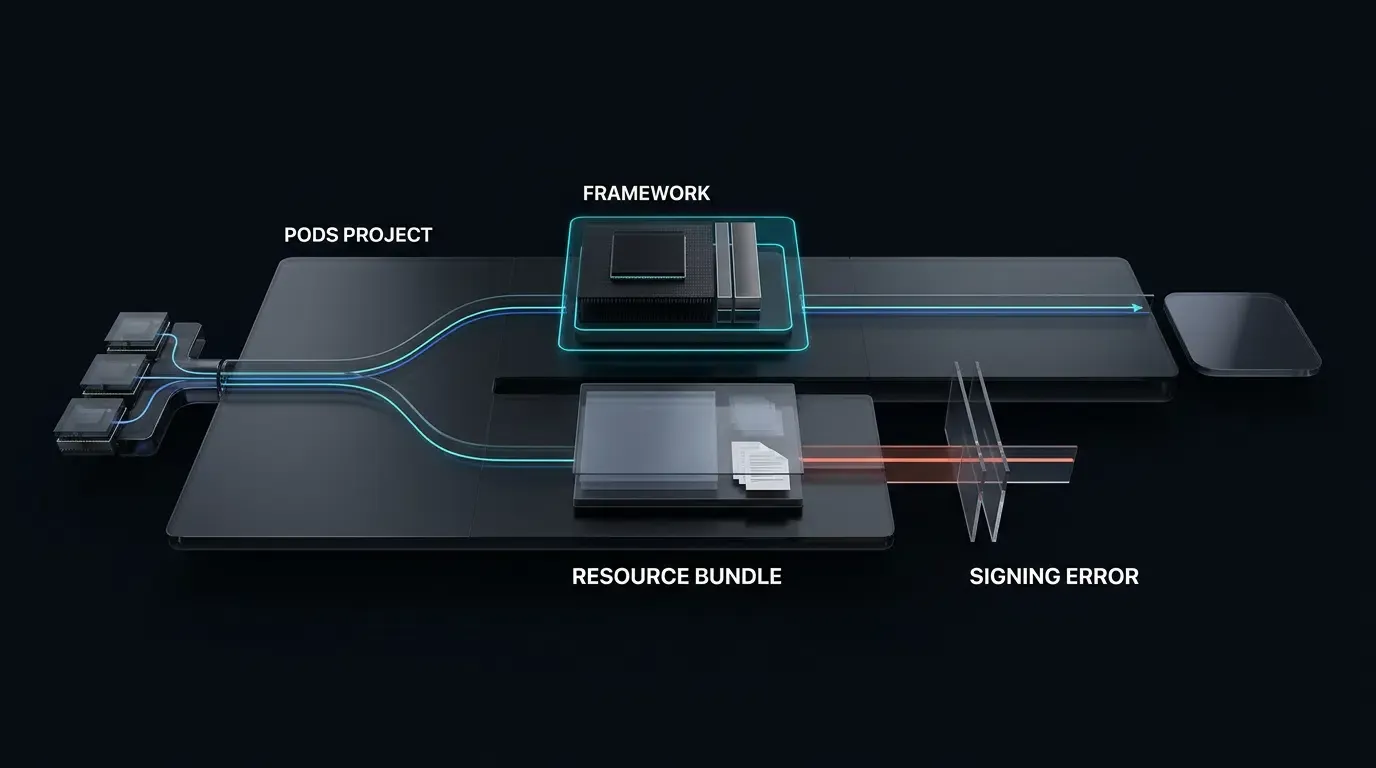
When integrating dependencies using CocoaPods, the dependency manager generates a separate Pods.xcodeproj project containing isolated targets for each pod and its associated resource bundles. During archive creation or simulator compilation, Xcode evaluates targets named similarly to libOpoInstallSDK-OPPrivacy or Pods-YourApp-resource-bundle.
The compilation fails with a characteristic build error:
Signing for "libOpoInstallSDK-OPPrivacy" requires a development team.
Select a development team in the Signing & Capabilities editor.
Because CocoaPods generates these sub-targets dynamically upon running pod install, manually setting a Development Team within the Xcode GUI is ephemeral. Re-running pod install or building on a clean CI/CD worker overwrites the project file, causing the build error to recur.
How CocoaPods Sub-Targets Inherit Unsigned Properties for Privacy Manifest Bundles
Some CocoaPods podspecs package privacy manifests through generated resource-bundle sub-targets (for instance, via resource_bundles declarations), while others ship manifests inside vendored frameworks or direct resource declarations.
In affected CocoaPods configurations, a generated resource-bundle sub-target may lack a usable DEVELOPMENT_TEAM value or inherit signing settings that cause Xcode to request one. Consequently, while the main application target builds with a valid provisioning profile, the nested resource-bundle sub-target can trigger Xcode’s code signing pre-flight check. Resolving this issue requires a targeted workaround at the Podfile level or a transition to manual framework embedding.
How to Configure Podfile Build Hooks to Fix Framework Bundle Signing Errors
Understanding the CocoaPods post_install Execution Hook
CocoaPods provides a Ruby-based lifecycle hook named post_install within the Podfile. This hook executes immediately after CocoaPods finishes generating the Pods.xcodeproj project file but prior to writing it to disk. By intercepting project generation at this stage, developers can programmatically iterate through generated targets, inspect their product types, and modify build configuration settings before Xcode initiates compilation.
Automating Scoped Build Settings Overrides for Resource Bundle Sub-Targets
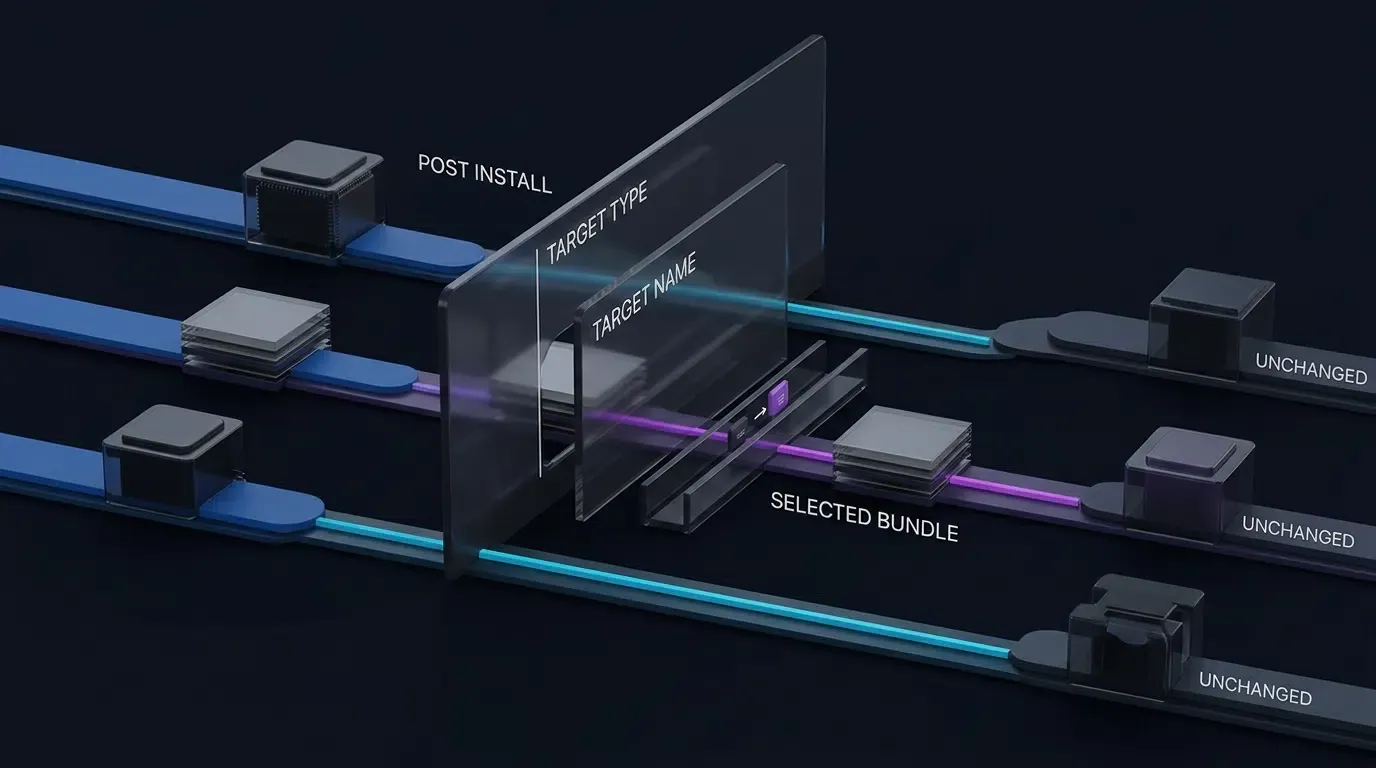
To resolve bundle signing errors across both local development machines and remote CI/CD build agents, the post_install hook can inspect target names and product types. Rather than disabling code signing globally across every CocoaPods resource bundle—which can introduce security risks across third-party dependencies—developers should scope the override to specifically affected target bundles.
When a target matches Apple’s resource bundle product type (com.apple.product-type.bundle) and matches designated target names, the script clears the CODE_SIGN_IDENTITY build setting and sets CODE_SIGNING_ALLOWED to NO. For specifically affected non-executable resource-bundle targets, disabling target-level code signing serves as a targeted build-system workaround when validated against the final archived app and App Store submission workflow.
The Ruby script below demonstrates how to implement this scoped override inside your project Podfile:
# Podfile - Scoped Build Settings Override for Resource Bundle Signing
# Place this post_install hook at the bottom of your project Podfile

post_install do |installer|
  # Define specific target bundle names requiring signing exemptions
  affected_bundle_targets = [
    'libOpoInstallSDK-OPPrivacy'
  ]

  installer.pods_project.targets.each do |target|
    next unless target.respond_to?(:product_type)
    next unless target.product_type == 'com.apple.product-type.bundle'
    next unless affected_bundle_targets.include?(target.name)

    target.build_configurations.each do |config|
      # Clear Code Sign Identity and disable signing for designated resource bundles
      config.build_settings['CODE_SIGNING_ALLOWED'] = 'NO'
      config.build_settings['CODE_SIGN_IDENTITY'] = ''
    end
  end
end
Verifying CI/CD Compatibility Across Xcode Archive and Simulator Build Targets
After appending the scoped build hook to the Podfile, execute pod install to apply the updated configurations to Pods.xcodeproj. Simulator builds often have less restrictive distribution-signing requirements than device archives, but engineering teams should validate the affected target settings separately across local simulator runs, CI/CD automated test runs, and Xcode release archive configurations.
Diagnostic Inspection Commands for Code Signing Verification
Inspecting Target Build Settings and Code Signing Identities
When diagnosing intermittent signing failures on build servers, developers can query Xcode’s build configuration directly via terminal commands. This allows verification of whether the Podfile post_install hook successfully cleared code signing requirements for affected sub-targets. Note that build settings can also be inspected directly on individual targets within Pods.xcodeproj in Xcode to verify target-specific effective values.
Run the following command from the project root directory:
# Inspect code signing build settings for a target workspace
xcodebuild \
  -workspace YourApp.xcworkspace \
  -scheme YourApp \
  -configuration Release \
  -showBuildSettings | grep -E "(CODE_SIGN|DEVELOPMENT_TEAM)"
Auditing Xcode Archive Bundles and Signature Integrity
Following archive generation, inspect the compiled application package to confirm that privacy manifests are correctly positioned and that framework binaries maintain signature integrity.
Execute these diagnostic terminal commands on an extracted IPA (within Payload/YourApp.app) or inside an Xcode .xcarchive path (Products/Applications/YourApp.app):
# Inspect privacy manifest presence inside an extracted IPA package
find Payload/YourApp.app -name "PrivacyInfo.xcprivacy" -print

# For a dynamically embedded framework, verify codesign signature integrity:
codesign -dv --verbose=4 Payload/YourApp.app/Frameworks/OpoInstallSDK.framework

# Execute deep signature verification on final compiled application bundle
# Note: Use --deep strictly for verification inspection; do not use --deep during code signing execution
codesign --verify --deep --strict --verbose=2 Payload/YourApp.app
Executing this inspection sequence establishes a complete diagnostic loop (reproduce → inspect → patch → verify) to ensure release builds satisfy App Store Connect validation.
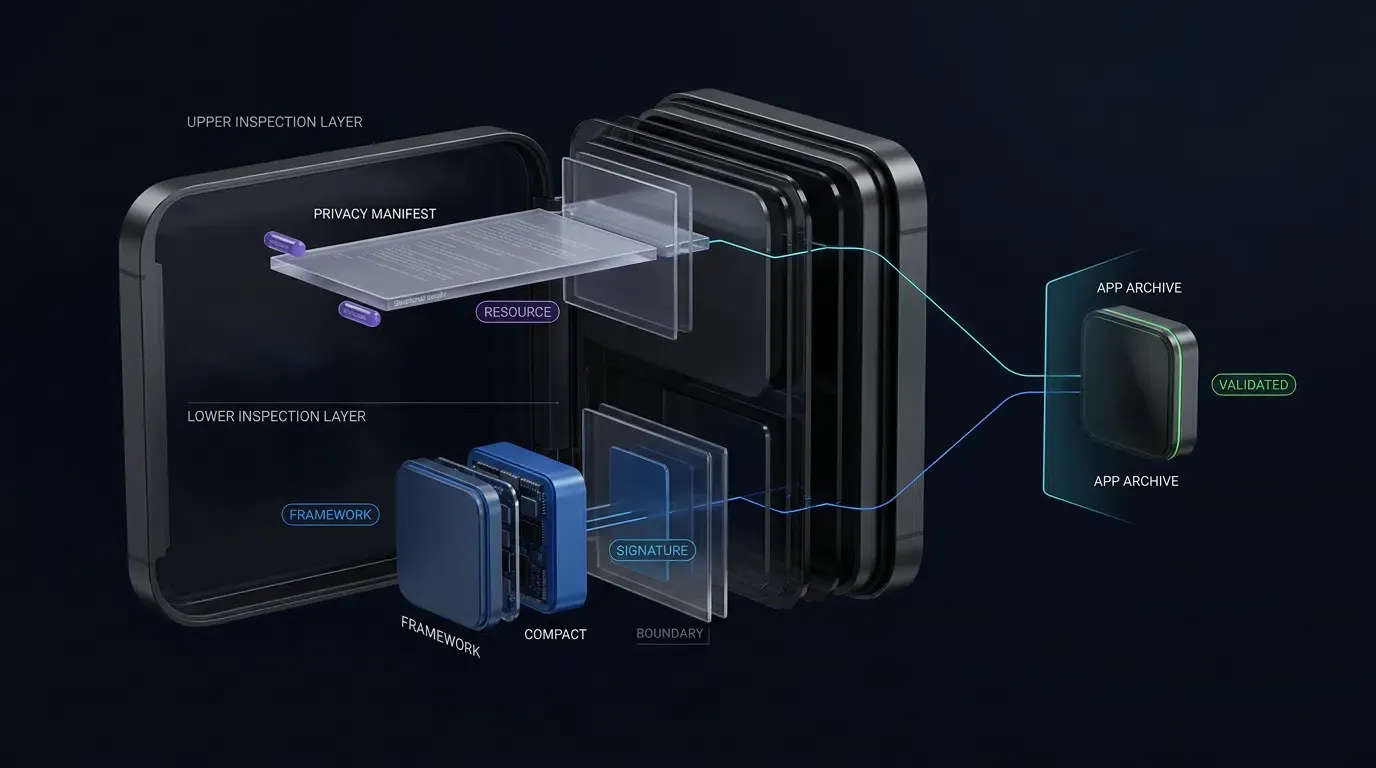
How to Import the iOS SDK via CocoaPods Dependency Manager
Configuring the Target Project Podfile with pod ‘libOpoInstallSDK’
Integrating OpoInstall, a mobile attribution and deep linking platform, via CocoaPods represents the standard dependency management approach for iOS apps. The current CocoaPods distribution handles the SDK’s linkage and packaged resources according to its podspec. Include use_frameworks! when required by the SDK’s current CocoaPods integration or project architecture.
To add the dependency, open the root Podfile and specify the target dependency:
target 'YourAppTarget' do
  use_frameworks!

  # Import OpoInstall iOS Attribution SDK
  pod 'libOpoInstallSDK'
end
Executing Dependency Ingestion and Validating Workspace Integrity
Run the installation command from the project root directory using the terminal:
pod install --repo-update
Upon successful completion, CocoaPods generates or updates the .xcworkspace file. Developers must close the standard .xcodeproj file and open the .xcworkspace file in Xcode. Inspect the Pods project folder to verify that libOpoInstallSDK and its associated OPPrivacy bundle target appear under the Pods target list.
Initializing the SDK Engine in Swift Project Architectures
After linking the framework, initialize the SDK within the application lifecycle delegate. Initialize the SDK at the lifecycle point documented for the exact SDK release; current public examples initialize it from application(_:didFinishLaunchingWithOptions:) to capture cold-start Universal Link parameters and dynamic installation payloads. Verify delegate protocol and data model type names (e.g., OpoinstallData or OpoInstallData) against the exact OpoInstall SDK version shipped.
Developers can review the complete iOS attribution SDK documentation for detailed delegate method definitions and dynamic parameter callback signatures.
The implementation snippet below illustrates how to conform to OpoInstallDelegate and trigger SDK initialization across modern Swift codebases:
// AppDelegate.swift - OpoInstall iOS SDK Initialization
// Place inside your iOS Application Delegate

import UIKit
import libOpoInstallSDK

@main
class AppDelegate: UIResponder, UIApplicationDelegate, OpoInstallDelegate {

    var window: UIWindow?

    func application(
        _ application: UIApplication,
        didFinishLaunchingWithOptions launchOptions: [UIApplication.LaunchOptionsKey: Any]?
    ) -> Bool {

        // Initialize OpoInstall SDK with delegate listener
        OpoInstallSDK.initWith(self)

        return true
    }

    // Callback method: Handles parameters retrieved when app is launched via deep link
    func getWakeUpParams(_ appData: OpoinstallData?) {
        if let customData = appData?.data {
            print("OpoInstall SDK: Custom Launch Parameters = \(customData)")
        }
        if let channelCode = appData?.channelCode {
            print("OpoInstall SDK: Channel ID = \(channelCode)")
        }
    }
}
Manual Framework Import Workflow for iOS Project Targets
When to Choose Manual Import over CocoaPods in Enterprise Build Environments
While CocoaPods simplifies package management, certain enterprise development environments enforce strict security or build environment constraints. Manual framework integration is preferred when:
- Repository Isolation: Build systems restrict outbound internet connections, preventing
pod installdependency fetches during compilation. - Build Pipeline Speed: Eliminating CocoaPods analysis and script execution steps reduces CI/CD compilation times.
- Direct Binary Control: Security compliance policies require static binary analysis on exact
.xcframeworkartifacts prior to project inclusion.
Downloading and Embedding XCFramework Artifacts
To manually import the SDK without dependency managers, download the latest iOS SDK framework package. Unpack the distribution archive to locate the compiled OpoInstallSDK.xcframework directory.
To identify whether an XCFramework slice is static or dynamic before embedding, execute the file command in terminal:
# Query binary architecture slice type
file OpoInstallSDK.xcframework/ios-arm64/OpoInstallSDK.framework/OpoInstallSDK
Follow these steps to integrate the binary into Xcode:
- Step 1: Open your main application project in Xcode.
- Step 2: Drag the
OpoInstallSDK.xcframeworkdirectory into the Xcode Project Navigator under the primary target framework group. - Step 3: In the dialog prompt, check Copy items if needed and select your primary application target under Add to targets.
Configuring Link Binary With Libraries and Framework Search Paths
Navigate to your application’s target configuration within Xcode:
- Build Phases: Expand the Link Binary With Libraries section. Confirm that
OpoInstallSDK.xcframeworkis listed. - Build Settings: Search for Framework Search Paths (
FRAMEWORK_SEARCH_PATHS). Ensure the directory path containing the manually added framework is present. - System Dependencies: Add only the Apple system frameworks documented by the exact SDK release you are integrating (e.g.,
AdSupport.frameworkorWebKit.framework). Do not add unverified legacy frameworks.
Setting Embed and Sign Policies for Dynamic versus Static Binaries
Select the application target and navigate to the General tab. Locate the Frameworks, Libraries, and Embedded Content section:
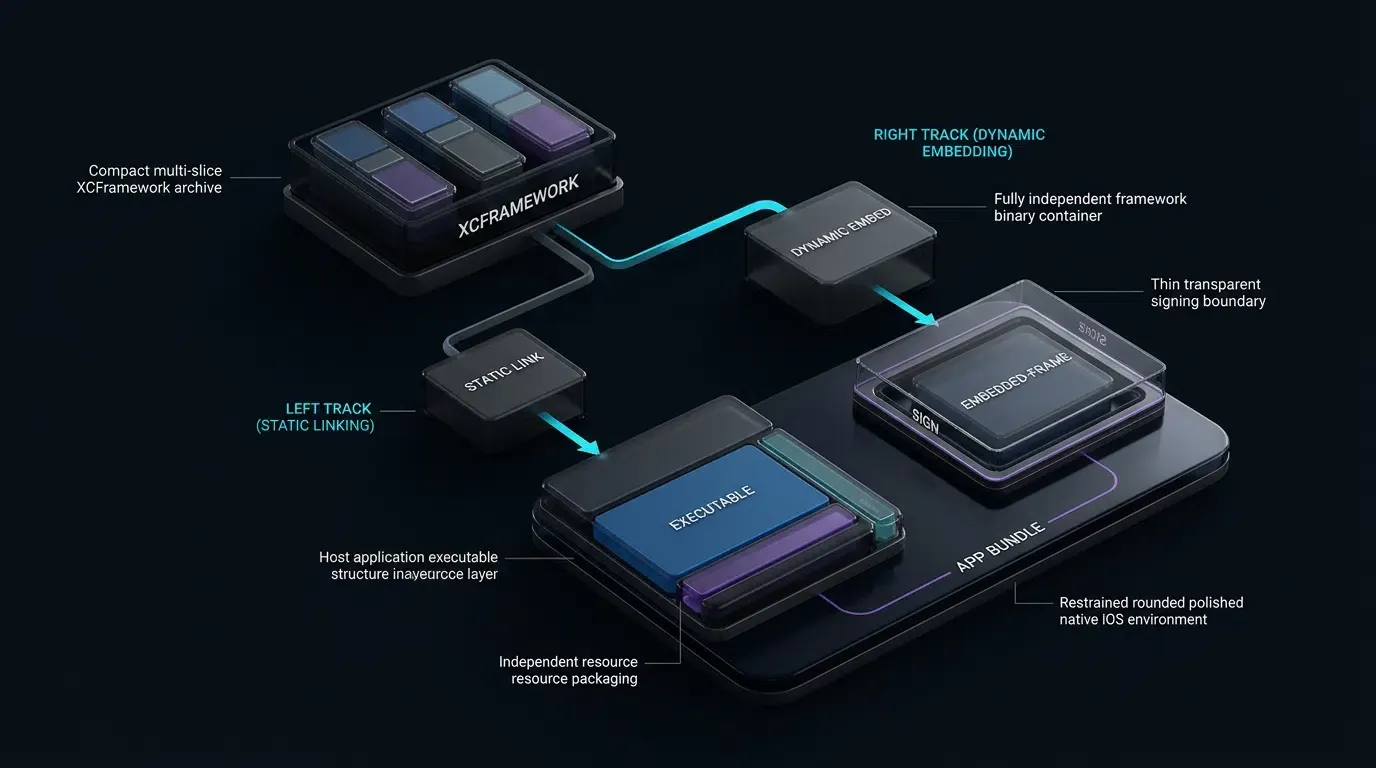
- Dynamic Frameworks: Set the embed option to Embed & Sign. Dynamic frameworks must reside within the final app bundle’s
Frameworksdirectory so the dynamic linker (dyld) can load them at runtime, and Xcode will apply your development team’s code signature during archiving. - Static Frameworks without Resources: Linking the binary is sufficient, and embedding the framework is typically unnecessary because static code is compiled directly into the main application executable.
- Static Frameworks with Resources (including Privacy Manifests): Follow the SDK vendor’s distribution guidelines. For Xcode 15+ static frameworks built to package embedded resources, Apple documents adding the framework with Embed & Sign; Xcode omits the already statically linked executable binary while preserving and signing the framework bundle and its embedded resources.
Troubleshooting PrivacyInfo.xcprivacy Signature Conflicts in CocoaPods
Apple Privacy Manifest Requirements for Third-Party Framework Dependencies
Third-party SDKs may need to include a PrivacyInfo.xcprivacy manifest depending on their API usage, data-collection practices, tracking behavior, and whether the SDK appears on Apple’s published list of SDKs subject to explicit manifest requirements.
The current OpoInstall distribution includes a PrivacyInfo.xcprivacy manifest; developers should verify its declarations against the specific SDK version shipped and Apple’s current submission guidelines prior to archiving.
Resolving Duplicate Privacy Manifest Resource Conflicts
When building an application that incorporates multiple third-party dependencies, Xcode discovers privacy manifests across the archived app and linked SDK bundles, aggregating their declarations when generating the Xcode Privacy Report for auditing incorporated privacy declarations.
If a project incorrectly includes duplicate privacy manifest files directly inside the main target’s Copy Bundle Resources phase, Xcode may emit a build warning or error:
Multiple commands produce '.../PrivacyInfo.xcprivacy'
To resolve this conflict:
- Framework Manifest Location: For an iOS XCFramework,
PrivacyInfo.xcprivacymust reside inside each applicable platform-specific framework variant (for example,OpoInstallSDK.xcframework/ios-arm64/OpoInstallSDK.framework/PrivacyInfo.xcprivacy), rather than being placed at the XCFramework root container directory. - Main App Resources: Keep host application privacy declarations in the main target’s resources, while allowing SDK framework variants to manage their respective manifest files internally.
Verifying Required Reason API Declarations inside PrivacyInfo.xcprivacy
Inspect the contents of the privacy manifest to verify that all declared API categories match Apple’s official Required Reason API specifications. Open PrivacyInfo.xcprivacy as a Property List or raw XML in Xcode. Declarations should correspond strictly to necessary API usages:
<?xml version="1.0" encoding="UTF-8"?>
<!DOCTYPE plist PUBLIC "-//Apple//DTD PLIST 1.0//EN" "http://www.apple.com/DTDs/PropertyList-1.0.dtd">
<plist version="1.0">
<dict>
    <key>NSPrivacyAccessedAPITypes</key>
    <array>
        <dict>
            <key>NSPrivacyAccessedAPIType</key>
            <string>NSPrivacyAccessedAPICategoryUserDefaults</string>
            <key>NSPrivacyAccessedAPITypeReasons</key>
            <array>
                <string>CA92.1</string>
            </array>
        </dict>
    </array>
</dict>
</plist>
Include only API categories and approved reason codes that correspond to the SDK’s actual implementation requirements.
Validating Final App Store Connect IPA Submissions
Before submitting an application update to App Store Connect, validate the compiled IPA archive locally:
- Step 1: In Xcode, select Product > Archive.
- Step 2: Upon archive completion, click Validate App within the Organizer window.
- Step 3: Xcode checks embedded framework signatures, provisioning entitlements, and privacy manifest schemas against Apple validation servers.
A successful validation indicates that the archive cleared that pre-submission validation stage; it serves as a necessary build verification step prior to TestFlight or production submission.
Comparative Analysis of CocoaPods versus Manual iOS Framework Import
Trade-offs in Maintenance, Signature Isolation, and Build Automation
Choosing between CocoaPods and manual framework integration involves evaluating team workflows, build server capabilities, and dependency maintenance overhead. While CocoaPods automates version updating, Xcode version upgrades may require updating Podfile post_install hooks to match changing Apple signature policies.
The table below provides a detailed technical comparison of both import strategies:
| Feature Dimension | CocoaPods Dependency Manager | Manual Framework Embed (.xcframework) |
|---|---|---|
| Version Maintenance | Automated via pod update |
Manual binary download and replacement |
| Build Settings Configuration | Scripted via Ruby Podfile hooks |
Configured directly in Xcode Target Settings |
| Code Signing Management | May require a scoped post_install workaround |
Direct control in Target Framework settings |
| Privacy Manifest Handling | Managed through pod resources; Xcode aggregates discovered manifests into the Privacy Report | Verified inside each framework variant |
| CI/CD Pipeline Friction | Low (Requires Podfile.lock sync) |
Low (Framework stored in version control) |
Evaluating Dependency Management Strategies Across Enterprise Mobile Teams
CocoaPods remains a practical option for teams that already standardize on Podfile-based dependency management due to automated dependency resolution and centralized version locking via Podfile.lock. Incorporating a scoped Ruby signature override script helps address target-level signing blockages across team workstations and CI/CD build environments.
Frequently Asked Questions (FAQ)
Why does Xcode report signing errors for resource bundles in CocoaPods?
How do I resolve CocoaPods framework signature conflicts without modifying the original Podfile?
What is the correct way to manually embed PrivacyInfo.xcprivacy in XCFramework builds?
Summary and Decision Framework
Importing the iOS SDK efficiently requires selecting the appropriate dependency mechanism for your project toolchain while mitigating Xcode code signing strictness. Utilizing CocoaPods with a scoped post_install hook can resolve affected resource-bundle signing failures, while manual XCFramework embedding offers direct control over build artifacts.
As Apple continues refining App Store Connect verification rules, keeping client dependencies compliant with privacy manifest standards remains critical. By deploying updated SDK versions and maintaining automated Podfile hooks, engineering teams reduce recurring build blockages and improve integration consistency.
Developers ready to initialize their project key can register on the OpoInstall developer console or review the complete mobile attribution implementation reference for additional platform guidelines.
Related Materials
-
Concepts: iOS SDK, Code Signing Identity, Resource Bundle Signing, Privacy Manifest Aggregation
-
Technologies: CocoaPods, Xcode Build Toolchain, XCFramework, Swift Package Manager
-
Standards: Apple App Store Connect Submission Guidelines, Apple Privacy Manifest Requirements
-
APIs: OpoInstall iOS SDK Delegate APIs, Apple UIPasteboard APIs, Universal Links Associated Domains APIs
-
Official Documentation & References:
Share this article