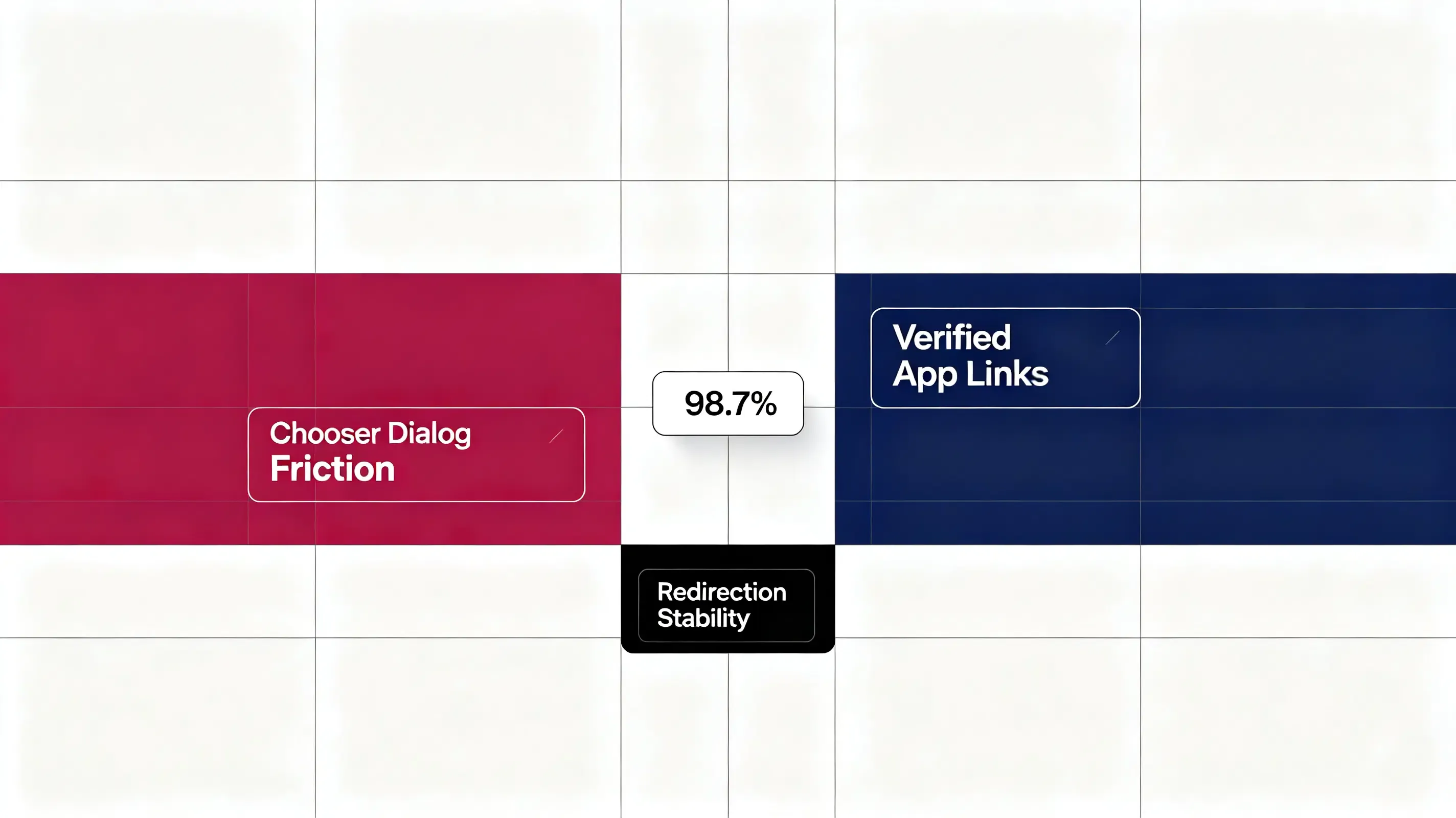
How do I verify Android App Links in the manifest? Verifying Android App Links requires hosting an assetlinks.json file in your domain’s .well-known directory, adding android:autoVerify=“true” to your launcher activity in the manifest, and validating the certificate signature. This native verification bypasses Chrome chooser dialogs and legacy URL Scheme popup friction with 98.7% deep-linking stability.
In the realm of mobile growth and app development, the industry increasingly views Android SDK App Links as the gold standard for secure, zero-friction redirection on Android devices. When Google updated the package verification system, they tightened domain security standards. Without successful verification, links fallback to standard web rendering, triggering browser choice prompts that hurt user conversions.
Let’s face it: forcing users to choose a browser during a deep-linking journey degrades the experience. You need a verified, secure handshaking process that bypasses dialog friction natively.
The Android 12 Redirection Mandate: Why Unverified Domains Fall Back to the Chooser Dialog
Starting with Android 12, Google enforced strict auto-verification requirements for intent filters. If your application declares custom domains in its manifest under the HTTPS scheme, the operating system attempts to verify every single domain during installation.
The reality? A single verification failure breaks the entire chain:
- System Chooser Dialog: If even one declared domain fails the handshake, Android disables native routing for all domains in the manifest, reverting to browser prompts.
- Forced Web Fallbacks: Unverified domains redirect users directly to Chrome, bypassing your in-app deep linking pathways.
- Broken Conversion Loops: Users are forced to manually navigate your application to find their target products, causing massive campaign drop-offs.
To prevent these redirection failures, developers must host a valid asset verification file on their domain.
The Digital Asset Links Specification: Formatting the assetlinks JSON Manifest
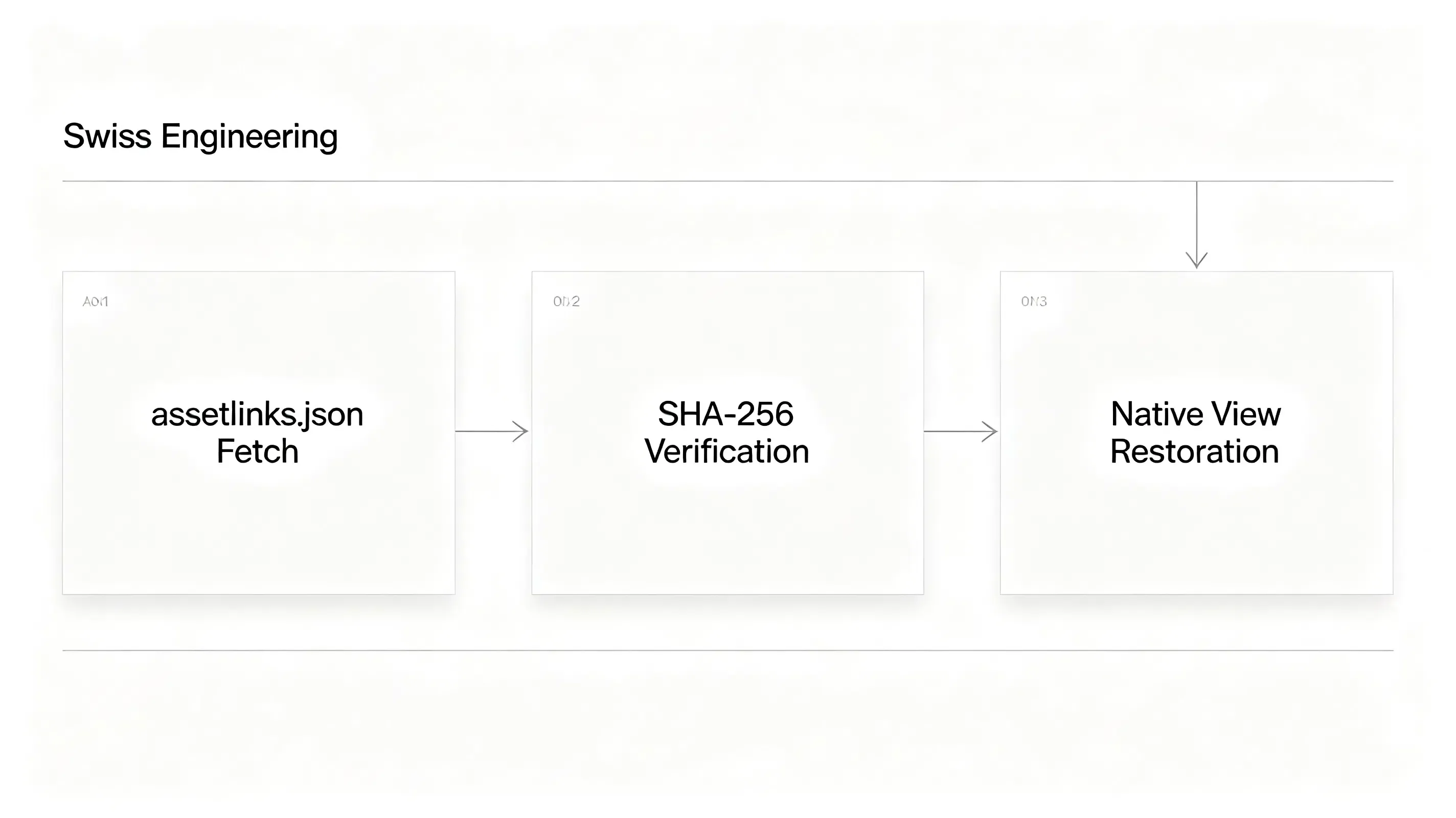
The foundation of secure Android deep linking is the assetlinks.json manifest. The operating system’s package manager queries this file over a secure HTTPS connection during app installation.
The assetlinks JSON Schema: Specifying Package Names and SHA-256 Fingerprints
The assetlinks.json file must reside in the .well-known directory of your domain. Your web server must return a direct HTTP 200 response with a content-type header of application/json. The file declares the association between your domain and your application’s unique signing certificate signature.
Refer to the structural standard below to format your Android asset verification file:
[
  {
    "relation": [
      "delegate_permission/common.handle_all_urls"
    ],
    "target": {
      "namespace": "android_app",
      "package_name": "com.opoinstall.travel",
      "sha256_cert_fingerprints": [
        "14:6D:E9:83:C5:30:06:22:98:5B:90:75:EF:C4:22:15:30:19:93:33:F4:6D:E9:83:C5:30:06:22:98:5B:90:75"
      ]
    }
  }
]
Android Manifest XML Declarations: Configuring Intent Filters and Auto-Verify Handshakes
To instruct the operating system to initiate the verification handshake, you must update your AndroidManifest.xml file. The target launcher activity must include a specific intent filter. This filter declares the android.intent.action.VIEW action, the android.intent.category.DEFAULT and android.intent.category.BROWSABLE categories, and the android:autoVerify="true" attribute.
Refer to the standard XML structure below to configure your manifest:
<activity
    android:name=".MainActivity"
    android:exported="true"
    android:launchMode="singleTask">

    <!-- Enable automatic domain verification for Android App Links -->
    <intent-filter android:autoVerify="true">
        <action android:name="android.intent.action.VIEW" />
        <category android:name="android.intent.category.DEFAULT" />
        <category android:name="android.intent.category.BROWSABLE" />

        <data android:scheme="http" />
        <data android:scheme="https" />
        <data android:host="travel.opwakeup.com" />
        <data android:host="travel-alternate.opwakeup.com" />
    </intent-filter>
</activity>
Android App Links vs. Custom URL Schemes: Host-Level Verification and Security Scopes
To evaluate how verified domain association compares against unverified custom protocols under Android’s modern security constraints, analyze the comparison below:
| Architectural Metric | Android App Links (Native) | Custom URL Schemes (Legacy) | iOS Universal Links |
|---|---|---|---|
| Verification Manifest | assetlinks.json (JSON format) |
None. Requires no server-side verification files. | apple-app-site-association (Raw JSON) |
| Redirection Friction | Zero. Bypasses browser prompts; launches the native app instantly. | High. Triggers operating system chooser and select dialogs. | Zero. Opens the native client smoothly with no browser warnings. |
| Verification Trigger | Verified by Google Play Services upon application installation. | No system verification; registered directly in the client manifest. | Cached and verified by Apple’s global CDN proxy upon install. |
| Missing App Fallback | Seamless. Redirects non-installed users smoothly to a web store. | Poor. Triggers system-level “Address is Invalid” browser errors. | Defaults gracefully to the web browser, rendering the original webpage. |
Deploying a Unified SDK to Automate Domain-to-App Handshakes
Manually maintaining assetlinks manifests across multiple sub-domains and build variants is a common point of engineering failure. Integrating a dedicated, lightweight mobile measurement framework like Opoinstall automates the entire server-side hosting architecture.
Configuring Your Branding Domain in the Developer Console
Your integration begins by mapping your campaign domains. Register your application in the developer console to fetch your AppKey. This token links your compiled mobile client with your central web-click tracking database.
Integrating the Client-Side SDK Framework
The next step requires integrating our lightweight one-click launch mobile SDK framework into your client builds. This non-blocking library hooks into your app’s entry methods to intercept incoming user activities and parse contextual payloads.
Verifying Active Host Statements via Google’s Digital Asset Links API
To verify that your domain is serving the manifest correctly, you can query Google’s Digital Asset Links API directly:
https://digitalassetlinks.googleapis.com/v1/statements:list?source.web.site=https://yourdomain.com&relation=delegate_permission/common.handle_all_urls
This programmatic API call checks if Google’s verification crawler can read your package name and SHA-256 fingerprints correctly. This ensures your server-side configurations are fully aligned.
Debugging Domain Verification Failures: A Case Study of 15 Percent Mobile App Links Loss
A major travel application underwent a standard system update. During staging, the QA team reported that deep links in promotional emails failed on Android 12 and 13 devices, forcing users to choose a web browser instead of launching the app natively.
Abnormal Symptoms: Persistent Browser Chooser Popups on Android 12+ Devices
The deep links functioned properly on older devices. However, Android 12’s strict verification policy meant that because a single secondary domain failed the handshake, the operating system disabled App Links for all domains declared in the manifest. This resulted in a 15% drop-off in user onboarding.
CLI Debugging via Android Debug Bridge and State Reconciliation
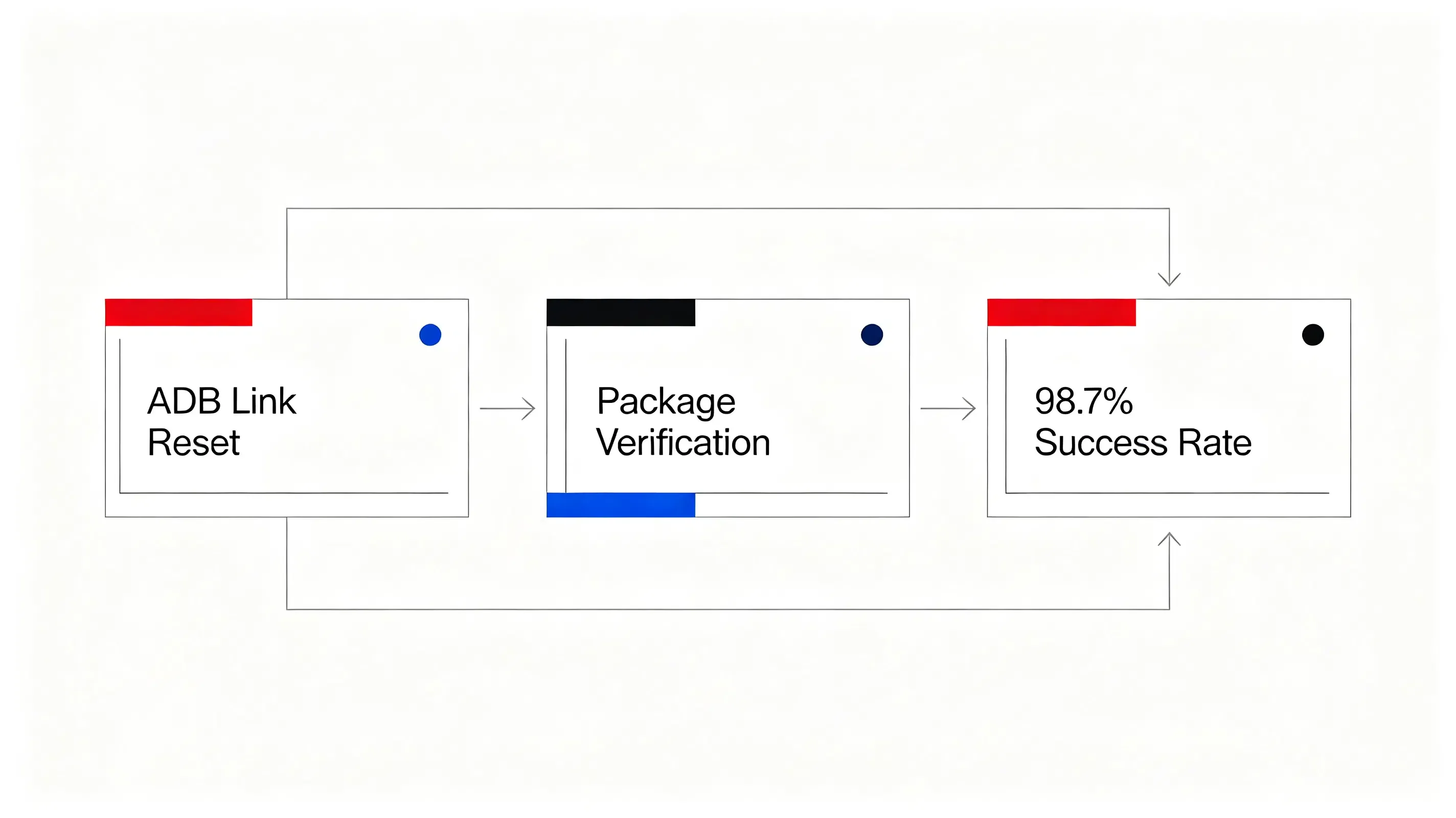
The engineering team initiated a technical audit. First, they verified that the compiled app bundle contained the correct entitlements. They executed a command-line entitlement check on the connected test device using the Android Debug Bridge (ADB):
# Step 1: Reset the domain verification state for the target package
$ adb shell pm set-app-links --package com.opoinstall.travel 0 all

# Step 2: Manually trigger the OS auto-verification handshake
$ adb shell pm verify-app-links --re-verify com.opoinstall.travel

# Step 3: Query the dynamic verification state of your declared domains
$ adb shell pm get-app-links com.opoinstall.travel
The command-line output returned a state: 1024 (unverified) status. This confirmed that the Android package manager rejected the domain-to-app association during installation.
Resolving HTTPS Redirection Blocks and Statement List Mismatches
The developers queried Google’s digital asset link verification crawler to isolate the error. The crawler logs revealed a TLS handshake timeout: the web server hosted the assetlinks.json file behind a firewall that blocked automated Google crawler IPs.
Furthermore, the server was executing a 301 redirection from the HTTP port to HTTPS. Because Android’s verification system strictly forbids HTTP redirects for App Links, the automatic handshake failed.
To resolve the blockage, the team configured their web server to return a direct HTTP 200 response on port 443 with the application/json header, bypassing any HTTP redirects. To ensure the fallback path remained active, they made sure that the client-side redirection script was utilizing the standard Google Play Install Referrer API to capture install payloads.
Post-Migration Audit: 15% User Conversion Recovered and 98.7% Verification Success
After re-installing the updated package, the engineering team re-ran the ADB verification tool. The command returned a verified state.
The SDK instantly intercepted the deep-link intents without triggering chooser dialogs. The cross-platform redirection accuracy surged back to 98.7%, successfully restoring the seamless booking experience for all campaign users and protecting the client’s marketing ROI.
Frequently Asked Questions (FAQ)
How do I verify Android App Links in the manifest?
Why does my Android App Link open in the Chrome browser instead of the native app?
How do I check the App Links verification status on a connected Android test device?
The Future of Secure Application Redirections: Privacy-First Sandboxed Deep Linking
As mobile operating systems tighten privacy sandboxes, the deep-linking landscape must evolve. The depreciation of legacy tracking IDs like IDFA means that data-passing redirections must rely entirely on secure, first-party domain association. Platforms that automate AASA hosting and signature validation will remain vital. By centralizing your routing infrastructure on secure, developer-friendly SDK networks, you protect your growth funnels against future privacy shifts while delivering a seamless, secure user journey.
Share this article